 Antimatter
Moderation
The tools Antimatter gives moderators, what each one does and doesn't do, and how to use them together to keep a community pleasant.
Who can moderate
Community admins can use every tool on this page, on everyone except other admins. Other people need a role with the right permissions (see Roles and permissions):
- Manage messages to edit and delete other people's messages, and to put messages on top of channels or take them off;
- Remove people to time people out and remove them from the community;
- Manage roles to give and take roles.
Any of these three gives access to the mod view. Moderators with Remove people can only time out people whose highest role is below their own.
The mod view
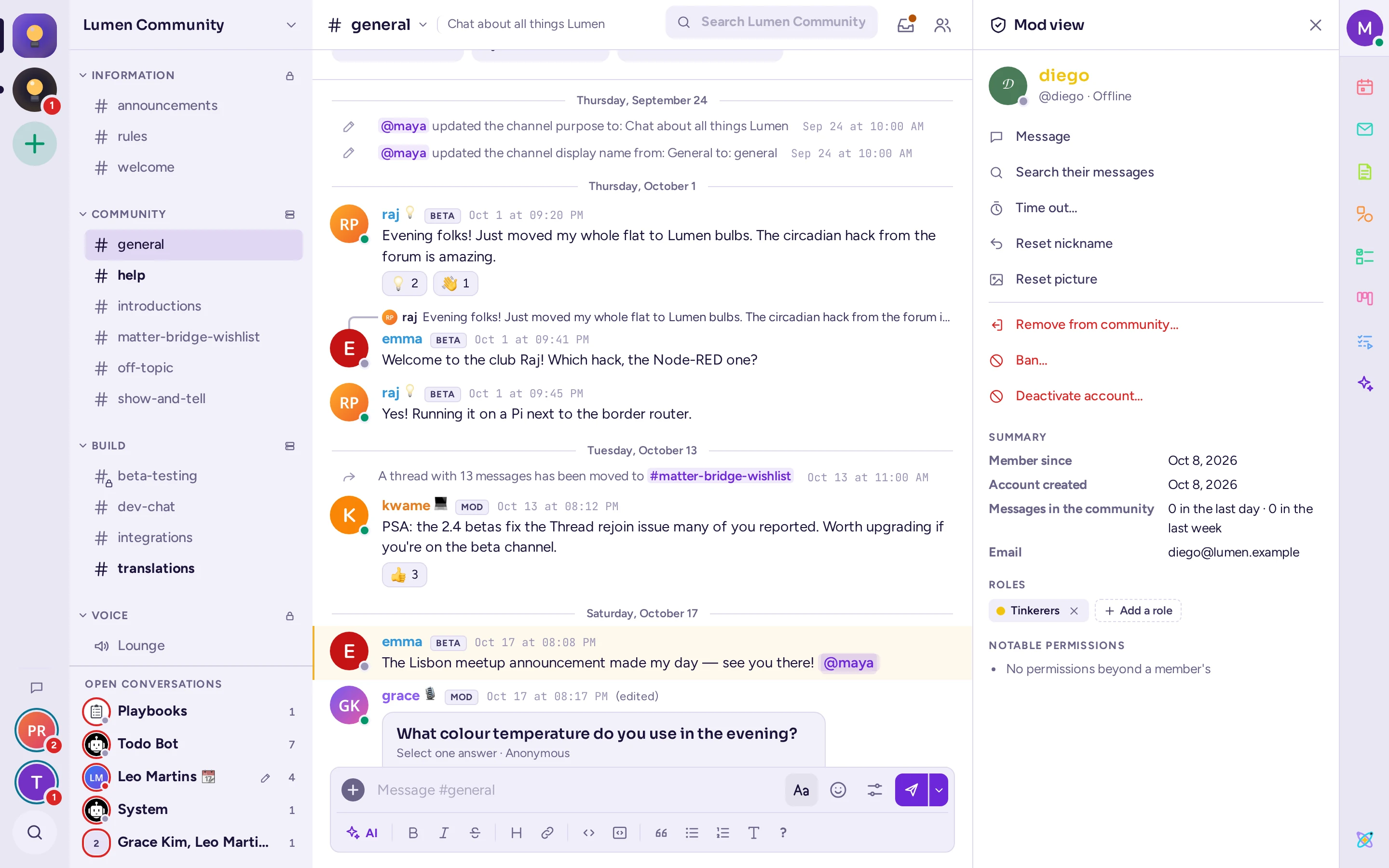
The mod view gathers what you need to know about one person, and the actions you can take. To open it, open someone's profile card and choose the shield button at the top right, or right-click their name and choose Mod view. It opens in the right-hand panel.
Under who they are, and their timeout if they have one, come the actions you are allowed to take, each once: Message, Search their messages, Time out… (or Remove timeout), then, in red, Remove from community…, Ban… and, for system admins, Deactivate account…. The red ones ask first. Below them:
- Summary: when they joined the community (Member since), when their account was created, and how many messages they posted in the community in the last day and the last week.
- Roles: their roles in the community. If you can manage roles, click Add a role and pick one of the roles they don't have, or remove one with its ×.
- Notable permissions: what they can do beyond a member, such as Manage messages or Remove and time out members.
- Reset nickname and Reset picture: for a nickname or a picture they set for this community that breaks its rules. You can only reset one, not set it yourself.
A new account that posts a lot in its first day is a typical sign of spam: the summary shows it at a glance.
Timeouts
A timeout stops someone from taking part for a while, without removing them. While timed out, they can read the community's channels, but can't send messages, react, attach files or mention people there. Their direct messages stay open.
- In the mod view or in their menu (right-click their name), choose Time out….
- Choose a Duration: 60 seconds, 5 minutes, 10 minutes, 1 hour, 1 day or 1 week.
- Optionally, write a Reason for the other moderators.
- Choose Time out.
The person sees "You're timed out until…" in place of the message box, until the timeout ends. They can't join or rejoin the community's voice channels and calls either. Everyone sees a Timed out tag next to their name in the member list, and the end of the timeout on their profile card.
The timeout ends by itself. To end it early, choose Remove timeout in the mod view or in their menu. A new timeout replaces the previous one. Removing someone from the community doesn't clear their timeout: if they come back before it ends, they are still timed out. Community admins can't be timed out.
Remove someone from the community
In the mod view or in their menu (right-click their name), choose Remove from community…, then confirm. They leave every channel of the community and lose their roles there; their messages stay. They are not told why: the community simply disappears from their rail.
A removed person can come back with a new invitation, or straight away if the community is public. If they shouldn't come back, ban them (see Keeping someone out), or make the community private and regenerate its invitation link (see Who can join).
To remove someone from a single channel instead, right-click their name and choose Remove from channel, or type /kick @username in that channel. This isn't possible when everyone in the community is in every channel.
Keeping someone out
Your options, from the lightest:
- A timeout of up to a week.
- Removing them, combined with a private community or a new invitation link.
- A ban: they leave every channel and can't come back by any way in — an open join, an invite link or code, an email invitation, group sync, or being added, even by an admin — until the ban ends or is lifted.
- Deactivating their account, which a system admin does from the mod view or the System Console. They are signed out everywhere and can't sign in again until a system admin reactivates them. This applies to the whole server, not only your community, so it is meant for spammers and serious abuse.
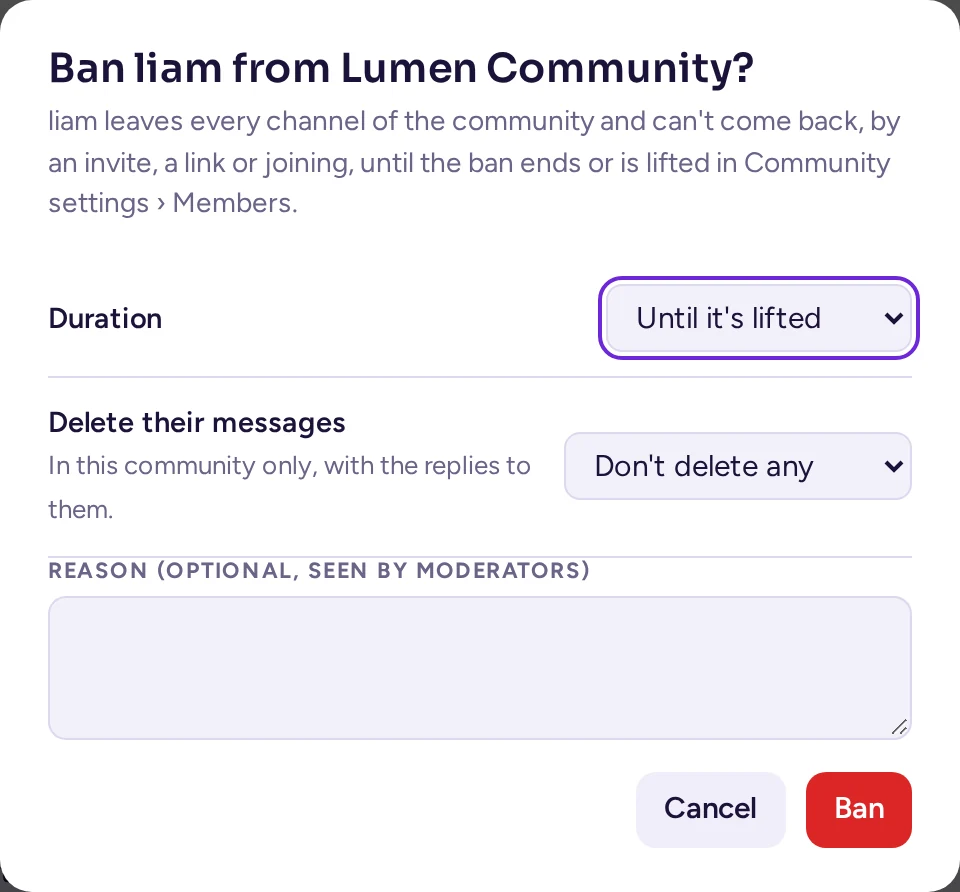
Anyone who may remove members can also ban them (below their own highest role; admins ban anyone but other admins). Choose Ban… in a person's menu or the mod view:
- Duration: until it's lifted, 1, 7 or 30 days.
- Delete their messages (optional, this community only, with the replies to them): none, the last hour, 6, 12 or 24 hours, or the last 3 or 7 days.
- An optional Reason, seen by moderators.
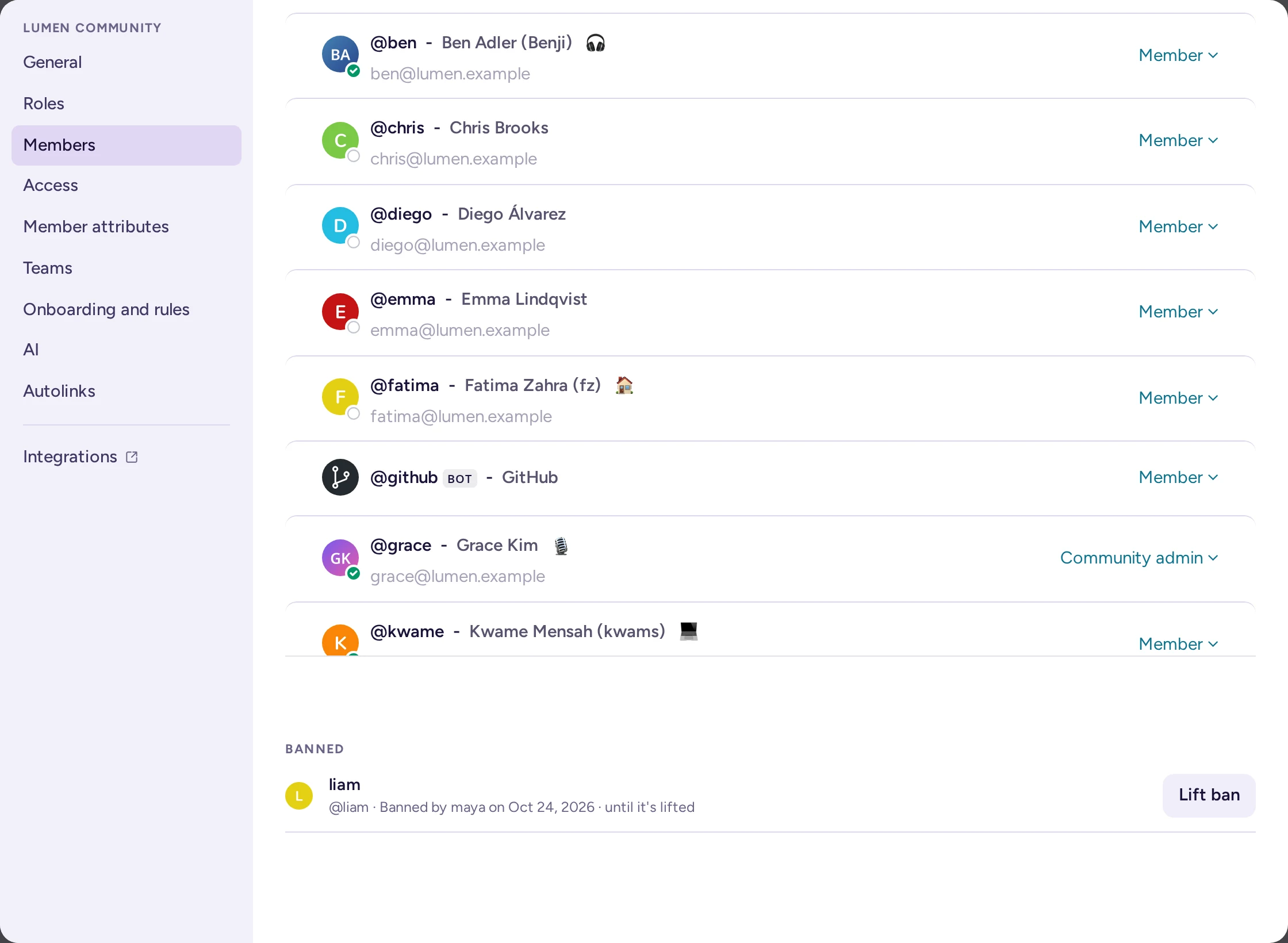
The ban list — who, by whom, when, until when, and why — is in Community settings › Members, after the members, with Lift ban on each. Moderators lift their own bans and those of moderators not above them; admins lift any.
Delete and edit messages
With Manage messages (or as a community admin), open a message's ⋯ menu and choose Delete. Deleting a message removes it for everyone, with its replies, and can't be undone. Community admins can delete but, by default, can't edit other people's messages; a role with Manage messages can do both.
Messages on top are in the moderators' hands: only a channel's admins, the community's admins and people with Manage messages put messages on top or remove them with Remove from top, so members can't take your announcements down. Pins are not: anyone who can read a channel can pin and unpin. See Messages put on top.
No slow mode exists. To calm a heated channel, restrict who can post in it for a while with its permissions (see Channel permissions), or time out the people involved.
Reports
When the server's report feature is on, members can report a message with Report message in its ⋯ menu. They choose a reason and add a comment. The message is hidden from the channel while it is reviewed, and the reviewers get it in a direct message from a bot, with Remove message and Keep message buttons.
Reports are off by default, and only a system admin can turn them on, in System Console › Site Configuration › Data Spillage Handling. There the system admin chooses:
- the reviewers: the same people for every community, or reviewers per community, and whether community admins and system admins review too (community admins do, by default);
- the list of reasons people can pick;
- whether reporters and reviewers must add a comment, and whether the message is hidden while it is reviewed.
The feature comes from compliance use, and its default reasons ("Classification mismatch", "Need-to-know violation" and so on) are written for organisations handling sensitive information. For a public community, ask your system admin to replace them with reasons such as "Spam", "Harassment" or "Off-topic", and to name your moderators as reviewers: having Manage messages doesn't make someone a reviewer.
Ignoring and blocking
Members can protect themselves without a moderator, from the menu on someone's name:
- Ignore: no notifications from that person, their messages are folded, and their direct messages wait as message requests.
- Block…: the same, and they can't message you or start a group message with you. They aren't told.
In their settings, under Privacy & safety, each person also chooses whether direct messages from people they don't talk with yet arrive normally (Accept from everyone), wait as message requests (Ask me first), or are refused outright (Refuse): a default for every community, which they can override for this one from its menu's Privacy settings. This is a personal choice: community admins can't set it for their members.
What moderators should know:
- Blocking doesn't stop anyone from posting in the community's channels. It only folds their messages for the person who blocked them. Abuse in channels still needs a moderator.
- Members can ignore or block moderators and community admins too. A moderator's direct message may then arrive as a silent request, or be refused. Only system admins and bots always get through. For an important warning, post in a channel the person can read, or ask a system admin.
- A system admin can turn all of this off for the server with Enable ignoring, blocking and message requests in System Console › Site Configuration › Users and Teams, for workplaces where colleagues must always be reachable.
Calls and voice channels
Who can moderate a call: its host, community admins, channel admins and system admins. In voice channels, moderators with Manage messages, Remove people or Manage roles can too. You don't need to be in the call yourself.
Right-click a participant's tile or row to open their menu. It only offers what you may do to that person: a call host ranks below a voice channel moderator, who ranks below a channel admin, then a community admin, then a system admin, and nobody acts on someone at or above their own rank, for any of these:
- Mute: mutes them once; they can unmute themselves.
- Mute for this call (voice channels: Mute in this channel, also kept for that channel's later calls): they stay muted until you allow it, even if they leave and rejoin. Their microphone shows Muted by a moderator. The mute is kept for 10 minutes after they leave or the call ends, so leaving and rejoining doesn't get round it. Allow to unmute lifts it.
- In voice channels only, Deafen (Undeafen once deafened): they hear nothing and can't speak there, also if they leave and rejoin, until you undeafen them.
- In voice channels only, Move to: moves them to another voice channel you moderate that they can join.
- Ask to unmute: asks someone who is muted to speak. They see the request and choose to unmute or not. You can ask the same person again after 20 seconds.
- Lower hand and Stop screen share.
- Kick from voice channel or Remove from call: disconnects them. They can rejoin straight away; to keep them out, time them out.
- In a stage (see Stage channels in the users' guide), Move to audience: an invited speaker becomes a listener again and is muted. Not offered for someone who speaks because of their role (community and channel admins, system admins, and moderators with Manage messages, Remove people or Manage roles).
In a stage, moderators see a Raised hands list above the audience, first raised first, each with Invite to speak: inviting lowers the hand. The rank rule applies here too: you only invite or move to the audience people below your own rank. The call's host in a stage is always a speaker — with no speaker in the call, there is no host — so Make host can't pick someone in the audience.
The host and system admins can also choose Make host in someone's menu, to give them the host controls.
A voice channel's own settings have a Muted and deafened tab, for its moderators: who is muted or deafened, by whom and since when, with Allow to unmute and Undeafen there too (also for someone who is away, greyed out when another moderator above you gave it).
End a call for everyone
Hanging up only makes you leave a call. To end it for everyone, use the call's card in the conversation: once you are out of the call, the card shows End call for everyone next to Join. It is there for whoever started the call (except in voice channels) and for the call's moderators. Confirm with End call: everyone still in the call is disconnected, and the call ends.
Keeping track
There is no moderation log in the community. Timeouts, removals and other actions are recorded in the server's audit log, which only system admins can read. Keep your own record in a private moderators' channel: who was timed out or removed, when, and why.
Good practice for public communities
- Write the rules down. Put them in Community settings › Onboarding and rules, so that members agree to them before they post (see Rules), and sum them up in the onboarding's welcome text.
- Keep the kind set to Guild (Community settings › General), so that only admins and moderators with Manage channels archive channels.
- Limit what newcomers can do. Ask your system admin for a permission scheme for your community where members can't rename channels or manage their members, which the default allows.
- Create a moderators role with Manage messages and Remove people, shown separately so that people know whom to ask; the "Moderators" role of the layout presets has both. Keep a private channel for moderators.
- Escalate step by step: a word in the channel, a direct message, a short timeout, a longer one, removal, a ban, then deactivation by a system admin for spam and abuse.
- Watch new accounts. The mod view shows when an account was created and how much it posted. A wave of new accounts is easier to stop with a private community and a regenerated invite link, or with invite links that expire or have a limited number of uses (see Share an invite link).
- Turn on reports with reviewers who are your moderators, and reasons that fit your community.
- Know your server's member limit. Communities have none by default, but a system admin can set one; if yours did, ask them to raise it before you reach it.