 Antimatter
Using Antimatter
This guide is for everyone who chats on an Antimatter server, at work or in a community. No technical knowledge is needed. Start here to sign in and find your way around.
What's in this guide
Antimatter is a place to talk with your team or community: in channels, in private conversations, in calls, and with apps such as shared notes and whiteboards. The pages of this guide explain how to do each thing, step by step:
- Writing messages: formatting, mentions, emoji, replies and threads, editing, drafts, scheduling and more.
- Communities and channels: joining, organising your sidebar, direct and group messages.
- Calls and voice channels: talking, sharing your screen, captions.
- The apps: notes, whiteboards, kanban boards, calendar, mail, polls, to-do lists and others.
- AI agents: summaries, rewriting and questions, when your server has them.
- Notifications and status: what reaches you, and when.
- Profile and privacy: your profile, who can message you, blocking, and your account's security.
- Search and finding things: search, mentions, saved messages and unread messages.
- Settings and shortcuts: themes, language and keyboard shortcuts.
Each Antimatter server is run by its own administrators, who choose which features and apps are turned on. If something in this guide doesn't appear for you, it is probably not enabled on your server: ask your administrator.
Sign in
Antimatter has no central website to sign in to: each organisation or community runs its own server, with its own address, such as chat.example.com. Your administrator, or the person who invited you, gives you that address.
- Open the address in your web browser, or add it to the desktop or mobile app (see The desktop and mobile apps).
- On Log in to your account, type your email address or username and your password, then click Log in. If your organisation uses its own sign-in system, click its button instead, under "or log in with".
- If you turned on multi-factor authentication, type the code from your authenticator app.
If you received an invitation link, open it to create your account: fill in Create your account with your email address, a username and a password, then click Create account. If you forgot your password, click Forgot your password? and enter your email address: you will receive a link to choose a new one.
Some communities welcome newcomers with a few questions, whose answers give you the right roles and channels. You can answer them or click Skip.
The window
Antimatter's window has five columns, from left to right.
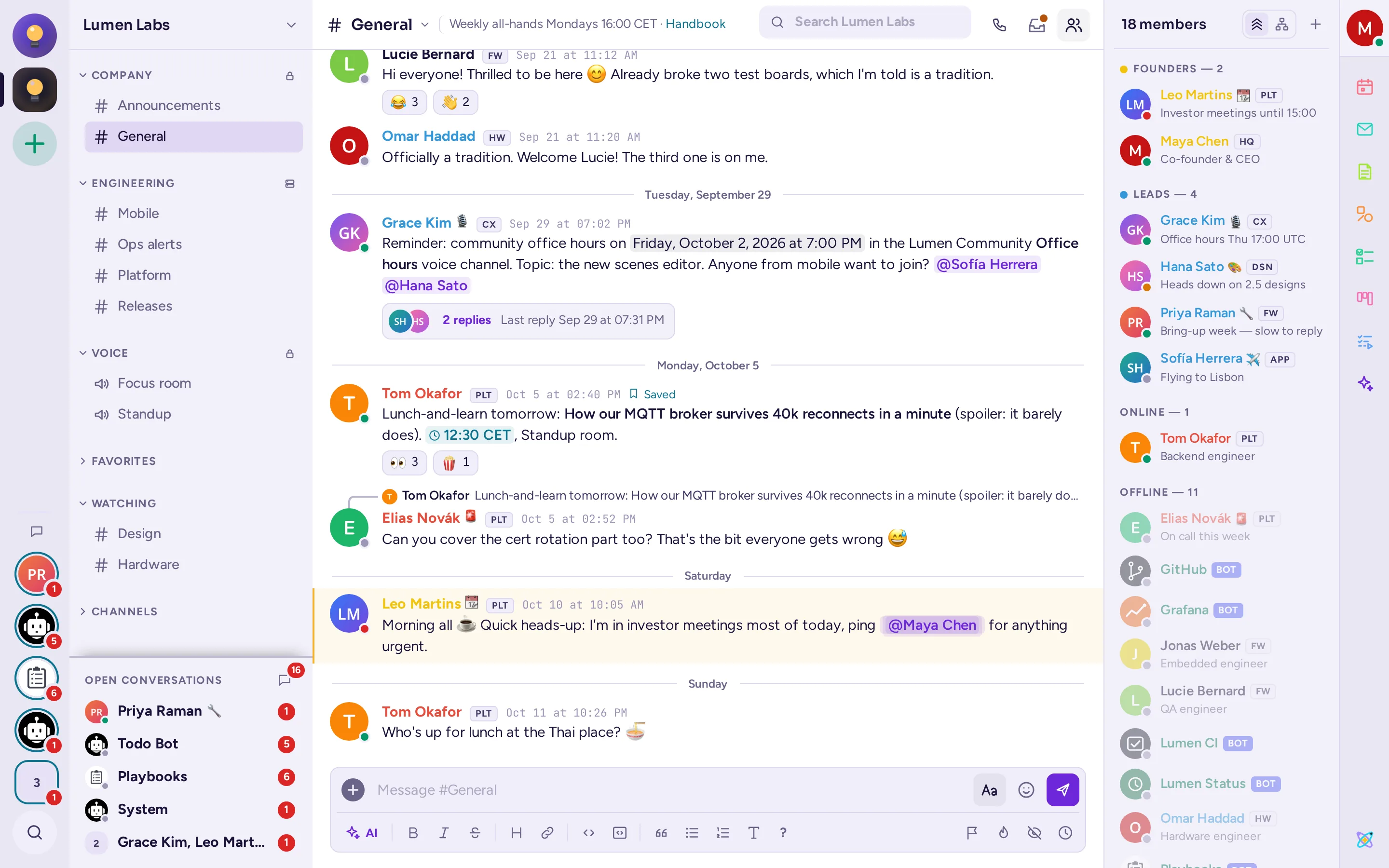
- The community rail, on the far left: one round icon per community you belong to. A dot means unread messages, a number counts your mentions. Under the icons, Add a community (+) lets you join or create one. At the bottom, All direct messages (the chat bubble) shows all your direct messages, with your mentions, followed threads, saved messages, drafts and notes to self. When unread conversations don't fit in Open conversations, their pictures wait under the bubble, with their counts. Last comes Search everything (the magnifying glass).
- The sidebar: the current community's name, which opens its menu, then its channels, grouped in categories. At the bottom, Open conversations lists your recent direct messages, 10 rows at first; drag its top edge to show more or fewer. An unread conversation has a red ring around its picture, and a small grey count.
- The conversation: the messages of the channel or conversation you opened, with the message box at the bottom. Its header shows the name (click it for the channel's menu), a short header text, the search box, and buttons to call, to see your mentions, saved and pinned messages and files, and to show the member list.
- The right-hand panel: the channel's members, or, when you open them, a thread, search results, or an app. Press Esc to close a panel.
- The app rail, on the right edge: your picture at the top, which opens your status and settings; the icons of the apps; and at the bottom, the About Antimatter menu.
When you are in a call, the call dock appears at the bottom of the sidebar, with buttons to mute, share your screen or leave: see The call dock.
On a small screen
In a narrow window or on a phone's browser, the sidebars become drawers. Tap Open navigation at the top left, or swipe right, to see the communities and channels. Swipe left for the member list and the apps. Press and hold a message to open its menu.
First steps
- Set up your profile: add a picture and check your name, so that people recognise you. See Edit your profile.
- Allow notifications when your browser asks, so that you know when someone needs you. See Notifications.
- Join the channels you care about: open the community menu (click the community's name) and choose Browse channels. See Find and join channels.
- Say hello: click a channel, type in the message box at the bottom, and press Enter.
- Write to someone directly: click their name, then Message.
To jump anywhere quickly, press Ctrl+K (⌘+K on a Mac) and type a few letters of a channel, a person or a message.
Getting help
Click the Antimatter logo at the bottom of the app rail to open About Antimatter. Under Help:
- User guide opens Antimatter's built-in help on messaging, sending, formatting, mentions, files and commands.
- Keyboard shortcuts lists all the shortcuts.
- Formatting help explains how to format messages.
- Report a problem, when your administrator set it up, tells them about a problem.
In a web browser, the same menu also offers Download the apps, which opens the page where your server's desktop and mobile apps can be downloaded. The ? button in the message box's formatting bar also opens the help. For anything about your account or your server, ask your administrator.
The desktop and mobile apps
You can use Antimatter in any recent web browser. There are also apps for your computer and your phone.
The apps are published on GitHub: the desktop app on its releases page, the mobile app on its releases page. Download the apps, in the About Antimatter menu, leads to the download page your administrator chose, by default the releases pages.
The desktop app
The desktop app runs on Windows, macOS and Linux. It shows the same window as the browser, and adds a few things: notifications without asking the browser, an unread badge on its icon, Back and Forward buttons at the top of the community rail, its own screen-sharing picker in calls, and several servers in one app.
To install it, download the file for your system from the releases page: on Windows, the .exe installer; on a Mac, the .dmg disk image; on Linux, the .deb or .rpm package, or the .AppImage. The app is not signed yet, so your system warns you the first time:
- On Windows, SmartScreen warns about an unknown publisher: choose More info, then Run anyway.
- On macOS 15 and later, try to open the app once, then go to System Settings › Privacy & Security and click Open Anyway next to the message about Antimatter. On older versions, Control-click the app and choose Open.
Then connect it to your server:
- Start the app. After the welcome screens, click Get started.
- In Connect to your server, type the Server URL your administrator gave you, and a Server display name of your choice, then click Connect.
- Sign in as in a browser.
To add another server, choose Add a server in the servers menu at the top of the window, or in the app's Settings, under Servers. The app's Settings window (Ctrl+, on Windows and Linux, Preferences… on a Mac) also sets whether it starts when you log in, where files are downloaded, the spelling checker's languages, and its notifications.
The mobile app
The mobile app runs on Android 11 or later and iOS 18 or later. On Android, download the .apk file from the releases page and open it; your phone asks you first to allow installing apps from your browser. The iPhone build on the releases page is not signed, so it can't be installed as it is: your organisation has to sign it first. Ask your administrator how to get the app.
- Open the app and tap through the welcome screens.
- In Connect to your server, enter the server's address in Enter Server URL, choose a Display Name, and tap Connect.
- Sign in with your email or username and password, or your organisation's sign-in system.
The mobile app has its own design: tabs at the bottom lead to Home, Search, Mentions, Saved messages and your Account, where you set your status and find the app's settings. It covers messages, threads, channels, calls and voice channels, polls, GIFs and stickers. Some features of the web app are not in it yet, among them the camera in calls, editing notes and whiteboards, Kanban, Calendar and Mail. Push notifications on your phone need your administrator to have set them up on the server.