 Antimatter
Your profile and privacy
How others see you, who can reach you, and how to keep your account safe.
Edit your profile
- Click your picture at the top right of the window, then Profile & settings. The settings open on My account.
- Click Change picture to upload a JPEG, PNG or BMP image, or Remove to go back to your initials.
- Fill in or change your First name, Last name, Username, Nickname and Position (your job title, for example).
- Click Save.
A username uses lowercase letters, numbers, periods, dashes and underscores, and starts with a letter. Some fields may be locked: "Set by your login provider" when your organisation's sign-in system provides them, or "Managed by your System Admin".
To change your email address, click Change email…, type the New email and your Current password, then click Change email. You may get a message at the new address to confirm it.
Profile details set by your organisation
Your administrators can add fields to profiles, such as a department, a site or a phone number. They appear under Profile details in My account, where you can fill in those you are allowed to change. A community can also have its own member attributes: when you may set some of yours, right-click your own name and choose Edit attributes….
Your profile in a community
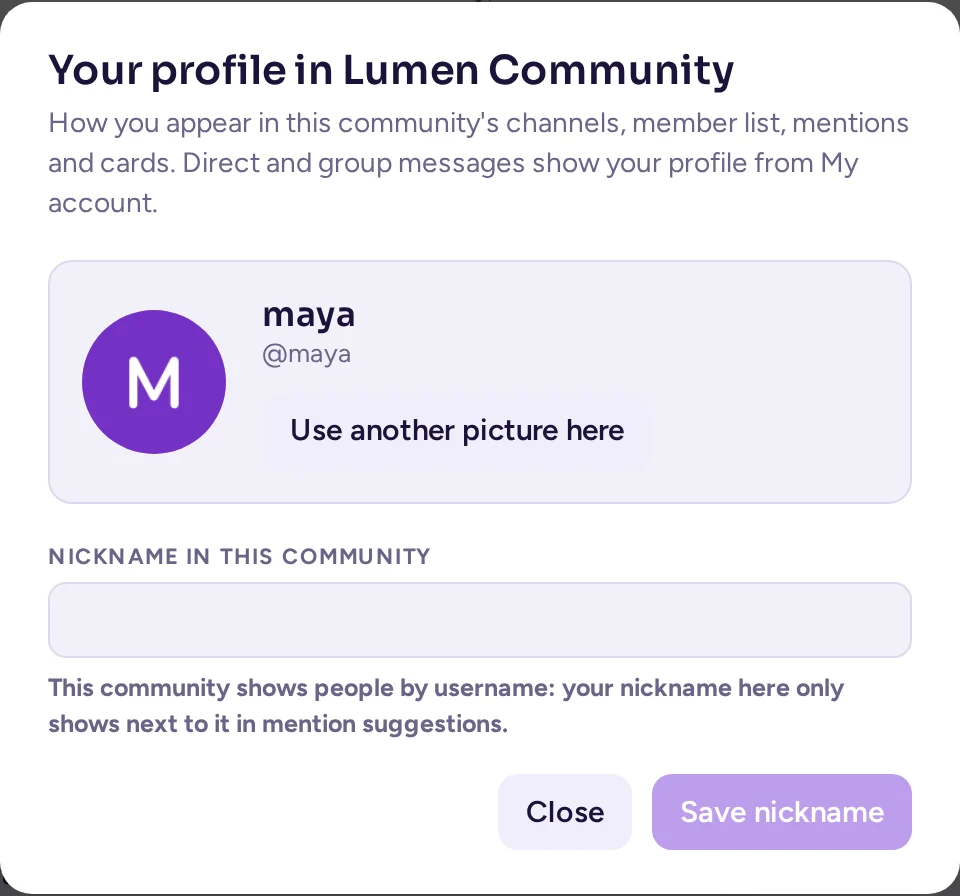
A community can show a picture and a nickname of your own instead of your global ones, in its channels, member list, mentions, @ suggestions, reactions and cards. Direct and group messages always show your profile from My account.
- Open the community menu and choose Your profile in <community>….
- Under Picture, upload one, or choose Use my profile picture for your global one.
- Under Nickname, type one and click its button to save it. Leave it empty to use the nickname from My account.
- Team badge chooses, among the teams you belong to in this community, which tag shows next to your name there, or None. It moved here from My account.
Your card in that community shows "Outside this community: …" with your global name. Only you can set your own picture and nickname there; someone who may time you out can only reset one that breaks the community's rules, from the mod view. If the community hides full names and nicknames for you (see Who can message you), you show as your username there, or as the nickname you set for it, which that never hides.
Your roles
Some communities have roles anyone can take, which colour your name and may let you do more. Choose Your roles… in the community menu to take or leave them.
How people see you
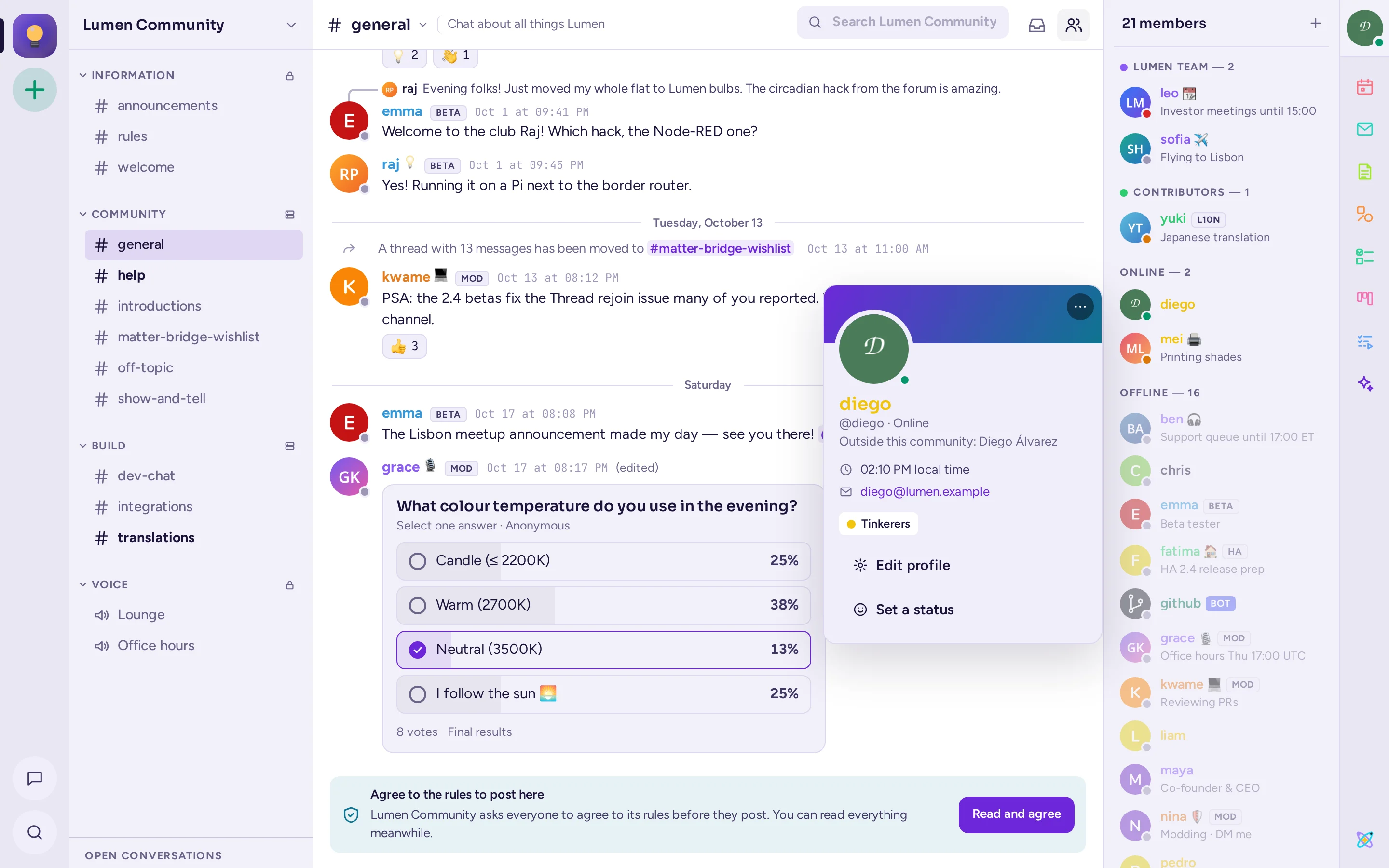
Others see your profile card when they click your name or picture: your name, username, position, custom status, local time, roles, and the profile details your organisation shows. Click your own name to check it; it has Edit profile and Set a status buttons.
By default, others see "Last online …" while you are away or offline. To hide it, turn off Share when you were last online in Settings › Appearance.
Set a custom status
A custom status is a short text with an emoji, such as "In a meeting" or "On vacation", shown next to your name.
- Click your picture at the top right of the window.
- Type in Set a custom status, and click the emoji button (Choose an emoji) to pick an emoji. Or pick one of the Suggestions or Recent statuses.
- Choose when it disappears with Clear after: 30 minutes, 1 hour, 4 hours, Today, This week, Don't clear, or Choose date and time….
To remove it, click Clear custom status (the ×). For your availability (online, away, do not disturb), see Your status.
While you are in focus mode, your custom status shows 🎯 and the reason you gave, until the focus ends (see Focus mode). Your own custom status then comes back, unless you changed the 🎯 one meanwhile, or yours expired in the meantime.
Other people's profiles
Click someone's name or picture to see their profile card, with their local time and how far it is from yours. From there you can Message or Call them. Right-click their name or picture for more: Profile, Message, Add to a channel, Invite to a community, Mention, Copy username, Ignore and Block….
A profile card also has a Note field: click it to write a note about that person. Only you see it.
Who can message you
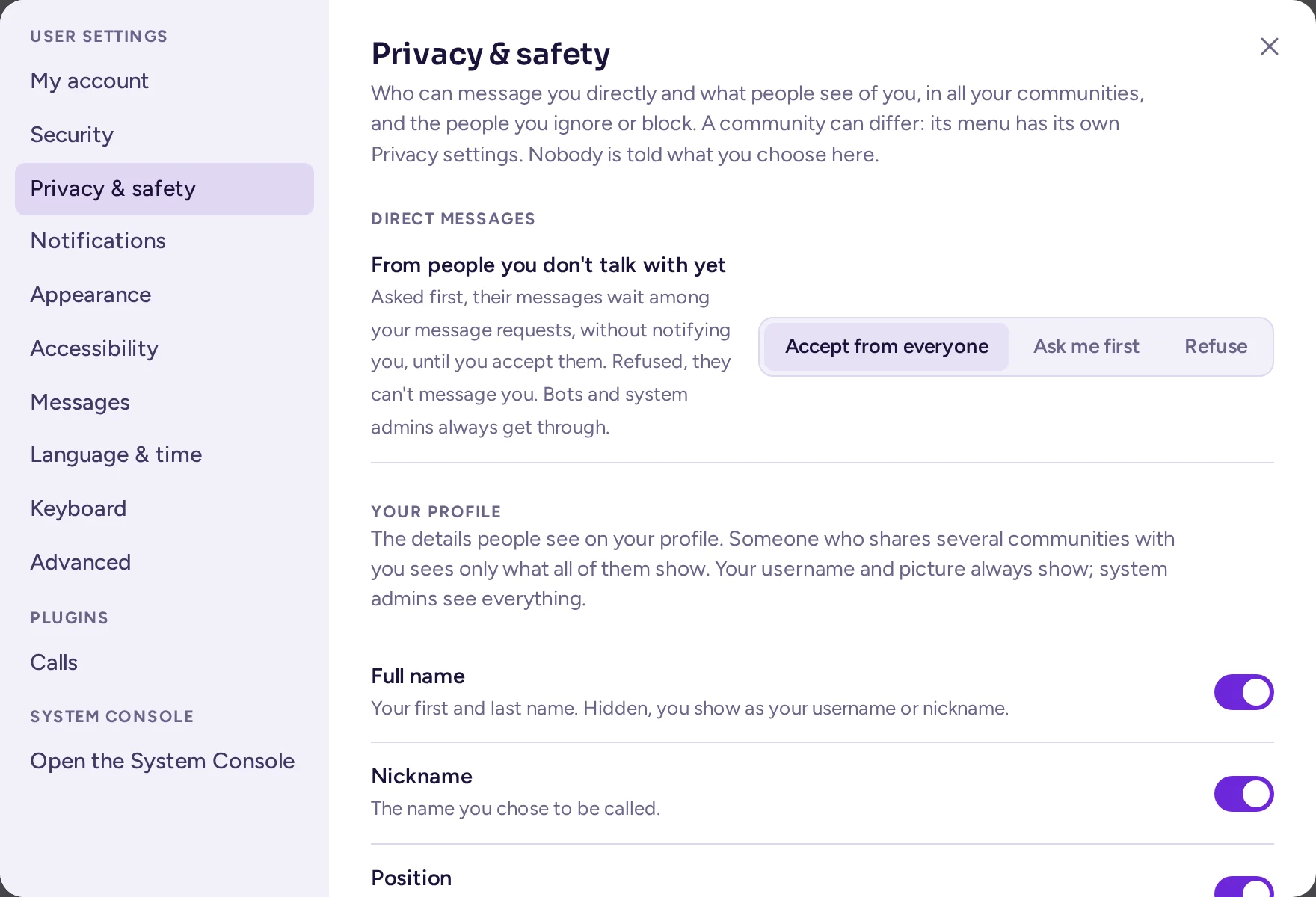
Settings › Privacy & safety sets your defaults: how you get direct messages from people you don't talk with yet, and which profile details people see. Nobody is told what you choose.
- Under Direct messages, From people you don't talk with yet, choose Accept from everyone, Ask me first (their messages wait among your message requests, without notifying you, until you accept them), or Refuse (they can't start a direct message with you, or a group message with you in it, or write in one you haven't accepted yet; they are told "You can't message this person"). Bots and system admins always get through.
- Under Profile details, choose which of your Full name, Nickname, Position, Email (offered only when your server shows email addresses), Local time and Attributes other people see. Your username and picture always show, and you and system admins always see everything. Nobody is told what you hide, and nobody finds you by a name or an email address you hid.
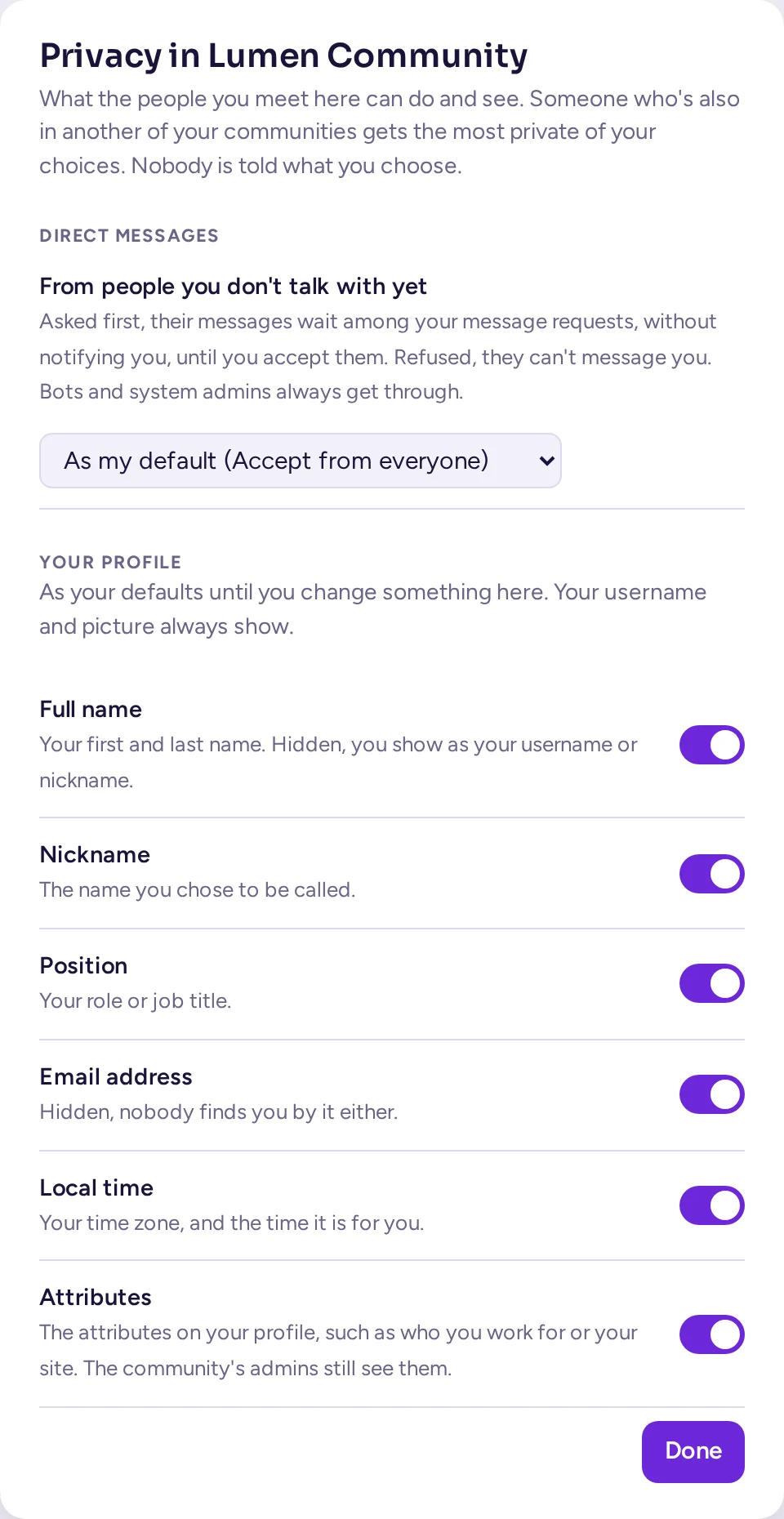
Each community you are in can make its own choice for both, from its menu's Privacy settings. Someone who shares several communities with you gets the most restrictive of those communities' choices; someone who shares none with you gets your defaults above. When your administrator turns off ignoring, blocking and message requests, this page keeps only your Profile details choice.
Message requests
Waiting direct messages are listed under Message requests, at the top of your direct messages. Open one to read it. Instead of the message box, a bar says "Message request from …", with three choices:
- Accept: the conversation becomes a normal one, and their messages notify you.
- Ignore: the request is hidden until they write again.
- Block: see below.
The sender isn't told whether you read, ignored or blocked their request. If you keep ignoring someone's requests, Antimatter offers to block them; you can answer Not now or Don't ask again for this person.
Ignore or block someone
Right-click someone's name or picture, or open the ⋯ on their profile card:
- Ignore: nothing they write notifies you, their direct messages wait among your message requests, and their messages in channels are folded into a line saying "Message from someone you ignore". Click Show to read one.
- Block…: they can no longer message you or start a group message with you, nothing they write notifies you, and their messages in shared channels are folded. Confirm with Block. Your direct message with them shows "You blocked …", and neither of you can write there until you unblock them.
They aren't told. To undo it, choose Stop ignoring or Unblock in the same menu, or in Settings › Privacy & safety, which lists the people you Blocked and Ignored.
Password and multi-factor authentication
Go to Settings › Security.
Change your password
- Next to Password, click Change….
- Type your Current password, the New password, and Confirm the new password.
- Click Change password.
If you sign in through your organisation's sign-in system (such as SAML, AD/LDAP or GitLab), the page says so, and your password is managed there. Sign-in method may let you switch between a password and that system.
If you forgot your password, click Forgot your password? on the sign-in page and enter your email address to receive a link.
Turn on multi-factor authentication
Multi-factor authentication asks for a code from an app on your phone each time you sign in, so that your password alone isn't enough.
- Install an authenticator app on your phone, such as Aegis, Google Authenticator or 1Password.
- Next to Multi-factor authentication, click Set up….
- Scan the QR code with the app, or type the key shown under it.
- Type the Code from the app and click Turn on.
To use another phone, click Set up again…. To turn it off, click Remove next to Remove multi-factor authentication, unless your server requires it.
Where you are signed in
Settings › Security lists, under Where you're signed in, each browser, desktop app and phone signed in to your account, with when it was last active. Click Sign out next to one you don't recognise or no longer use, and change your password if you think someone else used your account.
While you are connected, a new sign-in to your account from any device, your own phone included, shows a warning at the top of the window: the app or browser and its system (for example "Firefox on Linux"), and the time. Click Disconnect to sign that session out, or It's me to dismiss the warning. Handling it on one device clears it from your others too; several stack, three at a time. Personal access tokens don't trigger a warning, and this warning only shows in Antimatter's interface and the mobile app, not in the classic web app.
Access history (click Show) lists recent sign-ins and changes to your account, with where they came from.
To sign out of the device you are using, click your picture at the top right, then Log out.
Tokens and authorised apps
If your server allows them, Settings › Security also has Personal access tokens, which let your own scripts use Antimatter as you. Create one with Create token and copy it at once: it won't be shown again. Revoke one you no longer need, and never share a token. Apps you authorized lists the outside applications you allowed to use your account; click Remove access to withdraw it.
Deactivate your account
When your server allows it, Deactivate account at the bottom of Settings › Security lets you leave the server. Click Deactivate…, then Deactivate. You are signed out and can't sign in again; your messages stay. An administrator can reactivate your account.