 Antimatter
Notifications and status
Choose what reaches you, where and when: desktop, mobile and email notifications, sounds, keywords, per-channel settings, and your status, including do not disturb.
What notifies you
By default, Antimatter notifies you of:
- messages that mention you by your username, such as
@maya; - direct and group messages;
@channel,@alland@herein the channels you are in;- new replies in the threads you follow.
Other new messages don't notify you: they make their channel bold in the sidebar. In the community rail, a dot on a community means unread messages, and a number counts your mentions. The browser tab's title and icon also show when you have unread messages and mentions.
Your status changes this: while you are in Do not disturb, or in focus mode, nothing notifies you, not even urgent messages and their persistent notifications. Muted channels never notify you either.
Desktop and browser notifications
For Antimatter to show notifications on your computer, your browser must allow them. When your browser asks whether this site may show notifications, choose Allow. If you refused, allow notifications for your Antimatter address in your browser's site settings. The desktop app shows notifications without this step.
To choose what notifies you:
- Open Settings › Notifications: click your picture at the top right, choose Profile & settings, then Notifications. These are your defaults for direct and group messages; the community menu's Notification settings opens that community's own notification settings instead (see below).
- Under Desktop and browser, set Notify me about to All new messages, Mentions (the default; direct and group messages count as mentions), or Nothing.
- Replies to threads you follow is on by default: you are notified of every reply in those threads. Turn it off to be notified only when you are mentioned there.
- Turn Notification sound on or off, and choose the Message sound. Click Play to hear it.
- Turn Incoming call ring on or off, and choose the Ring sound for calls in direct messages.
Changes are saved as you make them. To check that everything works, click Send a test notification at the bottom of the page: it should reach your desktop and your devices.
What counts as a mention
In Settings › Notifications, under What counts as a mention:
- My first name: also notify you when someone writes your first name. Your username always counts.
- Channel-wide mentions: be notified, or not, for
@channel,@alland@here. - Keywords that notify me: words that notify you like a mention, such as a project's name. Type a word and press Enter. They are not case-sensitive.
- Keywords that only highlight: words highlighted in messages, without notifying you.
- Follow threads I'm mentioned in by @channel: a channel-wide mention in a thread makes you follow it.
Mobile notifications
If you use the mobile app and your server sends push notifications, Settings › Notifications has a Mobile section:
- Push notifications about: All, Mentions or Nothing.
- Send them when I'm: Online, away or offline (the default), Away or offline, or only Offline. This is your status on the desktop or web app: with Away or offline, your phone stays quiet while you are active at your computer.
- Replies to threads you follow: on mobile too, for every reply.
If your phone gets no notifications at all, ask your administrator: push notifications need to be set up on the server. The mobile app also has its own notification settings, under Settings › Notifications in the app.
Email notifications
When your server sends emails, turn on Email notifications in Settings › Notifications to receive an email for mentions and direct messages while you are away or offline. If your administrator allows it, Send them lets you choose Right away, Every 15 minutes or Every hour, to get several messages in one email.
Notifications for one channel
Each channel or conversation can have its own settings, different from your general ones.
- Open the channel's menu (⋯ next to its name in the sidebar, or right-click it) and choose Notification preferences….
- In Notification Preferences, choose what notifies you on desktop: All new messages, Mentions, direct messages, and keywords only, or Nothing. The one marked "(default)" follows your general settings.
- Choose the thread reply notifications and the sound for this channel.
- For mobile, keep Use the same notification settings as desktop, or choose differently.
- Under Mute or ignore, you can Mute channel, or Ignore mentions for @channel, @here and @all in this channel only.
- Follow all threads in this channel makes you follow every new thread there, so their replies appear in your followed threads.
- Click Save.
The channel's introduction, at the very start of its messages, also has a Notifications button that opens the same dialog.
Notifications for one community
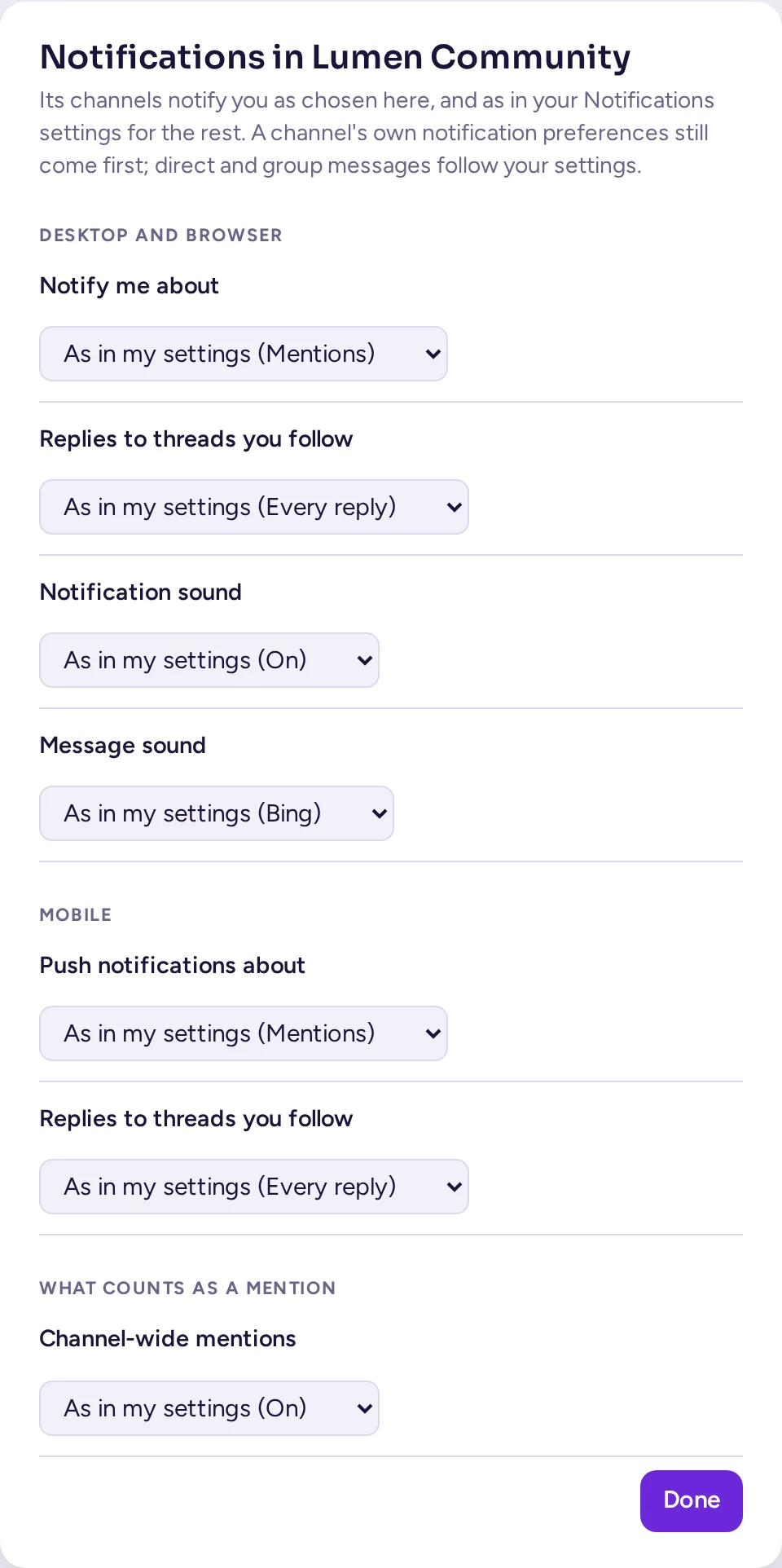
A community can also have its own notification settings, different from your general ones: open its menu and choose Notification settings. It sets the desktop and mobile levels, thread replies, the sound and which one, email, and channel-wide mentions for that community, each with "As in my settings (…)" until you change it; Use my settings everywhere resets them. A channel's own notification preferences still come first; your direct and group messages always follow your general settings.
Mute a channel, a category or a community
A muted channel sends you no notifications and shows no unread badge. You still see a badge when someone mentions you there.
- A channel or conversation: in its menu (click its name at the top of the conversation, or its ⋯ in the sidebar), choose Mute channel (or Mute conversation), then how long: For 1 hour, For 8 hours, For 24 hours, For a week or Until I unmute it. A muted channel shows a bell with a line through it. The menu then shows when the mute ends, and Unmute channel.
- A category: Mute category in its Category options.
- A whole community: Mute community in the community menu.
Hide muted channels, in the community menu, removes muted channels from the sidebar.
Your status
Your status tells others whether you are around. It shows as a dot on your picture. Antimatter sets you Online when you use it and Away when you don't; you can also set it yourself:
- Click your picture at the top right of the window.
- Choose Online, Away, Do not disturb or Invisible (you appear offline, but can still use Antimatter).
The commands /online, /away, /dnd and /offline do the same.
Do not disturb
Do not disturb mutes all notifications. Point at it to choose how long: For 15 minutes, For 1 hour, For 1 day, For 1 week, Forever, or Until a custom time… (pick a date and time, then click Turn on). When it ends, your status goes back to normal. People who write to you directly see that you have it on, and until when, and you aren't rung for calls.
Focus mode
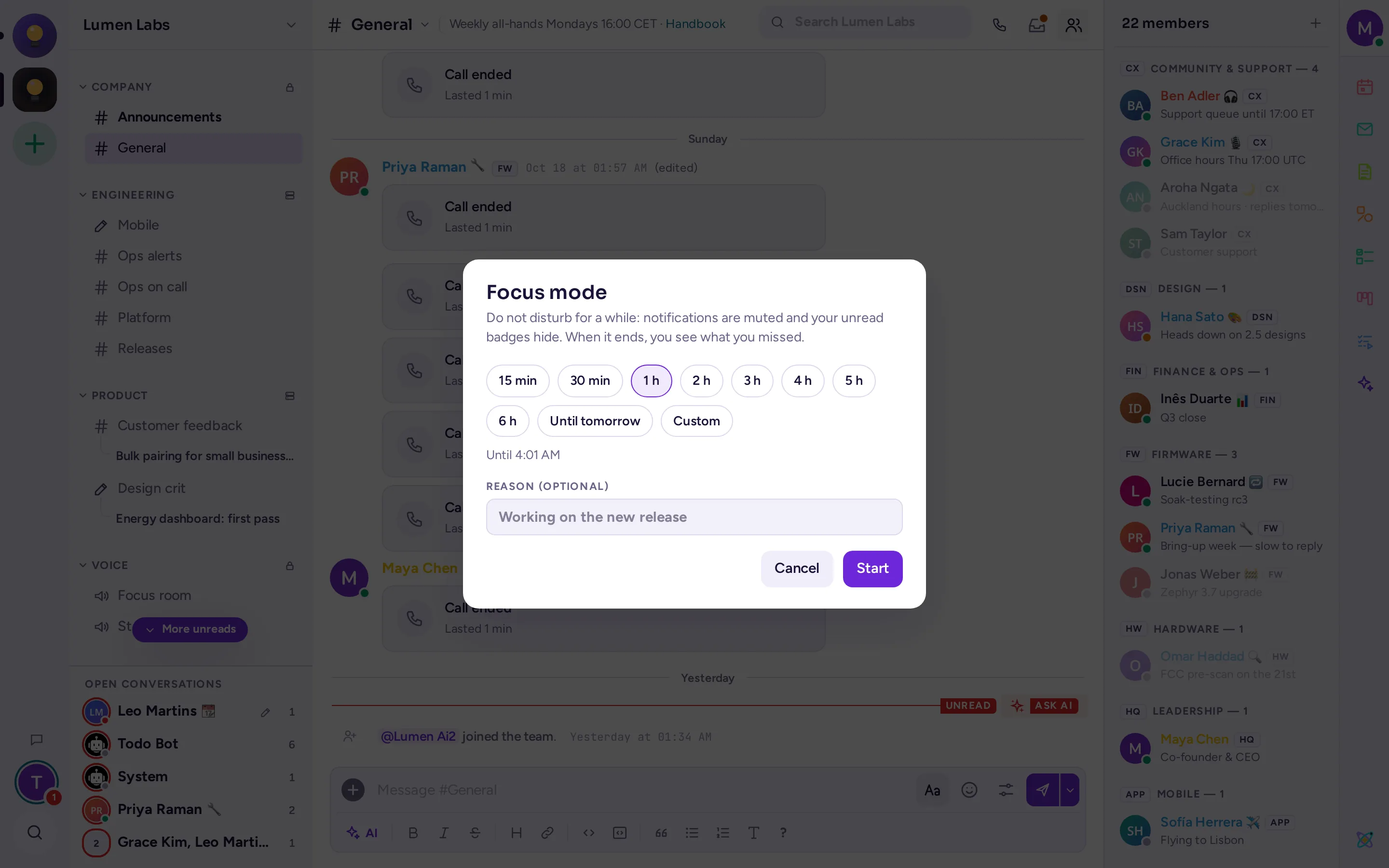
Focus mode is Do not disturb for a while, without distractions: notifications are muted and your unread badges hide. When it ends, you see what you missed.
- Click your picture at the top right of the window, and choose Focus mode…, under the statuses.
- Under How long, choose 15 min, 30 min, 1 h to 6 h, Until tomorrow (9:00 tomorrow in your time zone), or Custom: a date and time from a minute to a week from now.
- If you like, type a Reason, such as "Working on the new release".
- Click Start.
While you focus, your status is Do not disturb and your status dot is purple: people who point at it, or open your profile card, see "Focusing · until 15:30". Your custom status shows 🎯 and your reason (see Set a custom status). Your unread marks and mention counts hide: in the sidebar, in the community rail, in the Mentions counts, in the browser tab and on the desktop app's icon. Messages still arrive, and stay unread.
To stop early, open the same menu and choose End focus, which shows the time left. Choosing another status also ends the focus, and keeps the status you chose.
When the focus ends, Antimatter shows "While you were focusing", with the times: the direct and group messages, the channels and the followed threads where others wrote, with how many new messages, who wrote last and the mentions waiting for you. Click one to open it. Mark all as read marks them read up to the end of the focus; Show unread badges, or closing the summary, brings your badges back. If nothing came in, a short notice says so. You see the summary once, on the device you come back to.
Out of office and automatic replies
If your administrator turned automatic replies on, Settings › Notifications has an Automatic reply section. Turn on Reply to direct messages automatically and write the Message: each direct message you receive is answered with it, and your status becomes Out of office. Choosing another status in your status menu turns the replies off.
When you pick a custom status such as "Out of office" or "On vacation", Antimatter offers to turn the automatic replies on too.
Streamer mode
When you share your screen or present, turn on Streamer mode in Settings › Advanced. It hides your email address and conversation previews, and silences desktop notifications. Remember to turn it off afterwards.
In the desktop app
The desktop app adds its own options, in its Settings window under Notifications: a red badge with your unread count on the app's icon (on Windows and macOS), bouncing the Dock icon (macOS), or flashing the taskbar icon (Windows and Linux) when a message arrives.