 Antimatter
The apps
Antimatter comes with apps that work beside the chat: notes and whiteboards you edit together, kanban boards, your calendar and mail, polls, to-do lists and more. Here is how to open each one and what it is for.
Find and open the apps
Your administrator chooses which apps your server has, so you may not see all of those on this page. Most apps have an icon in the app rail, the narrow column on the right edge of the window, under your picture. Point at an icon to see the app's name, and click it to open the app in a panel beside the conversation. Click it again to close the panel. The panel's header shows the app's icon and name, then its buttons. Drag the edge of the panel to make it wider; Restore the panel's size puts it back. Open in a new window opens the app in a window of its own, at the note, board or list you had open, and Close closes the panel. The app's own controls, such as a note's title or a board's buttons, are in a row at the top of the panel, under its header.
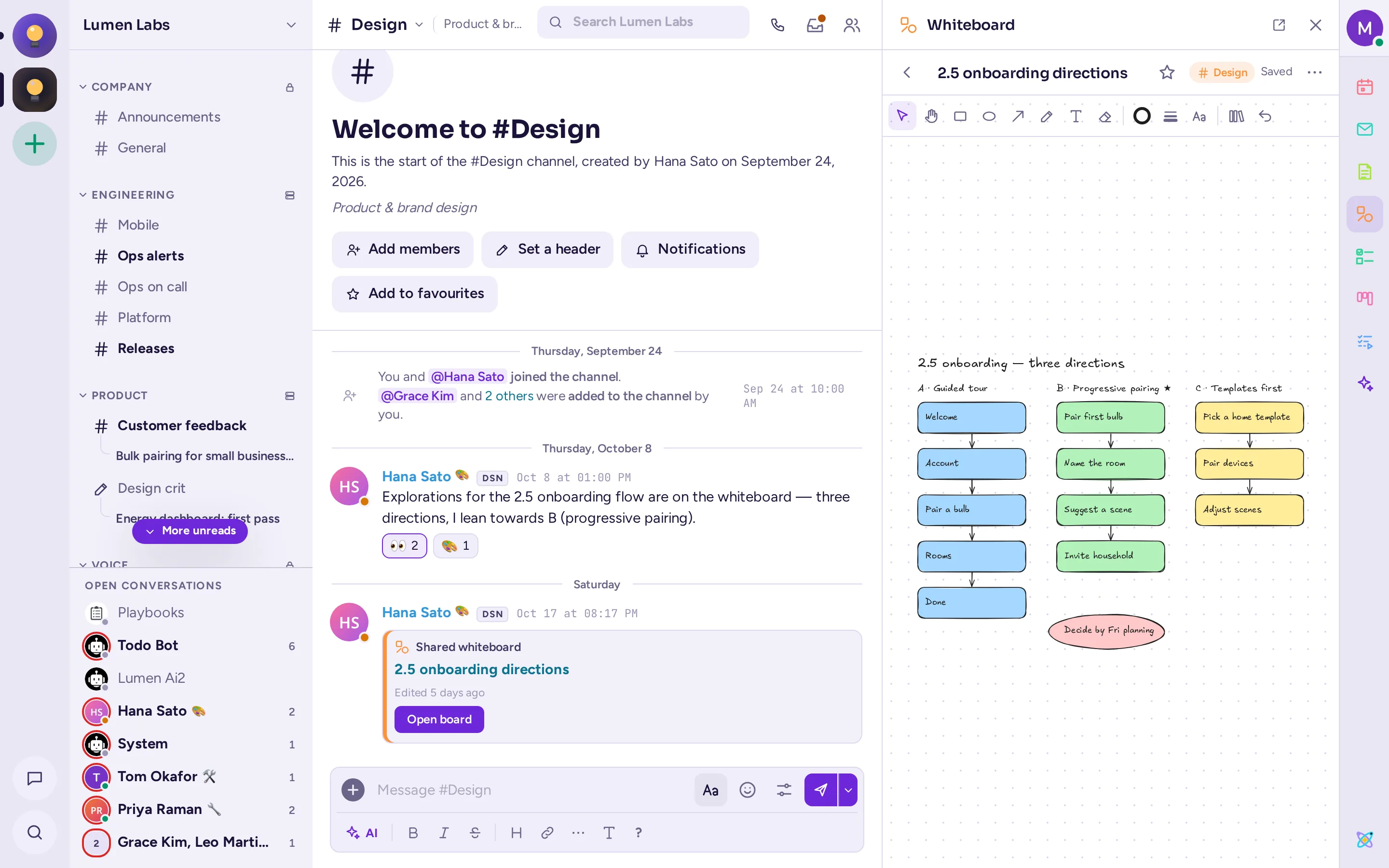
Apps also appear in other places:
- The + menu of the message box (Add a file and more), for example Create a poll.
- The tabs of the emoji picker: GIFs, Stickers and Memes.
- A message's menu (Message actions, the ⋯), under More actions, for example Add to todo or Run playbook. Each action shows its app's icon.
- Slash commands, such as
/pollor/todo: type/to see the list. - The settings of some apps are under Plugins in your settings.
On a phone, the app rail is in a drawer on the right: swipe left, or choose More › Members and apps in the conversation's header.
Notes
Notes are documents that several people edit at the same time, beside the chat. You see the others' cursors and names as they type, and everything is saved as you go.
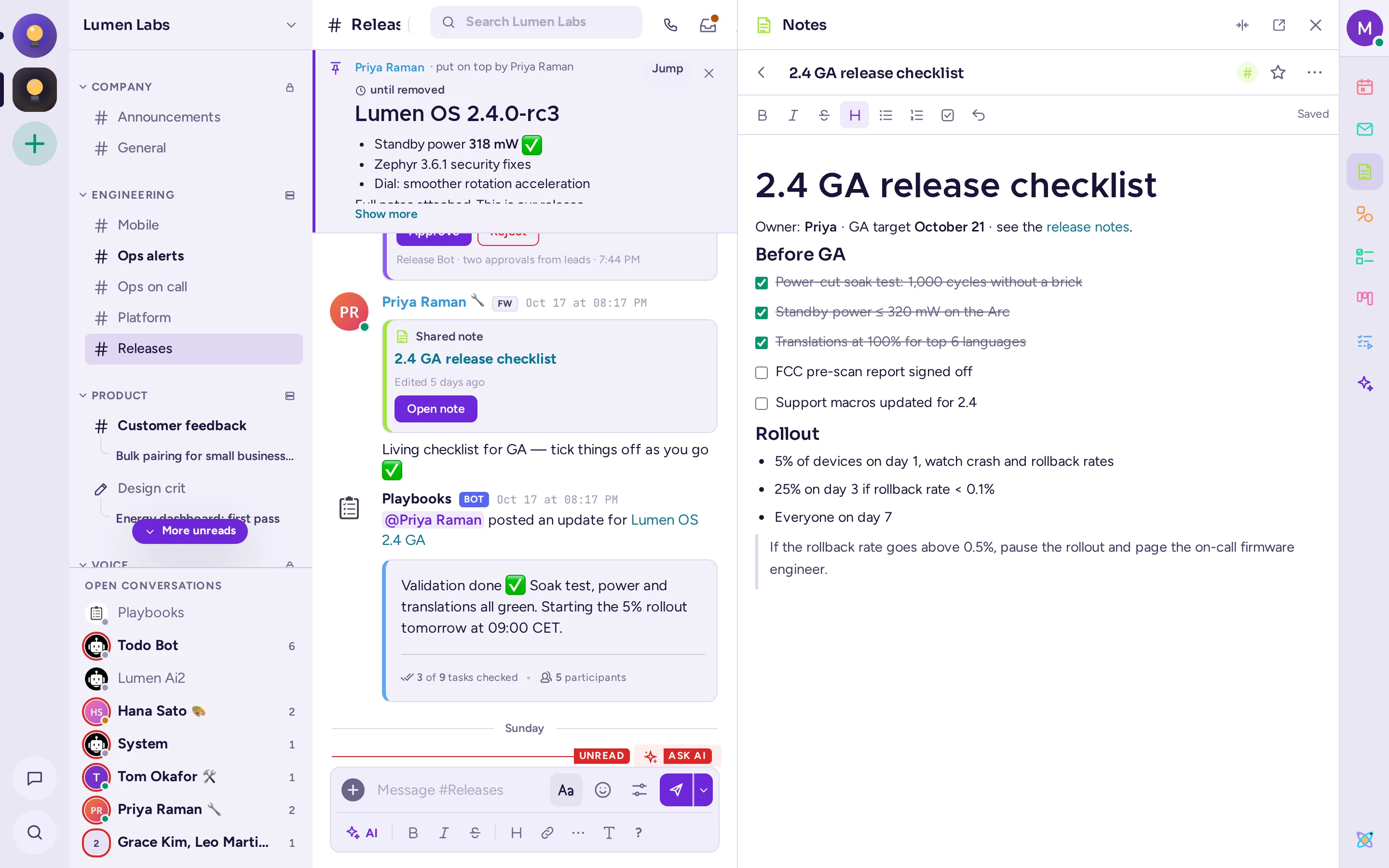
Write a note
- Click Notes in the app rail.
- Choose a tab: This channel for a note every member of the channel can read and edit, or Mine for a personal note only you can see.
- Click + (New note in this channel or New personal note), on the right of the row under the tabs ("Shared with #channel" or "Personal notes"). An "Untitled note" opens.
- Type its title in the row at the top of the note, then write. The Formatting bar under that row, shown to those who can edit the note, has bold, italic, strikethrough, headings, lists and checklists; links, quotes and code work too. Next to it, dots show who else is editing, and whether your changes are saved. Type
@to mention a member of the channel (mentions in notes don't notify anyone). - Click All notes (the arrow at the left of the note's row) to go back to the list.
When a note in a channel gets its title, Antimatter posts "Shared a note" in the channel, with an Open note button.
More with a note
Star a note to find it in the Favourites tab. The note's Note actions menu (⋯) offers Share in the channel (posts a card linking to it), Share in ~channel (makes a personal note a channel note, for good), Version history (see and Restore this version), Export as Markdown and Delete. Only the note's creator and the channel's admins can delete a channel note.
Whiteboard
A whiteboard is a canvas you draw on together: shapes, arrows, text and freehand drawing, with everyone's pointers shown live.
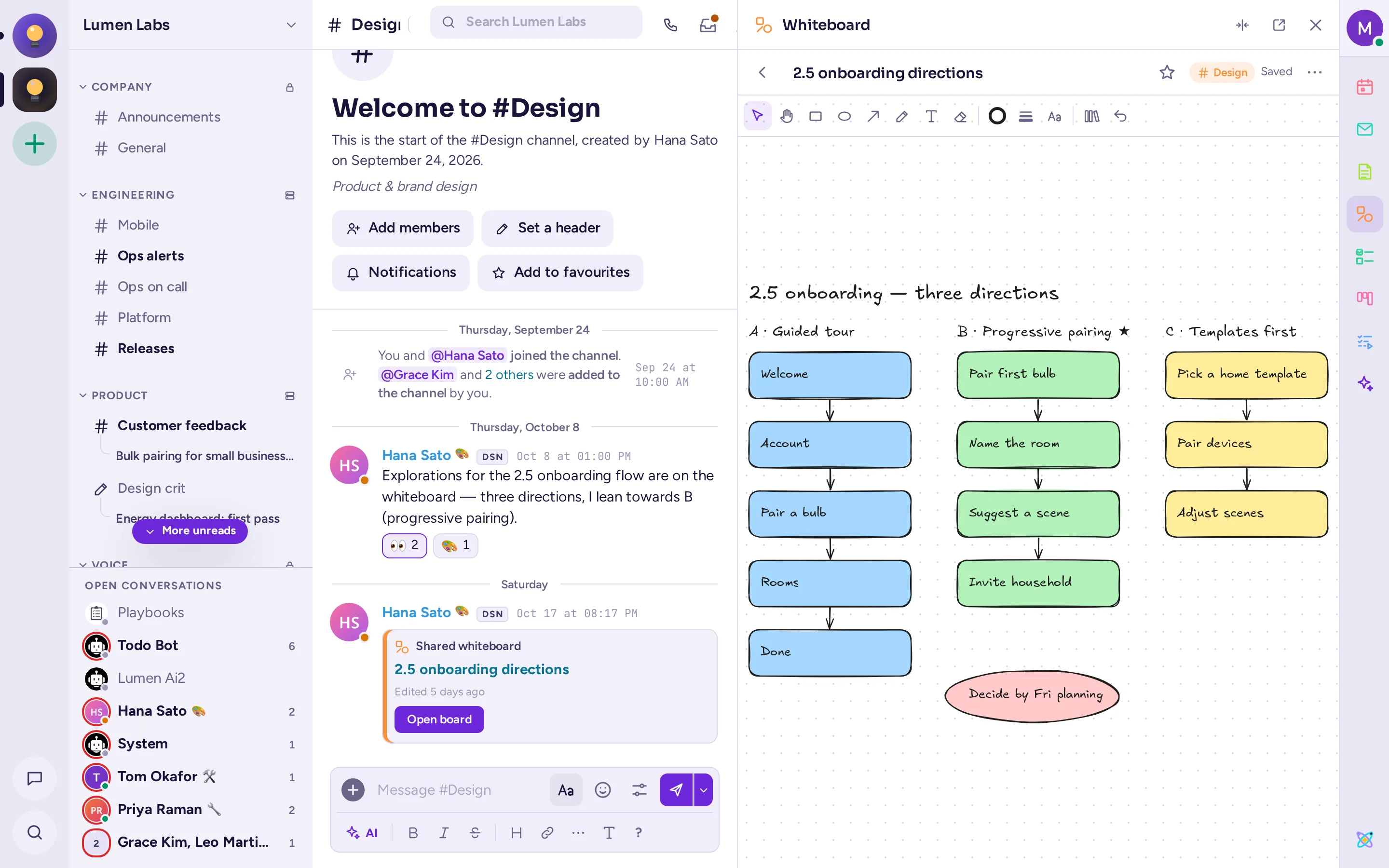
- Click Whiteboard in the app rail.
- As with notes, choose This channel or Mine, and click + (New board in this channel or New personal board).
- Draw with the tools: Select and move (V), Move around (H), Rectangle (R), Ellipse (O), Arrow (A), Draw (P), Text (T) and Eraser (E). Choose colours, line styles and fonts in the toolbar, and shapes in the Library. Undo (Ctrl+Z) undoes your last change.
The Board actions menu has Full screen, Show the whole board, downloads as .excalidraw, PNG or SVG, Version history, Import an .excalidraw file… (it replaces the board for everyone), sharing in the channel, and Delete. Whiteboards stay on your Antimatter server.
Kanban
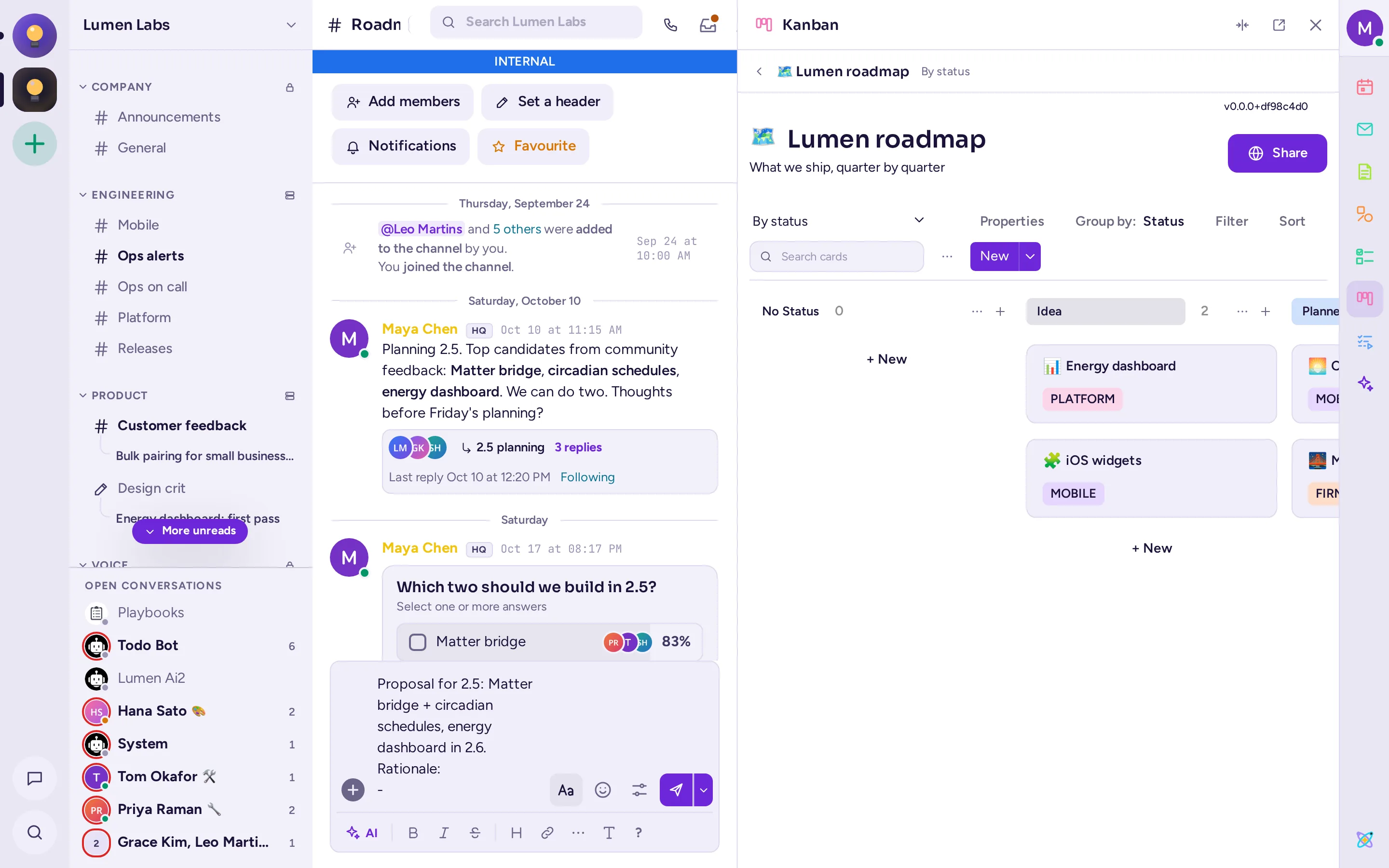
Kanban boards organise work as cards in columns, such as "To do", "Doing" and "Done". A board can also be shown as a table, a gallery or a calendar.
Open the boards of a channel
Click Kanban in the app rail. Kanban opens in its panel, beside the conversation, and lists the channel's boards (Boards in this channel); click one to open it. If none is there yet, click Add boards to …, then Add next to a board, or Create a board. The members of the channel become editors of a board added to it. A board widens the panel while it shows; the back arrow at the top of the panel returns to the previous view.
Work with a board
- To see all the boards of the community, by category, click All boards (an icon button at the top of the panel). There you can find a board, create a board or a category, and move, duplicate, export, hide or delete a board from its menu.
- To create a board, click New board, next to it, then start from a template (meeting agenda, project tasks, roadmap, sprint planner and others) or Create an empty board.
- Click + New in a column to add a card. A card opens over the panel: set its properties, add text, checkboxes and images, attach files, and comment. Mentioning someone in a card notifies them.
- Drag cards between columns. Use Group by, Filter, Sort and Search cards to find your way, and Add view for a table, gallery or calendar view.
- Use Share on a board to choose who can see or edit it.
Calendar
The Calendar app shows your own calendar beside the chat, sends you reminders, and lets you meet in Antimatter. It also shows the calls scheduled in the community's channels, and lets anyone schedule one, without connecting a calendar account. It works with calendar servers that use CalDAV, such as Nextcloud, Fastmail or Radicale.
Connect your calendar
- Click Calendar in the app rail. In a community, the panel opens on the Community calls layer (see below); click the settings (cog) button to connect your own calendar.
- In Connect your calendar, fill in the CalDAV server address (often just your provider's domain), your Username and your Password. If your provider offers app passwords, use one.
- Choose when to Remind me of events without alarms, optionally turn on Also email me calendar invites (sends an email with a calendar file attached, kept in sync, for calls scheduled in your channels), then click Connect.
Your password is stored encrypted on the Antimatter server. To change these details later, or disconnect, use Account settings in the panel.
Use it
- Switch between Agenda and Week, move with Previous, Today and Next, and click a calendar's chip to show or hide it, including the Community calls chip.
- Click New event, fill in the Title, Starts and Ends, and optionally Repeat, Reminder, Location and Description, then Save. Click an event to change or delete it.
- To meet in Antimatter, set Meet in Antimatter to a channel or voice channel, or to a call, and pick the Channel. When the time comes, the event shows Start call, Join call or Join.
- Reminders arrive as direct messages from the Calendar bot, with a link to join the call when there is one.
Your own calendars are yours alone; connecting one doesn't send invitations to other people. Scheduling a call, below, does.
Schedule a call
From a channel's … menu, choose Schedule a call. Fill in a Title, when it starts and ends, and optionally:
- Repeat: every day, every week on the days you choose, every month, or every so many of these, stopping never, on a date, or after a number of calls.
- Reminder: none, at the start, 5, 10, 15 or 30 minutes before, 1 hour or 1 day before (10 minutes by default).
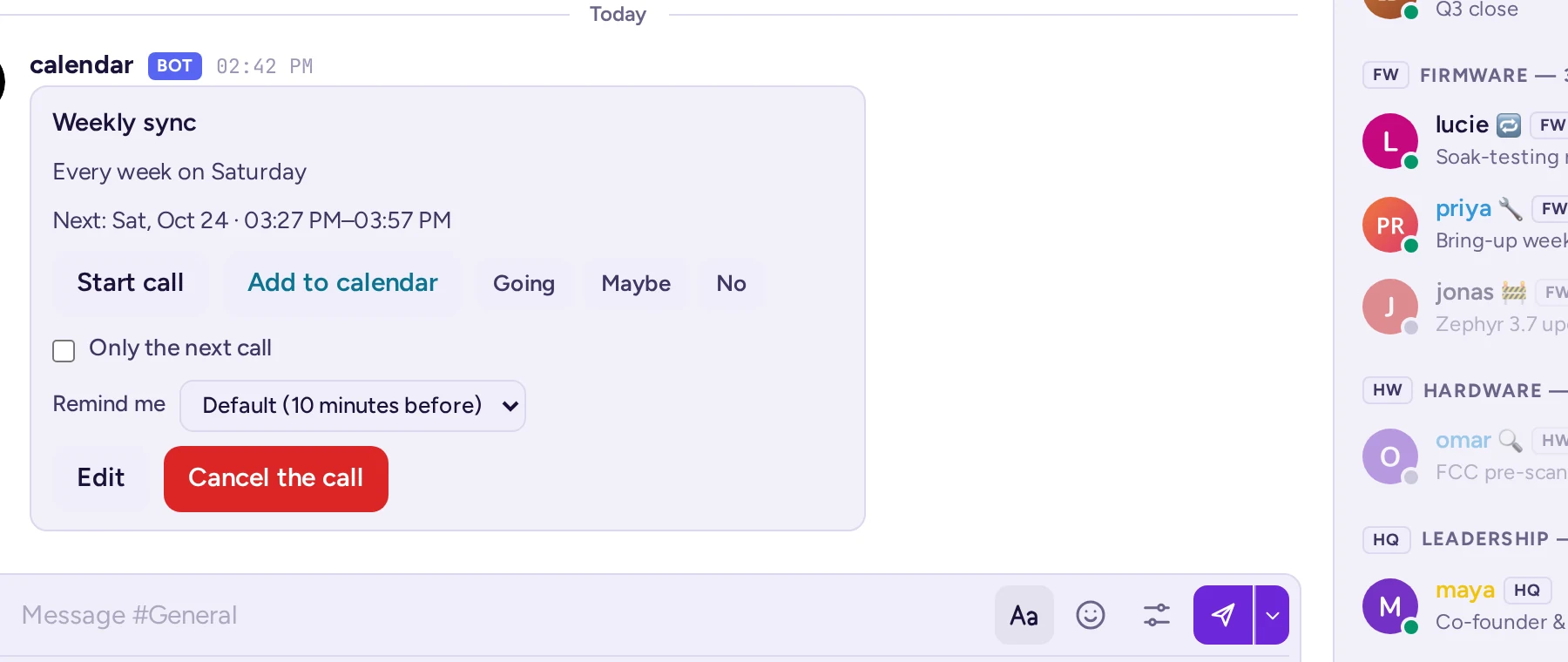
Everyone who can read the channel sees it as a post: the time, a Join button, how it repeats and its next call for a repeating one, and Going, Maybe or No to answer (with Only the next call beside them, for a repeating call, to answer for that occurrence alone). Remind me lets you pick your own reminder for that call, separate from the organiser's; it disappears once you've said No. While the call is on, the post shows Live and a Join button; the channel header also shows a chip: "Next call: <day and time> · <title>", changing to "in <N> min" in the last hour, then "Live · <title>" with its own Join button while it runs. Clicking the chip opens the call's post.
The organiser can Edit or Cancel the call from its post; for a repeating call, other channel, community and system admins can also cancel it, choosing This call or The whole series.

Community calls
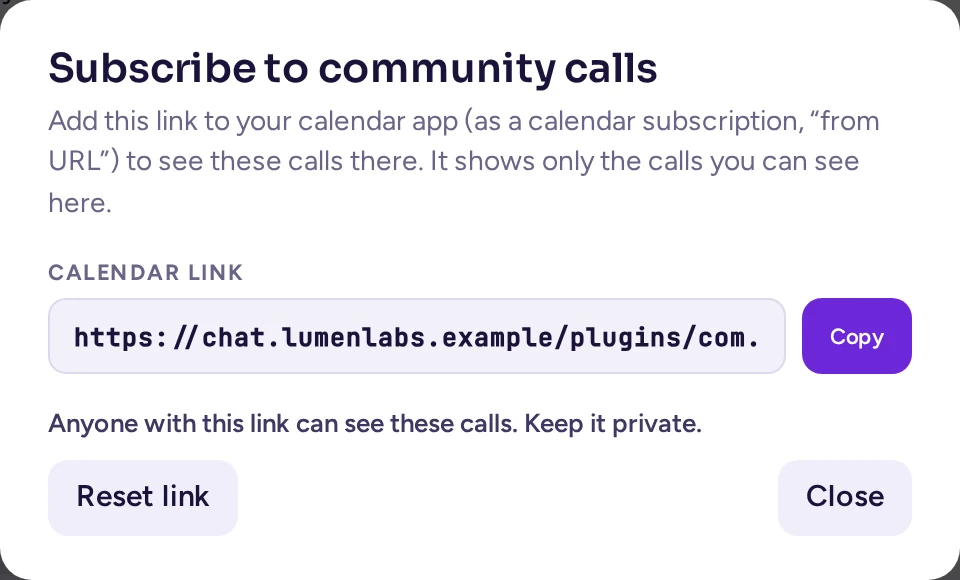
The Calendar panel's Community calls layer shows every call scheduled in a channel you can read, without connecting a calendar account. Its ⋯ menu has Subscribe…, which opens a dialog with a private Calendar link: add it to your own calendar app as a subscription ("from URL") to see these calls there too, with your own answer and reminder, refreshed roughly every hour. The link is shown only once, when it's made; a later Subscribe… only says when. Anyone who has the link sees what you can see, so keep it private: Copy it carefully, and use Reset link to make a new one if it leaks (the old one stops working at once). Leaving the community stops it. Your system admin can turn this off.
The Mail app shows your mailbox beside the chat, so you can read, answer and share emails without leaving Antimatter.
Connect your mailbox
- Click Mail in the app rail.
- If your administrator set it up, click Sign in with Google or Sign in with Microsoft. Otherwise, or for another provider, fill in your Email address and Your name, then the Incoming mail (IMAP) and Outgoing mail (SMTP) servers, with their security, port, username and password. Your provider's help pages give these details.
- Click Connect.
Use it
- Pick a Folder, search with Search this folder, and click a message to read it. Images from the internet are hidden until you click Show images.
- Answer with Reply, Reply all or Forward, or write with New message. Messages are plain text, and you can't attach new files.
- Click Share to a channel to post an email's sender, subject and an excerpt in a channel, with a comment.
Polls
A poll asks a question in a conversation, and everyone votes with one click. Results update live.
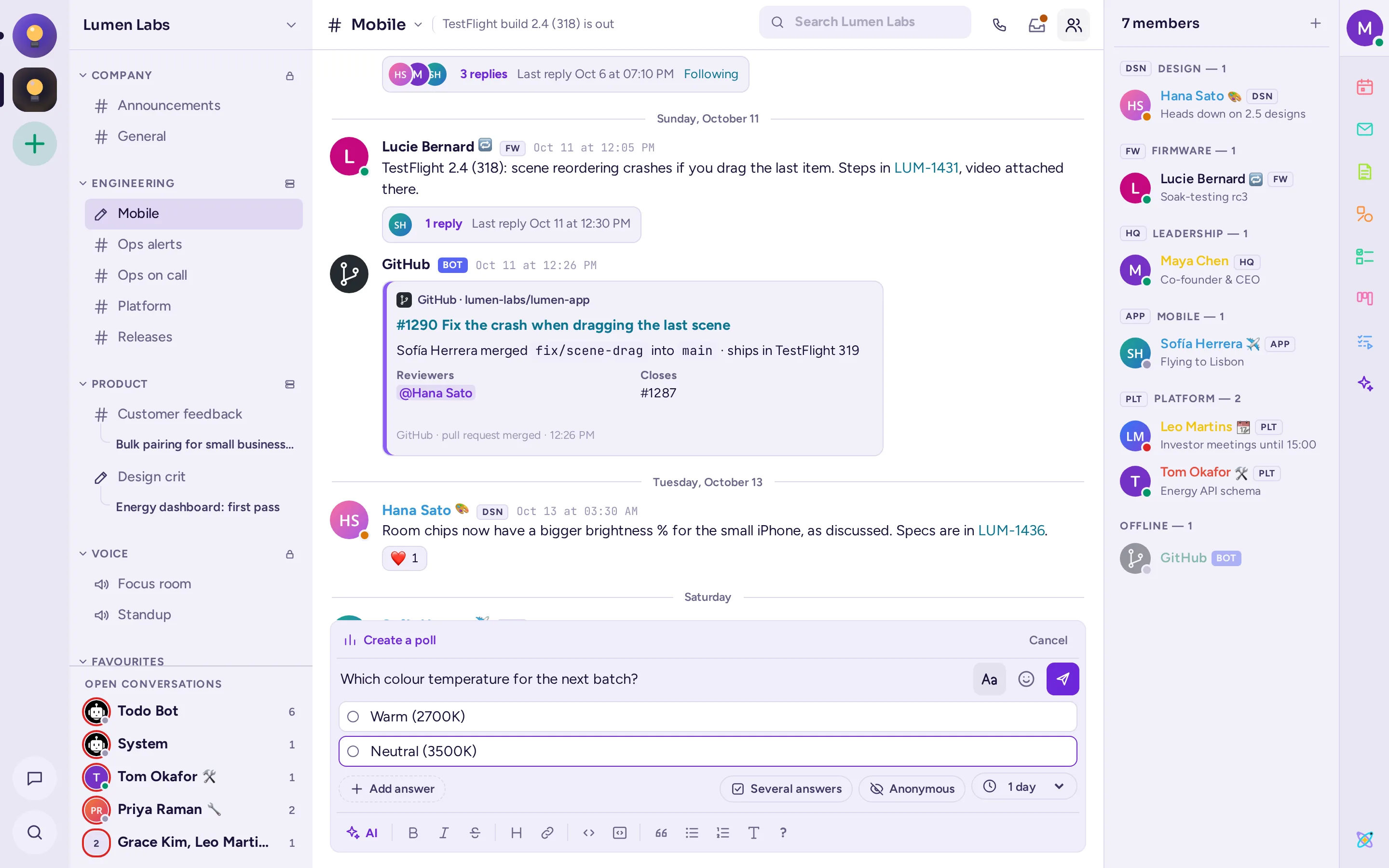
- Click the + in the message box and choose Create a poll, or type
/poll. The message box becomes a poll, with a Create a poll bar above it. - Type the question in the message box ("What should we decide?").
- Type the answers under it, two to ten: Enter goes on to the next one, and Backspace in an empty answer removes it. Add answer adds one too.
- In the row under the answers, turn on Several answers if people may pick several, and Anonymous if nobody should see who voted for what, and choose how long it lasts: 1 hour to 1 week, or No end.
- Click Post poll. Cancel, in the bar, or Esc, goes back to a plain message and keeps your text.
In the classic interface, the same choices are in a dialog.
To vote, click an answer; click it again to take your vote back. The poll ends at the end of its duration, or when its creator or a channel admin clicks Close poll; it then shows the Final results.
You can also write a whole poll in one line: /poll "Lunch?" "Pizza" "Sushi" --multi --duration 1h. Type /poll help for all the options.
Todo
Todo keeps to-do lists: lists shared in a channel or a conversation, your own lists, and todos you send to other people. Click Todo in the app rail. As in Notes, the panel has three tabs:
- This channel (or This conversation): the lists shared with everyone in it. Click + (New list in this channel), on the right of the "Shared with #channel" row under the tabs, to make one: its name field opens under that row.
- Favourites: the lists you starred, wherever they are.
- Mine: your personal lists, which only you see (My todos is always there; + makes another), then Assigned to you in channels, Sent to you and Sent by you.
Open a list to add todos, with details and a Due date if you like, and tick them off with Mark as done. In a channel's list, Assign to… gives a todo to a member; in a personal list, Send to… sends it to someone, who can Accept, Decline or Mark as done it. The list's List actions menu renames it, changes its icon, archives it (it becomes read-only, under Archived) or deletes it. Everyone who can post in a channel changes its lists; the list's creator and the channel's admins can delete it.
To turn a message into a todo, choose More actions › Add to todo in its menu, and pick the list. The Todo bot tells you when someone assigns or sends you a todo, and reminds you of your todos once a day.
Commands work too: /todo lists, /todo new name (add --personal for a list of your own), /todo add list: text to add to a list by its name, /todo add text to add to your own todos, and /todo send @someone text.
GIFs, stickers and memes
Click Emoji (the smiley face) in the message box: when these apps are set up, the picker has GIFs, Stickers and Memes tabs next to Emoji.
- GIFs: search, or browse Favourites, Recently used, Trending and the categories. Click a GIF to send it at once. Click its star to add it to your favourites. You can also type
/gifand a few words. - Stickers: search or browse the sticker packs, and click a sticker to send it.
/stickerworks too. - Memes: pick a template, fill in its texts in Make a meme, watch the preview, and click Post meme. You can also type
/meme, or/meme helpto see how to write one in a line.
Depending on your server's settings, you may be able to add your own GIFs, stickers or meme templates with the + next to the search box. It opens a form inside the picker: choose, drop or paste a file, check the preview, give it a title (a name for a meme template) and, if you like, tags or keywords, then click Add (Save template for a meme template). What you add comes first in the picker, and everyone on the server can find it. The button next to + (Manage GIFs, Manage stickers or Custom meme templates) lists what people added, with who and when, and lets you delete what you are allowed to. Guests can't add or delete any.
Playbooks
A playbook is a reusable checklist for work that follows the same steps each time: an incident, a release, welcoming a new colleague. Each time you use it, you start a run, with its own tasks, owners, status updates and, at the end, a retrospective.
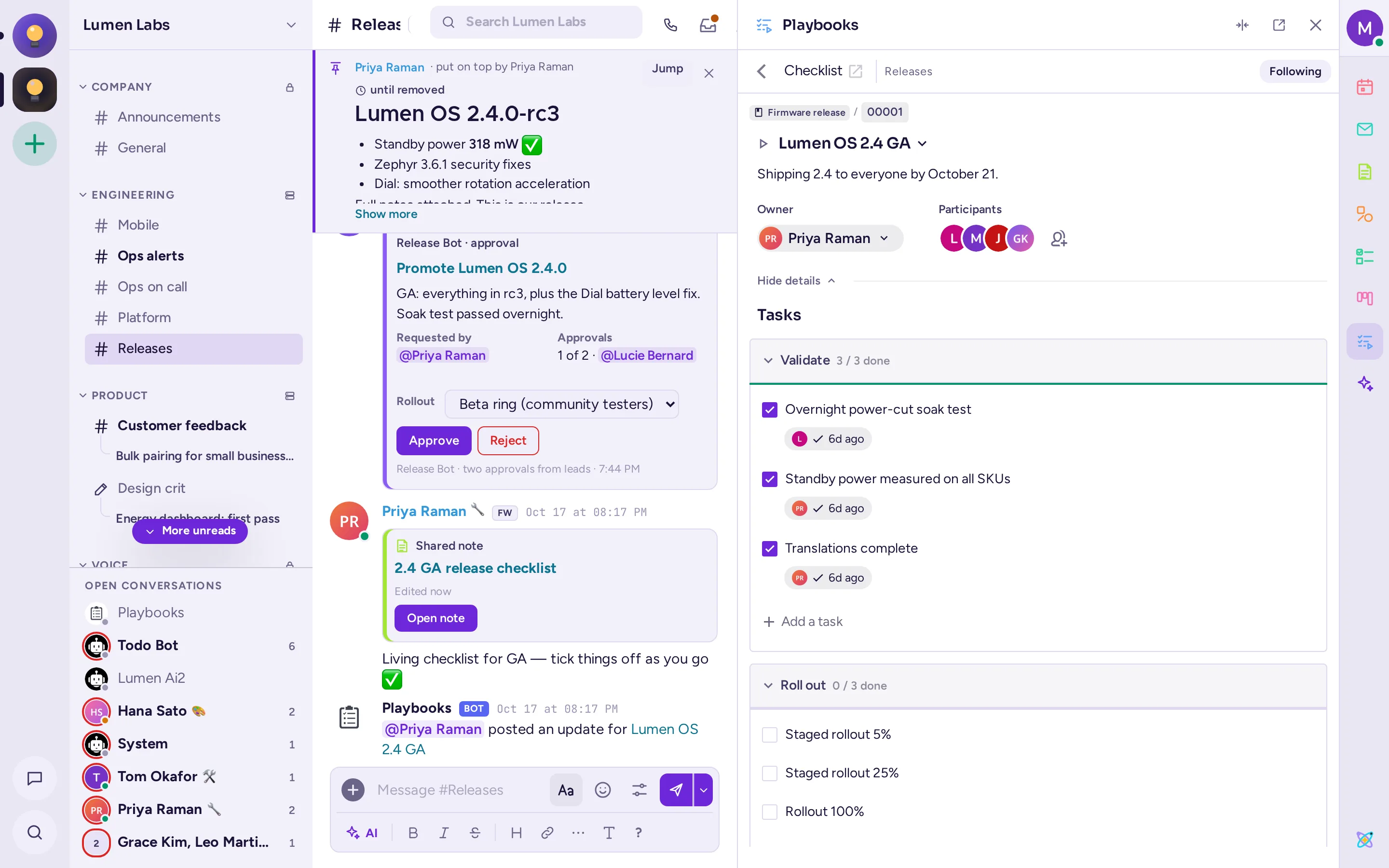
- Click Playbooks in the app rail to see the runs of the current channel, start one with Run a playbook, or make a quick New checklist. Everything in Playbooks opens in this panel, with a back arrow to the previous view.
- To find everything else, click Browse runs, playbooks and tasks at the top of the panel: All runs, All playbooks, Your tasks, and your favourites and runs in progress.
- To create a playbook, click Create playbook or Import in that view; to edit one, open it from All playbooks. Start from a template, such as product release, incident resolution or employee onboarding, or from a blank playbook. The playbook editor widens the panel while it shows.
- To start a run, click Run on a playbook, give the run a name and summary, choose to create a channel for it or link it to an existing one, and click Start run. You can also choose More actions › Run playbook in a message's menu.
- During a run, tick off tasks, assign them and give them due dates, and click Post update to tell everyone where things stand. The owner clicks Finish at the end.
Type /playbook to see the commands, such as /playbook run or /playbook update.
GitHub, GitLab and Jira
These apps connect Antimatter to the tools developers use. Your administrator must set them up first. Then:
- Connect your account by typing
/github connect,/gitlab connector/jira connect, then follow the link and sign in on that site. For GitLab, do this in a web browser, not in the desktop app. - You then get direct messages when someone mentions you, asks for your review or assigns you something.
- To have a channel follow a repository or a project, use
/github subscriptions add owner/repo,/gitlab subscriptions add group/project, or/jira subscribe. - To create or attach an issue from a message, choose Create GitHub Issue, Create GitLab Issue, Create Jira Issue or the matching Attach to … item under More actions in the message's menu.
Type /github help, /gitlab help or /jira help for all their commands.
Alerts
Where your administrator connected it, the Alertmanager app posts each group of alerts from Prometheus Alertmanager into a channel, as a card: its status and severity colour, the alert's name, instance, summary and description, when it started, and a link to its source. Repeats of a firing group update the same card rather than posting again; once it resolves, the card turns green and gets a Resolved reply.
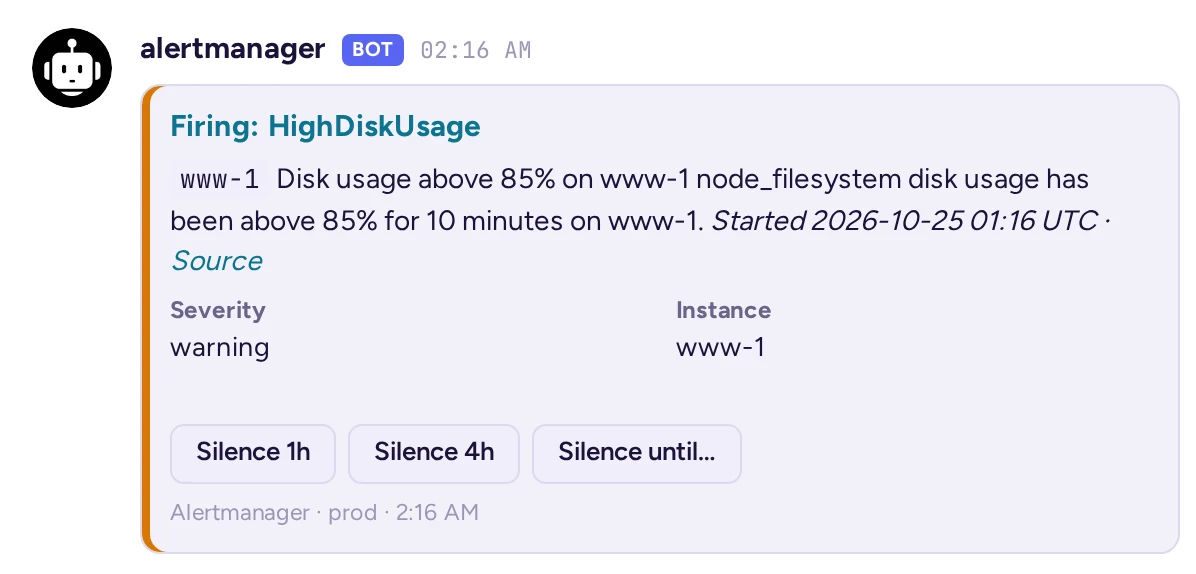
If you're allowed to (your administrator decides who, usually a channel's or community's admins), the card offers Silence 1h, Silence 4h and Silence until… (pick a date and time, and add a comment): any of these quiets that alert in Alertmanager itself, and the card says who silenced it and until when. Expire silence ends it early. Each silence and its end are also noted as a reply under the card. If AI agents or the assistant are set up, the same alerts and silences are also available to them as tools, for the people allowed to use them.
Apps on the mobile app
The mobile app can create and vote in polls, send GIFs and stickers, and answer tasks sent to you. Notes and whiteboards open in a browser window inside the app. Kanban, Calendar and Mail are not in the mobile app yet (memes are): use the web or desktop app for them.
Scheduled calls (see Schedule a call) are an exception: the mobile app shows an Upcoming calls entry next to Threads and Drafts at the top of the channel list, with a dot when a call is live. Its screen has a Schedule | Day | Week switch; Schedule groups calls by day with their RSVP, Day and Week show them on an hour grid. A channel with a call in the next 7 days shows the same header chip as the web app, and the call's post works the same way (Join, RSVP, Remind me, Add to calendar, and Edit or Cancel for the organiser).