 Antimatter
Writing messages
Everything about messages: writing and formatting them, replying, reacting, editing, scheduling, and keeping track of the ones that matter.
Send a message
The message box sits at the bottom of every channel and conversation. It shows the name of the place you are writing to, for example "Message #general".
- Click the message box, or press Ctrl+Shift+L (⌘+Shift+L on a Mac) to jump to it.
- Type your message.
- Press Enter, or click the Send button (the paper plane).
To start a new line without sending, press Shift+Enter. If you prefer Enter to start a new line, turn on Send with Ctrl+Enter in Settings › Messages: you then send with Ctrl+Enter (⌘+Enter on a Mac).
While you type, the people in the conversation see "… is typing…" under the message box. You can stop sending this notice with Don't send typing notices in Settings › Advanced.
A message that could not be sent stays in the conversation, greyed out and marked Not sent. Click Retry to send it again, or Discard to remove it.
Agree to a community's rules
Some communities ask everyone to agree to their rules before posting in their channels. When you open such a community, a Rules of … dialog shows them: read them and click I agree. If you choose Not now, you can still read everything, but the message box of the community's channels is replaced by "Agree to the rules to post here", with Read and agree. When the community's admins change the rules and ask everyone to agree again, the dialog comes back. Direct and group messages are never held back.

The mobile app shows the same dialog and notice. In the classic interface, type /rules in one of the community's channels to read the rules, then /rules agree to agree to them.
Channels where only moderators post
In a text or voice channel set up so that only moderators start conversations, the message box is replaced by "Only moderators post here. Reply in a thread." if you aren't one. In a forum set up the same way, "New topic" and the other buttons that open a topic are hidden, and the one-line notice reads "Only moderators open topics here. Reply in a thread." instead. You can still reply in existing threads or topics (see The Type tab).
Format your text
Antimatter formats messages with Markdown: a few characters around or in front of your text change how it looks. You don't need to learn them: the formatting bar does it for you.
Use the formatting bar
- If the formatting bar under the message box is hidden, click Show formatting (the Aa button in the message box).
- Select some text, then click a button: Bold, Italic, Strikethrough, Heading, Link, Inline code, Code block, Quote, Bulleted list or Numbered list.
- When the window is narrow, some buttons move into More formatting (the ⋯ button).
To check how a message will look before you send it, click Show how the message will look in the formatting bar, or press Ctrl+Alt+P (⌘+⌥+P on a Mac). The ? button opens the help pages on formatting, mentions, files and commands.
If you would rather see bold, lists and links as they will look while you write, turn on Rich text editor (beta) in Settings › Messages, when your server offers it. With the caret inside a word, a formatting button there styles the whole word without your having to select it first. Pasting a file attaches it, as in the plain message box, instead of writing its file name into the message.
Markdown you can type
| You type | You get |
|---|---|
**bold** | bold |
*italic* or _italic_ | italic |
~~struck~~ | struck-through text |
`code` | code in a monospaced font |
``` on the lines before and after some code | a code block; add a language after the first ```, such as ```python, to colour it |
[text](https://example.com) | a link showing "text" |
# , ## or ### at the start of a line | a heading, from largest to smallest |
-# at the start of a line | small, muted text (subtext) |
> at the start of a line | a quote |
- or * at the start of lines | a bulleted list; indent by two spaces for sub-items |
1. at the start of lines | a numbered list |
- [ ] and - [x] | a task list with empty and ticked boxes |
--- on its own line | a horizontal line |
a header row, a line of --- separated by |, then rows separated by | | a table |
If your administrator turned it on, you can also write mathematics with LaTeX, in a ```latex code block.
To see messages as plain text, without any formatting, turn off Message formatting in Settings › Messages.
Times that everyone reads in their own time zone
When a message mentions a time, such as "15:30 CET" or "3pm tomorrow", Antimatter highlights it, with a small clock. Point at it to see that time in your own time zone. You can turn this off with Times in your time zone in Settings › Messages.
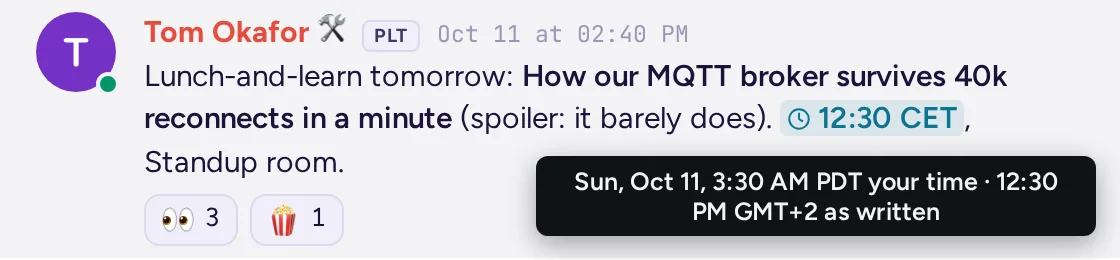
You can also write an exact moment that each reader sees in their own time zone and format: type <t:1700000000>, where the number is a Unix timestamp (the number of seconds since 1 January 1970, UTC). Add a letter after a colon to choose the style: t short time, T long time, d short date, D long date, f date and time (the default), F date and time with the weekday, R relative time, such as "in 3 hours". For example, <t:1700000000:R>.
Mention people and channels
A mention notifies someone, even if they don't follow the conversation closely.
- Type
@and the start of a name, then pick the person from the list with the arrow keys and Tab or Enter. They get a notification. @channeland@allnotify everyone in the channel;@herenotifies those of them who are online. When a channel has more than a few members, Antimatter asks you to confirm first, and says how many people and time zones you are about to notify.- Type
#and the start of a channel name, and pick the channel, to link to it: the message shows#channel-nameas a link.~opens the same list. A#followed by a space starts a heading instead, and a#wordthat names no channel of the community stays a hashtag. - Your community may also have groups you can mention at once, listed with the people when you type
@.
Mentions you add when you edit a message don't notify anyone.
To mention someone from their profile, right-click their name or picture and choose Mention.
Emoji and reactions
Add emoji to a message
- Click Emoji (the smiley face in the message box), or press Ctrl+Alt+E (⌘+⌥+E on a Mac). Search, or browse the categories, and click an emoji. The picker stays open so that you can add several.
- Or type
:and the start of an emoji's name, such as:thumb, and pick it from the list. - Choose a skin tone with the skin tone button in the picker. Your choice is kept.
- By default, emoticons such as
:)and<3become emoji. Turn this off with Turn emoticons into emoji in Settings › Messages.
The picker also has tabs for GIFs and stickers when these apps are installed: see GIFs, stickers and memes.
React to a message
- Point at the message: a toolbar appears at its top right.
- Click Add reaction (the smiley face) and pick an emoji. The menu under Message actions (⋯) also offers six quick reactions.
Reactions show under the message with a count. Click a reaction to add yours, and click it again to remove it. Point at it to see who reacted. To react to the last message of a conversation from the keyboard, press Ctrl+Shift+\ (⌘+Shift+\ on a Mac) in the message box.
With One-click reactions on in Settings › Messages, the emoji you used last appear in the message toolbar, so you can react in one click.
Add your own emoji
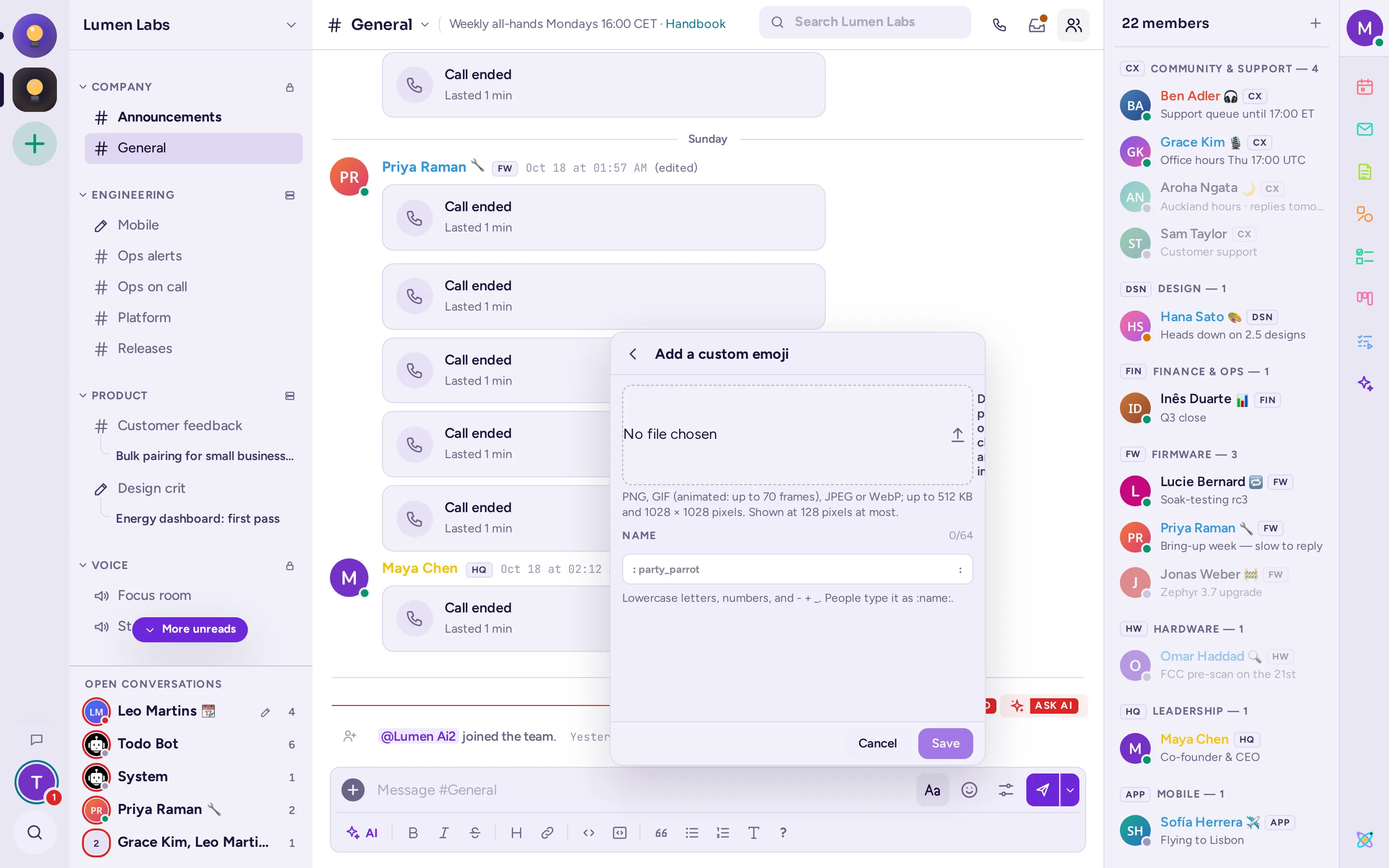
If your server allows it, the emoji picker has two buttons next to its search box: Add custom emoji (+) and Custom emoji. They open their view inside the picker; Back or Esc returns to the emoji.
- Click Add custom emoji.
- Drop, paste or choose an image: PNG, GIF (animated, up to 70 frames), JPEG or WebP, up to 512 KB and 1028 × 1028 pixels. The picker shows it at the sizes of a reaction, a message and the picker.
- Type its Name: lowercase letters, numbers, and
-,+or_, up to 64 characters. The picker tells you as you type whether the name is free. - Click Save. The new emoji shows first in the picker, under Just added.
Everyone on the server can then use it as :name:. Custom emoji lists the server's custom emoji, with who added each one and when; search them, and delete the ones you are allowed to.
Reply to a message
There are two ways to answer a message: a reply in the conversation, which quotes it, or a reply in its thread.
Reply in the conversation
- Point at the message and click Reply (the curved arrow), or choose Reply in its Message actions menu.
- The message box shows "Replying to" with the message you answer. By default, its author is notified. Click @ On to switch to @ Off if you don't want to notify them; Antimatter remembers your choice for next time.
- Write your reply and send it. It appears in the conversation with the quoted message above it. Click the quote to jump to the original message.
To cancel, click Cancel reply (the ×) or press Esc. In an empty message box, Shift+Up quotes the last message, and pressing it again goes further back; Shift+Down goes forward again.
Your administrator can turn these replies off. Then only threads are offered.
Reply in a thread
A thread keeps a side discussion together, under the message that started it, without filling the channel.
- Point at the message and click Reply in thread, or choose Reply in thread in its Message actions menu.
- The thread opens in the panel on the right, with its own message box, "Reply to thread". Write your reply and send it.
In the channel, a message with replies shows who replied, how many replies there are, and when the last one came. Click it to open the thread. In the thread panel you can click Open in a new window to read it in a window of its own, or drag the panel's edge to make it wider. Press Esc or click Close thread to close it.
Follow threads
You follow a thread automatically when you start it, reply to it or are mentioned in it. When you follow a thread, new replies make it unread. To follow or stop following a thread, choose Follow thread or Unfollow thread in the message's Message actions menu, or in the thread panel's Thread actions menu (⋯). That menu also has Open in channel, Mark as read (once there are unread replies, replacing Mark as unread) and Save or Remove from saved, matching the message's own Save. Find all the threads you follow under Followed threads: see Mentions, saved and pinned messages.
By default, thread replies stay in their thread. If you prefer to see replies in the channel too, turn off Keep replies in threads in Settings › Messages, when your server offers the choice.
Make a thread a topic
A topic is a named conversation inside its channel: everyone who follows it sees it under the channel in their sidebar. You can make a thread you started a topic.
- Open the Message actions menu of the first message of the thread and choose Make it a topic….
- Type a Name, such as "Release 2.1", and click Save.
To change the name later, choose Rename topic… in the same menu. Leave the name empty to make it a plain thread again.
Make a thread a channel
When a thread grows into a subject of its own, carry on in a channel of its own.
- In the thread panel, open the Thread actions menu (⋯) and choose Make it a channel….
- Check the channel's Name, which comes from the thread, and turn on Private channel if only its members should see it.
- Keep Add the other people in the thread on to make everyone who wrote in it a member.
- Click Create the channel.
If you may move the thread (see below), its messages move to the new channel, with their authors and times, and a link to them stays in the thread's place. Otherwise the replies stay in the thread: the new channel starts with a link to the thread, and the thread gets a link to the channel. You need to be allowed to create channels.
Move a thread
Choose Move thread… in the message menu to move a whole thread to another channel of the same community. You can move the threads you started between public channels, and anywhere when all their messages are yours. The channel's admins, the community's admins and moderators can move any thread of the community. A line in each channel links to the other place, such as "A thread with 13 messages has been moved to #ops": click it to open the thread there, highlighted. Threads in archived channels, in direct and group messages, and very long threads can't be moved.
The message menu
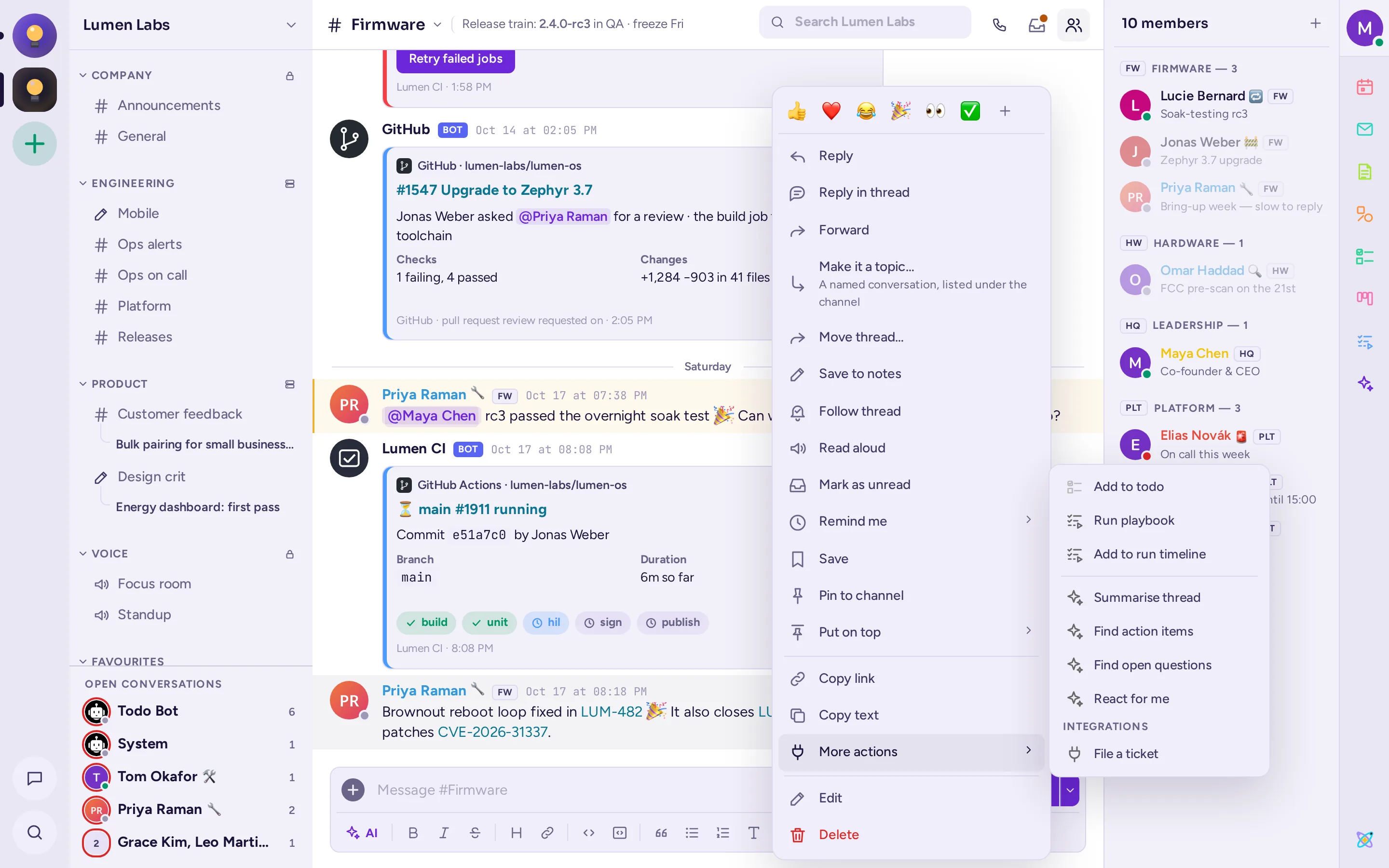
Point at a message and click Message actions (⋯) to open its menu. On a touch screen, press and hold the message. Depending on the message and on what you are allowed to do, the menu offers:
| Item | What it does |
|---|---|
| Quick reactions, then More reactions | React with one of six common emoji, or pick another. |
| Reply | Quote the message in your reply. |
| Reply in thread | Open the message's thread. |
| Forward | Share the message in another channel or conversation (see below). |
| Make it a topic… / Rename topic… | Make the thread a named conversation of the channel (see Make a thread a topic). |
| Move thread… | Move the whole thread to another channel of the community, when you are allowed to. |
| Accept answer / Unaccept answer | In a Q&A forum, mark a reply as the question's accepted answer, or take it back. Shown to the question's asker and to moderators (see Q&A and Ideas). |
| Set status | In an Ideas forum, set a topic's status: Open, Planned, In progress, Done or Declined. Moderators only. |
| Save to notes | Copy the message into your Notes to self. |
| Follow thread / Unfollow thread | Get, or stop getting, the new replies of the thread. |
| Read aloud | Have the message read out, when your administrator turned this on. Choose Stop reading to stop. |
| Mark as unread | Make the conversation unread again from this message. |
| Remind me | Get a reminder about the message In 30 minutes, In 1 hour, In 2 hours, Tomorrow at 9:00, or at a Custom time…. |
| Save / Remove from saved | Keep the message in your saved messages. |
| Pin to channel / Unpin from channel | Pin the message for everyone in the channel. |
| Put on top | Show the message above the channel's messages for a while. In a channel, only its admins, the community's admins and moderators can. |
| Hide image / Show image | Hide or show the message's images (see Share files and images). |
| Copy link | Copy a link to the message. |
| Copy text | Copy the message's text, with its Markdown. |
| More actions | The actions of the apps, each with its app's icon, such as Add to todo or Run playbook. Apps with several actions have a group of their own, set apart by a line, such as the AI actions (see AI actions on a message). Under Integrations come the actions that connect the channel to other tools: choosing one sends the message to that tool, and a short notice says it was sent. |
| Edit | Change your message. |
| Delete | Delete the message for everyone. |
| Report message | Report someone's message to the moderators, when your community has reporting turned on. |
Edit or delete a message
Edit
- Choose Edit in the message's Message actions menu. To edit your last message, you can also press Up in an empty message box.
- Change the text in place. Press Enter or click Save to save, Shift+Enter for a new line, or Esc to cancel.
An edited message shows (edited). Point at it to see when it was edited. On your own messages, click (edited) to see the earlier versions. Your administrator may limit how long after posting a message can be edited.
Delete
- Choose Delete in the message's Message actions menu.
- Confirm with Delete. The message is removed for everyone, with its replies and files if it started a thread. This can't be undone.
Share files and images
To attach files to a message, do one of these:
- Click Add a file and more (the + in the message box) and choose Upload a file.
- Drag files onto the conversation and drop them.
- Paste an image or a file into the message box.
Each file shows in the message box with its upload progress; click its × to remove it or cancel the upload. Add some text if you like, then send. A message can carry several files, up to a limit; your administrator sets the largest size allowed.
In a message, click an image to open it larger. There you can zoom with Zoom in (+) and Zoom out (−), go to the Previous image or Next image, Download it or Copy link. Other files open in a preview when Antimatter can show them, such as PDF files, code, audio and video. Each file has a menu with Download, Copy link, Copy public link (when your server allows public links) and Open in channel. A message with several files shows them as a gallery you can collapse; its Download all saves every file in it as one zip, instead of downloading each on its own.
Images show in full by default. To hide one message's images, choose Hide image (or Hide 3 images) in its Message actions (⋯) menu; Show image there, or the line left under the message, shows them again. To have all images folded until you open them, turn off Show images expanded in Settings › Messages, or type /collapse; /expand shows them again.
Links and link previews
When a message contains a link to a website, Antimatter can show a preview card with the page's title, description and picture. If you wrote the message, you can click Remove link preview on the card to remove it. To stop seeing previews, turn off Link previews in Settings › Messages.
To share a message, choose Copy link in its menu and paste the link anywhere in Antimatter. The link shows as a small chip with the channel's name; click it to jump to the message (see Links to messages and channels). Only people who can read that channel can see the message.
Forward a message
- Choose Forward in the message's Message actions menu. The Forward message dialog opens.
- Pick the channel or person to send it to.
- Optionally, write something in Add a comment (optional).
- Click Forward.
A message from a private channel or a private conversation can only be forwarded to people who can already read it; the dialog tells you when that is the case.
Drafts
Antimatter keeps what you write and haven't sent yet, for each channel and thread: you can leave, or even close or reload the page, and come back to finish it. In the sidebar, a pencil takes the place of a channel's #, or follows a conversation's name, while a draft waits there. All your unsent messages are listed under Drafts, with a count, in the list of your direct messages (see the layout). From there you can send, edit, schedule or delete each draft.
With Sync drafts on in Settings › Advanced (it is on by default), your drafts are kept on the server, so you can finish them on another device. A draft leaves the server once you send or schedule the message.
Schedule a message
You can write a message now and have Antimatter send it later.
- Write the message.
- Click Send later, the small arrow next to the Send button.
- Choose Tomorrow at 9:00, Monday at 9:00, your Recently used custom time, or pick a date and time under Custom time and click Schedule.
A note above the message box then says when the message will be sent. Click See all to open the list of your scheduled messages, also under Scheduled in your direct messages list. There you can send a message now, reschedule it, edit it or delete it. If a scheduled message can't be sent, for example because the channel was archived, the list says why.
When you write a direct or group message to someone for whom it's night (between 22:00 and 06:00 in their time zone), a note says "It's 23:10 for … — they may be asleep." Click Send at … their time to schedule the message for the start of their working day, or Dismiss to hide the note. The time depends on their country: for example 08:00 in central and northern Europe, 09:00 in many other countries, and 08:30 where Antimatter doesn't know the usual hours.
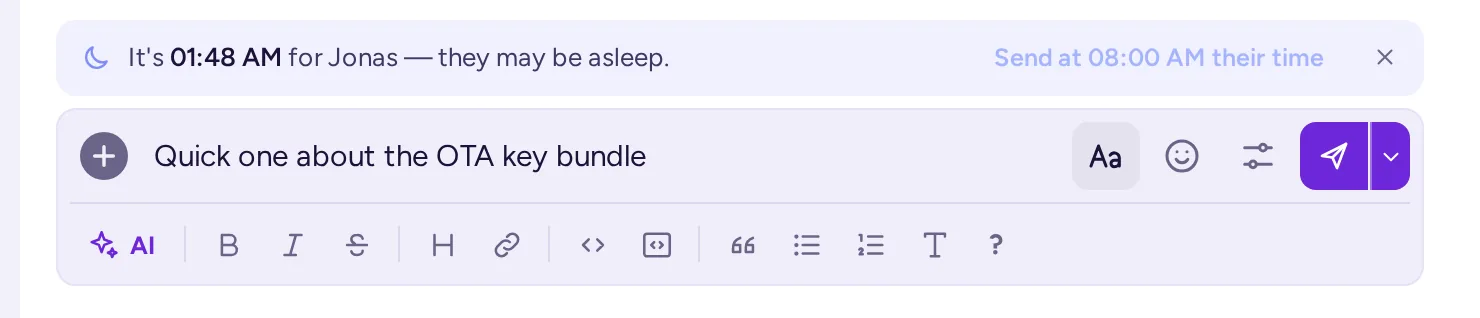
A similar note tells you when the people you write to have Do not disturb on, or are out of office.
Important and urgent messages
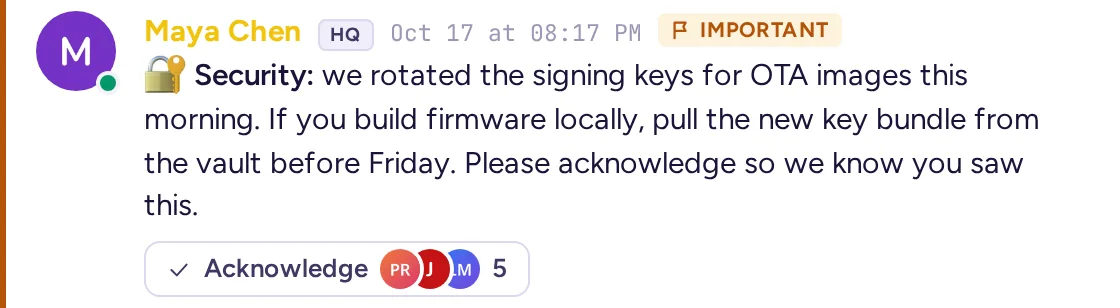
When your server allows it, you can mark a message as important or urgent, and ask people to confirm they read it. This works for new messages in a channel or conversation, not for replies in a thread.
- Click Message options (the sliders button, between Emoji and Send; on a phone, it is in the + menu).
- Under Message priority, choose Standard, Important or Urgent.
- Turn on Request acknowledgement if the readers should confirm they have read it.
- For an urgent message, you can also turn on Persistent notifications: the people notified get a notification again every few minutes until they acknowledge it.
- Click Done, then send the message.
Each option you set shows as a chip at the top of the message box, such as "Urgent · acknowledgement". Click a chip to change the option, or its × to remove it. Message options also holds spoilers and burn-on-read, below.
The message shows an Important or Urgent tag. When an acknowledgement is requested, an Acknowledge button appears under it, with the pictures of those who already did. Click it to acknowledge; it then reads Acknowledged.
Spoilers
A spoiler hides a message's text and files until each reader chooses to see them. Notifications don't show its text either.
- Write your message, with files if you like.
- In Message options, turn on Send as a spoiler and click Done. A Spoiler chip shows in the message box; click its × to undo.
- Send the message.
Readers see a striped cover. Click it to show the message. To hide it again, click Spoiler: show or hide in the message's toolbar.

Burn-on-read messages
When your administrator allows it, you can send a message that is deleted a while after each person opens it.
- Write the message.
- In Message options, turn on Burn on read, then choose on the slider how long the message lasts once each person opened it: 1 min, 15 min, 30 min, 1 h, 4 h, 1 day, or Custom (a number of minutes, hours or days). Your administrator sets the longest time you can choose. Click Done: a chip such as "Burns 15 min after reading" shows in the message box.
- Send the message.
The message's tag says how long it lasts, for example Burn on read · 15 min, and readers see "Click to read — this message burns … after you open it". Once opened, a timer shows how long is left. As the sender, you see how many people have read it, and you can delete it for everyone at once. Burn-on-read messages can't be replied to in a thread or forwarded.

Pin a message, or put it on top
Pin to channel, in the message menu, adds the message to the channel's pinned messages, which everyone in the channel can list: see Mentions, saved and pinned messages. Pinned messages show a Pinned tag.
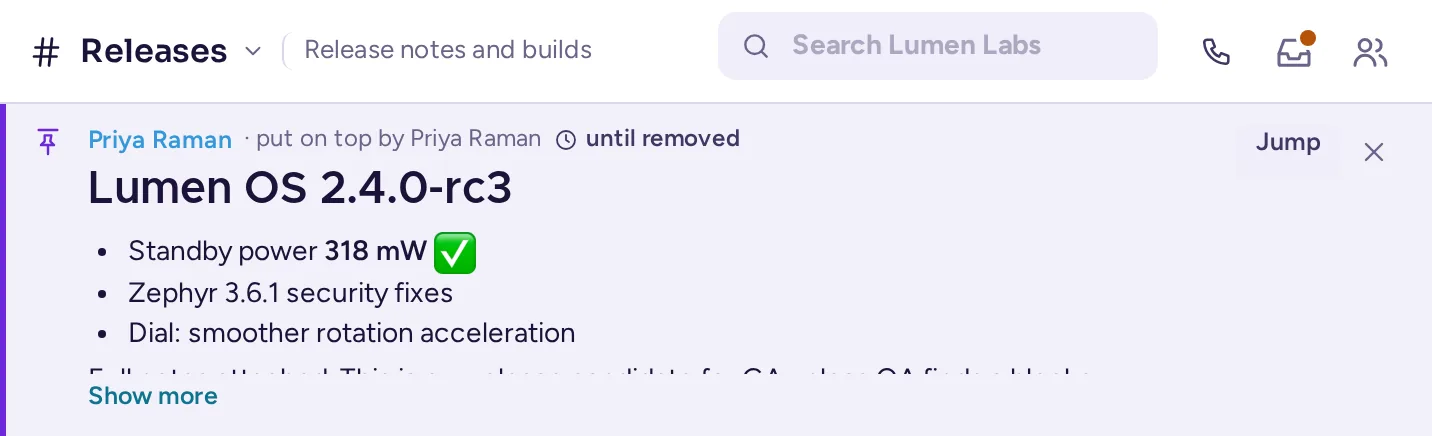
Put on top goes further: the message shows in a strip above the channel's messages, for everyone, for a while. In a channel, only its admins, the community's admins and moderators can put messages on top, or take them off; in direct and group messages, everyone in the conversation can.
- In the message menu, point at Put on top.
- Choose how long: For 1 hour, For 4 hours, For 1 day, For 1 week or Until removed.
Several messages can be on top at once: use Previous and Next in the strip to go through them, and Jump to see a message in the conversation. To take a message off the top, click the × in the strip, or choose Remove from top under On top · change in its menu.
Save messages and set reminders
Choose Save in a message's menu to keep it for later. Saved messages show a Saved tag, visible only to you. Find them under Saved messages.
Choose Remind me to be reminded of a message later, at one of the proposed times or at a Custom time… (pick a date and time, then click Set reminder).
Your Notes to self is a conversation only you can see, for notes, reminders and drafts. Open it from the list of your direct messages, or send a message there with Save to notes in its menu.
Translated channels
When the administrators of a channel turn on translation, and your server supports your language, the messages of that channel are shown translated into your language, and the channel's header shows Translated. Under each translated message, you can click Show the original, then Show the translation to switch back. To see the whole channel in its original languages, turn off Translate messages in the channel's menu.
Slash commands
A message that starts with / is a command. Type / to see the list, with a short description of each; apps add their own. While you type a command, the suggestions show it and each of its arguments as blocks, with help for the one you are typing. Some commands you may use:
| Command | What it does |
|---|---|
/away, /online, /offline, /dnd | Set your status. |
/msg @name message | Send a direct message. |
/groupmsg @name1, @name2 message | Send a group message. |
/join #channel, /leave | Join or leave a channel. |
/mute | Mute or unmute the current channel. |
/header text, /purpose text | Set the channel's header or purpose. |
/me text | Post an action, in italics. |
/shrug text | Add ¯\_(ツ)_/¯ to your message. |
/tableflip text, /unflip text | Add (╯°□°)╯︵ ┻━┻ or ┬─┬ノ( º _ ºノ) to your message. |
/code text | Post the text as a code block. |
/search words | Search messages. |
/rules, /rules agree | Read the community's rules, or agree to them (see Agree to a community's rules). |
/expand, /collapse | Show images expanded or folded. |
/settings, /shortcuts | Open the settings, or the list of keyboard shortcuts. |
/logout | Sign out. |