 Antimatter
Search and finding things
Find any message, file, channel or person, and get back to what matters: your mentions, saved and pinned messages, and the threads you follow.
Quick search
Quick search finds channels, conversations, people and messages from one box.
- Press Ctrl+K (⌘+K on a Mac), or click Search everything (the magnifying glass at the bottom of the community rail).
- Type a few letters. Results appear as you type, grouped as Channels & conversations, People and Messages. Use the All, Channels, People and Messages tabs to narrow them.
- Move with the arrow keys and press Enter to open a result, or click it. Choosing a person opens your direct message with them.
Messages are searched in the current community; switch to In all communities to search them all. To see every matching message, choose Search all messages for "…": the results open in the panel on the right. Before you type, the box lists your Recent conversations and Recent searches.
Quick search lists the channels you are in. To find channels you haven't joined, use Browse channels in the community menu: see Find and join channels.
Search messages
- Click the search box at the top of the conversation ("Search …" followed by the community's name).
- Type the words you are looking for. The suggestions under the box offer Search in #channel (or Search in this conversation) to look only where you are, the Filters below, and your Recent searches.
- Press Enter. The Search results open in the panel on the right, with the number of matches.
The search looks for whole words, and for the beginnings of words you end with *.
Filters
| Type | To find |
|---|---|
from:@marie | messages written by Marie |
in:design | messages in a channel or conversation |
on:2026-10-05 | messages of one day |
before:2026-10-05, after:2026-09-01 | messages before or after a day |
"exact phrase" | these words, together and in this order |
-draft | messages without the word "draft" |
deploy* | words starting with "deploy" |
ext:pdf | files of a type |
has:link, has:code, has:thread, has:file, has:embed | messages with a link / code / a reply thread / an attached file / a link preview |
pinned:true (or pinned:false) | pinned messages (or unpinned ones) |
mentions:@marie | messages that @mention Marie |
#hashtag | messages with that hashtag |
As you type from: or in:, the suggestions list matching people or channels; for on:, before: and after:, Pick a day opens a calendar. has:, pinned: and mentions: have no autocomplete of their own yet, but Fusion offers them as insertable hint chips in the suggestions. You can combine filters, for example release from:@marie in:platform after:2026-09-01. Clicking a hashtag in a message also searches for it. A # followed by the name of one of the community's channels is a link to that channel, not a hashtag.
Use the results
- Click a result to jump to the message in its conversation; it is highlighted there (see Links to messages and channels). A result inside a forum channel shows its topic's title above it, and opens the topic instead.
- Each result has buttons to Open the thread, Save, Pin to channel and Copy link.
- Switch between Messages and Files at the top of the panel. For files, filter by type: Documents, Spreadsheets, Presentations, Code, Images, Audio or Video.
- Drag the panel's edge to give the results more room, or click Open in a new window.
If nothing matches, try another word or a filter. You can also type /search followed by your words in any message box.
Mentions, saved and pinned messages
The inbox button at the top right of a conversation (Mentions, saved, pinned, files and threads here) gathers in one panel:
- Mentions: messages that mention you.
- Saved: the messages you saved.
- Pinned: the messages pinned in this conversation.
- Files: the files shared in this conversation.
- Threads: the threads you follow.
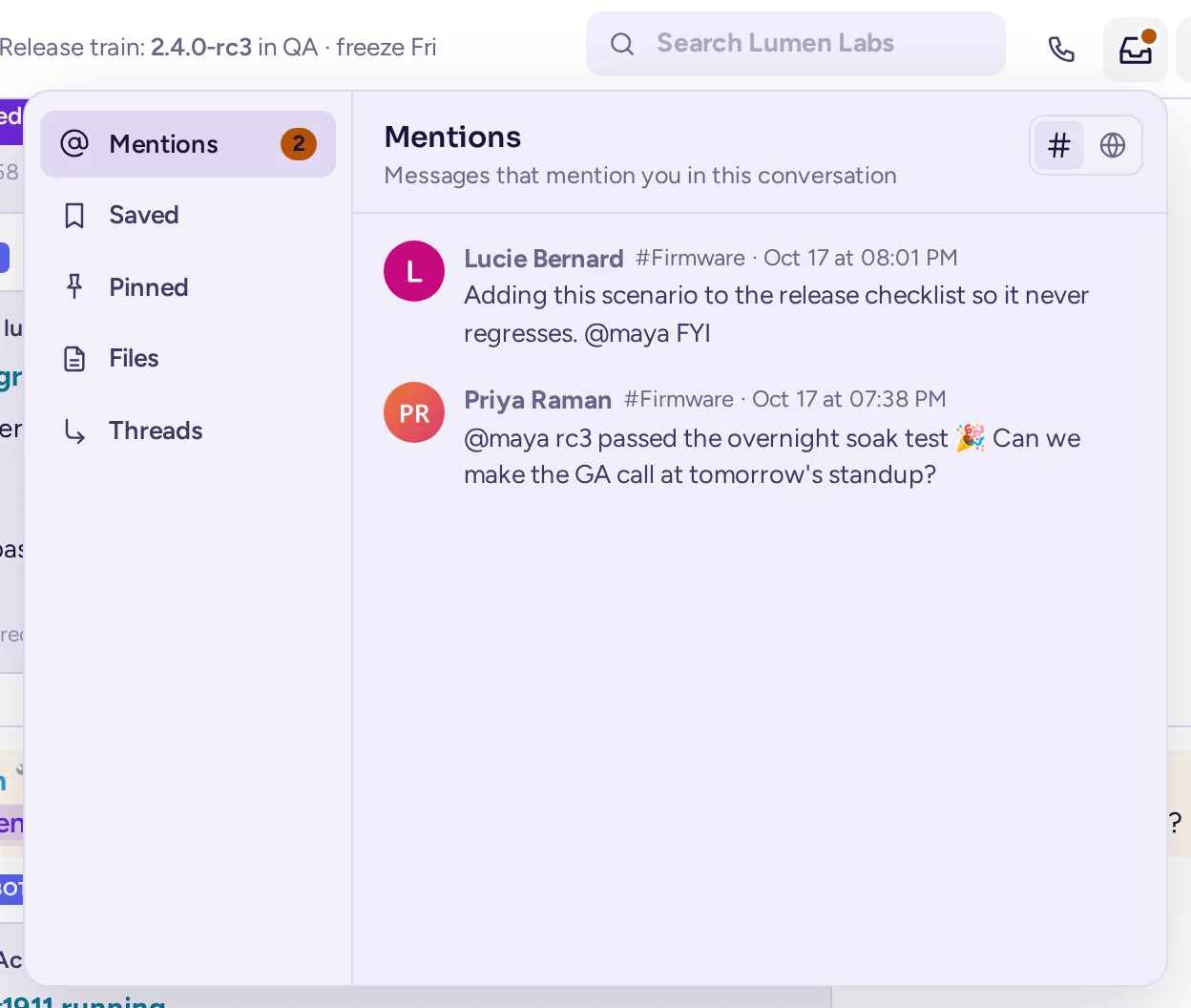
A dot on the button means someone mentioned you there. In Mentions, Saved and Threads, choose with the two buttons at the top whether to see items from This conversation or from The whole community. Click an item to jump to it, or to open its thread.
The same lists are in the list of your direct messages (click All direct messages, the chat bubble at the bottom of the community rail): Mentions, with the count of your unread mentions, Followed threads and Saved messages, for the whole community. Press Ctrl+Shift+M (⌘+Shift+M on a Mac) to open your Recent mentions in the panel on the right. There, Followed threads has its own Unreads tab beside it, and a Mark all as read button that marks every followed thread of the community as read at once (with a confirmation), separate from a channel's own Mark all as read.
Catch up on unread messages
- When you open a channel with unread messages, a line marks where they start, and a banner at the top says how many new messages arrived since you were last there. Click Jump to go to the first one.
- While you scroll back in a conversation, a button at the bottom counts the new messages that arrived; click it to go down to them.
- By default, an unread conversation opens where you left off. To open it at the newest message instead, set Open unread conversations at to The newest message in Settings › Messages.
- To come back to something later, choose Mark as unread in a message's menu: the conversation stays unread from that message.
- Alt+Shift+Up and Down go to the previous or next unread channel, and Ctrl+Shift+U hides the read channels in the sidebar.
- Mark all as read in the community menu, or Shift+Esc, marks every channel of the community as read.
If AI agents are set up, they can also summarise what you missed: see Catch up on a channel and Recaps.
Links to messages and channels
Every message and channel has a link: choose Copy link in its menu. Opening the link takes anyone who may read it straight there: the message is highlighted, and the conversation stays around it while you read. When the newest messages of the conversation aren't shown with it, a bar above the message box says "You're viewing older messages", with the number of new messages that arrived meanwhile. Click Jump to present to go back to the newest messages; scrolling down to them, or sending a message, does it too. If the link leads to a private channel you are not in, Antimatter asks you to confirm before you join it, when you are allowed to.