 Antimatter
Communities and channels
Communities hold channels, and channels hold conversations. This page explains how to join them, keep your sidebar tidy, and talk with people directly.
Communities
A community is a space with its own channels and members: your company, a department, a club or a public project. You can belong to several communities on the same server. They are shown as round icons in the rail on the far left of the window. A dot on an icon means unread messages; a number counts the mentions of you.
Switch between communities
Click a community's icon in the rail. Antimatter opens the channel you were last in. From the keyboard, press Ctrl+Alt+Down or Up for the next or previous community, or Ctrl+Alt+1 to 9 for the first to ninth (⌘+⌥ on a Mac).
Join another community
- Click Add a community (the + under the community icons).
- Choose Join another community. A page lists the communities open to you.
- Pick one to join it.
Some communities can only be joined with an invitation: ask one of its members or admins for an invite link. If your server lets you, the same menu also offers Create a community.
The first time you open some communities, a Welcome to … dialog asks you a few questions. Your answers give you the roles and channels that fit you. You can Skip it.
The community menu
Click the community's name at the top of the sidebar, or right-click its icon in the rail, to open its menu. Depending on your rights, it offers, from top to bottom:
- Invite people, when you may invite.
- Community settings, if you manage something in the community. Otherwise, View members and Teams… (the community's teams, each with a tag, a lead and a channel).
- Your roles…, when the community has roles anyone can take: they colour your name, and may let you do more.
- Your profile in <community>…: a picture, a nickname and a team badge shown instead of your global ones in this community (see Your profile in a community).
- Create channel, Create category and Browse channels, to find channels to join.
- Hide read channels (also Ctrl+Shift+U) and Hide muted channels, which show a check when they are on.
- Mark all as read (also Shift+Esc).
- Mute community, which mutes all its categories, and Unmute community.
- Notification settings, which opens this community's own notification settings, and Privacy settings, its own direct-message and profile-detail choices (see Who can message you).
- The actions of apps, and Add to folder (from the rail only, see Community folders).
- Leave community.
Community folders
If you belong to many communities, you can group their icons into folders in the rail:
- Drag a community's icon onto another one to put them together in a folder. Drag icons up or down to reorder them.
- Or right-click a community's icon, choose Add to folder, then a folder or New folder with another community.
- Click a folder to open or close it. Right-click it for Mark folder as read, Folder settings (its Name and Colour) and Remove folder; the communities stay in the rail.
Folders are your own: nobody else sees them.
Leave a community
Choose Leave community in its menu and confirm. You leave all its channels. To come back later, you may need a new invitation.
Channels
A channel is a conversation about one subject, open to the community's members. Public channels have a # before their name; anyone in the community can find and join them. Private channels have a lock, and only their members can see them. Voice channels have a speaker: see Voice channels.
Every community has a default channel that everyone is in, called General. Some communities put everyone in all their channels.
Find and join channels
- Open the community menu and choose Browse channels.
- Type in Search channels, or pick a kind: All, Public, Private, Archived or Ask to join. Tick Hide joined to see only the channels you are not in.
- Click Join next to a channel. In a community where members are in every channel, there is no Join button or Joined label: you are already in every public one.
Some private channels can be found but not joined directly: click Ask to join to send a request to their admins. The button then reads Requested; click it again to withdraw your request. You are added when an admin accepts.
You can also join a channel from a link to it, or by typing /join #channel-name.
Create a channel
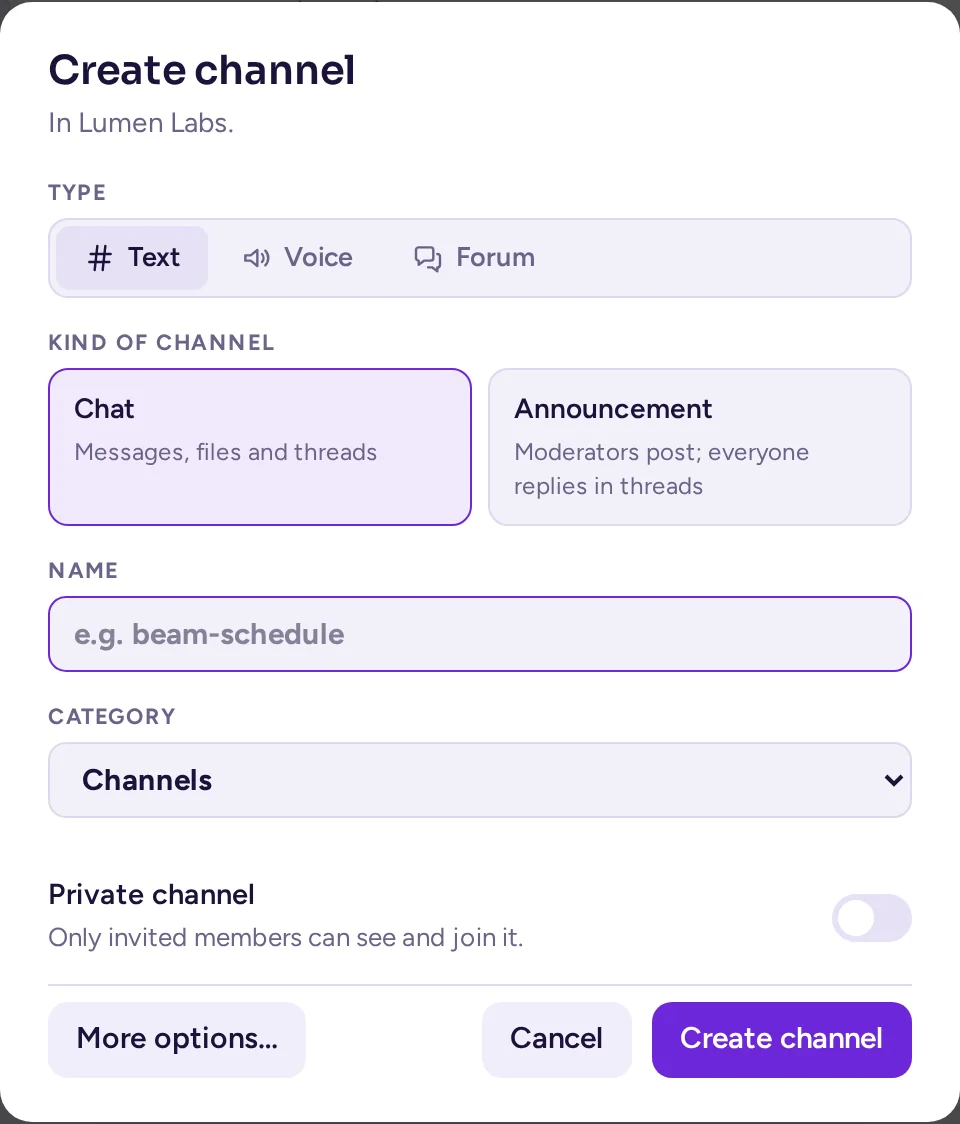
- Choose Create channel in the community menu, or click the + next to a category in the sidebar.
- Pick the channel's type with the Text, Voice and Forum switch, then a card under it: Chat or Announcement for text; Talk or Stage for voice; Discussion, Q&A, Ideas, Announcements or Image board for a forum. Each card's text under its name says what it offers. The type is fixed once the channel is made; you can still switch between the cards of that type afterwards, in the channel's settings (see The channel's Type tab).
- Type a Name.
- Choose the Category it goes in.
- Turn on Private channel if only invited members should see it.
- Click Create channel.
More options… opens the full dialog, with the channel's address and purpose. Whether you may create public or private channels depends on your community's settings. Voice is greyed out, with "Needs the Voice channels app", until that app is active on your server.
A text channel whose preset is Announcement shows a megaphone instead of # in the sidebar, in place of the usual Chat channel's #. A forum shows stacked speech bubbles (a question mark for Q&A, a light bulb for Ideas, a stack of images for a forum whose default view is the image board). A voice channel keeps its speaker.
Add people to a channel
If you may manage the channel's members, choose Add members in the channel's menu. Search by name or @username, select people, and click Add. They see the channel's history and get notified.
The channel menu
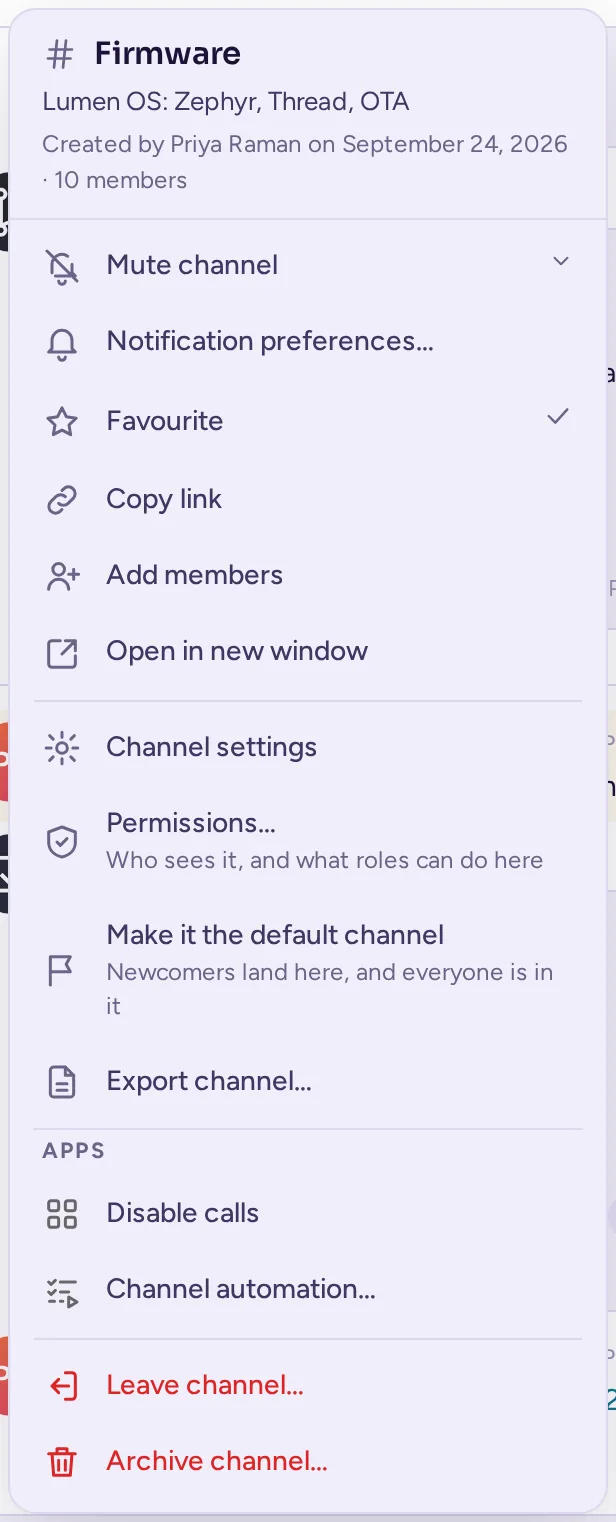
Click the channel's name at the top of the conversation to open its menu. Its top shows the channel's purpose (or else its header), who created it, how many members it has, and Archived when it is. Then, depending on your rights:
- Mute channel or Unmute channel (see Mute a channel).
- Notification preferences… (see Notifications for one channel), Favourite (favourite channels go to the Favourites category), Copy link, Add members, Translate messages and Open in new window.
- Channel settings, Permissions…, Make it the default channel and Export channel… (see below).
- The actions of apps, under Apps.
- At the bottom: Unarchive channel, Close channel, Leave channel… and Archive channel….
The header next to the name is a short text set by the channel's members; click Show the whole header if it is cut. The header's own buttons open the member list, and the channel's pinned messages and files (see Mentions, saved and pinned messages).
The header can also show Has guests (guests can read and post in this channel), Translated, Restricted (an access policy decides who can join) or that the channel is shared with other servers.
The member list
Click Member list (the two people at the top right) to show or hide the channel's members on the right. They are grouped by role, then online and offline. A Search members box above the list filters it by name as you type. Use Group members by to group them by Roles or Teams instead, unless your community's admins chose the grouping for everyone, and the filter to show people with a given attribute, such as a site. Click someone to see their profile card, or right-click them for their menu; with Manage channel roles, that menu also has Make channel admin (or Make member, to take it back). With the Simplified interface on (see Accessibility), the member list stays closed until you open it.
Leave a channel
Choose Leave channel… in the channel's menu, then confirm. You can join a public channel again from Browse channels; for a private one, you need to be added again. You can't leave the community's default channel. In a community where everyone is in all channels, there is no Leave channel…: Mute channel says why.
Archive a channel
Archiving a channel ends its conversation but keeps its history. If you may, choose Archive channel… in the channel's menu, or Archive channel in its settings. In a community set up as a workspace, you can archive the channels you are an admin of, such as those you created; in other communities, only the community's admins and the roles that manage channels can.
An archived channel can still be read, but nobody can post, react or pin there. Its admins can still add people to it, for example someone who needs to read its history. Choose Close channel in its menu to leave it.
Organise your sidebar
The sidebar lists the current community's channels in categories. Some categories are set up by the community's admins for everyone; the others are yours, and only you see them.
The channel menu
Point at a channel and click Channel options (⋯), or right-click it. The menu has the same actions as the channel menu (see The channel menu), in the same order, with three of its own:
- Mark as read or Mark as unread, first.
- Move to…: put the channel in another category, one of Yours, or one For everyone if you are an admin.
- Hide until new messages: the channel moves to a Hidden section at the end of the sidebar until someone writes in it. Show in the sidebar brings it back.
Categories
- To create one, choose Create category in the community menu, type a Name and click Create category.
- Drag channels from one category to another, or within a category to reorder them. Drag categories to reorder them too.
- Click a category's name to fold or unfold it.
- Click Category options (⋯) next to its name to Rename category, Delete category (its channels go back to the default categories), Mute category, Mark category as read, Sort its channels (Alphabetically, By recent activity or Manually), Move up or Move down, or Create new category.
Categories set up by the admins say so when you point at their name. When such a category is Locked, its channels stay in it.
Unread channels
- A channel with unread messages is shown in bold; a number counts the mentions of you.
- When unread channels are out of view, a More unreads button appears at the top or bottom of the list: click it to scroll to them.
- Turn on Group unread channels in Settings › Appearance to gather them in an Unreads section above the categories.
- Press Ctrl+Shift+U, or choose Hide read channels in the community menu, to see only unread channels; click Show all to see them all again.
- Alt+Up and Alt+Down go to the previous or next channel; add Shift to go to the previous or next unread one.
Topics
Topics, the threads that someone gave a name, show under their channel in the sidebar for everyone in the channel, whether or not they follow it, as long as it was last active within your Topics under a channel period (see Themes and display); if you follow it, it also shows its number of new replies. Click one to open it. An unnamed thread with new replies still shows only for the people who follow it. See Make a thread a topic.
Export a channel
Choose Export channel… (or Export conversation…) in the menu to download its messages as a CSV file you can open in a spreadsheet: who wrote them, when, and their replies. Pick the Messages to include: Last 30 days, All time or Custom dates, then click Export. Attachments are listed by name, and deleted messages are left out. Your administrator may keep this to admins.
Forum channels
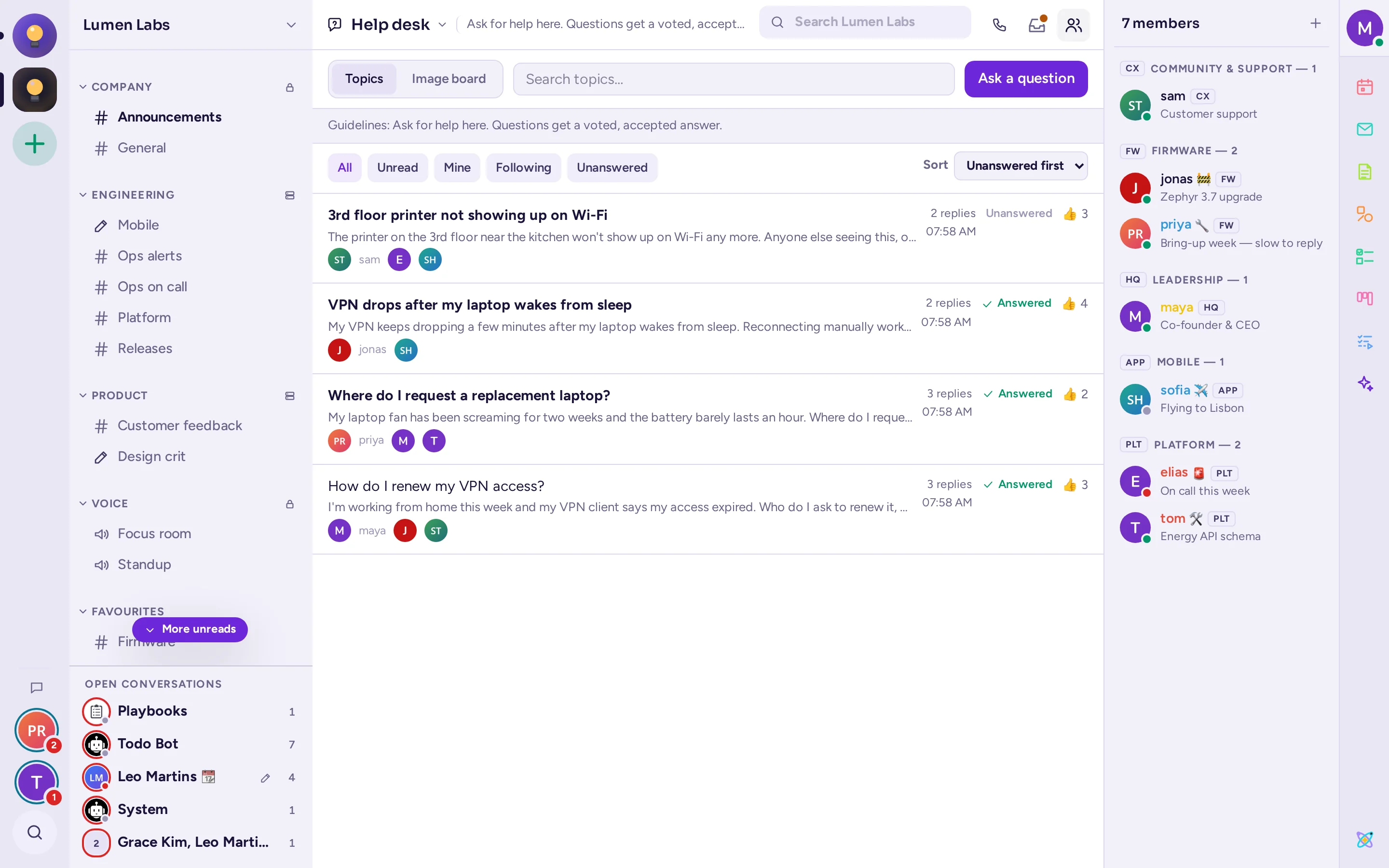
A forum channel holds topics instead of an ordinary conversation: opening one shows a list of topics, with no message box at the bottom.
The topics view
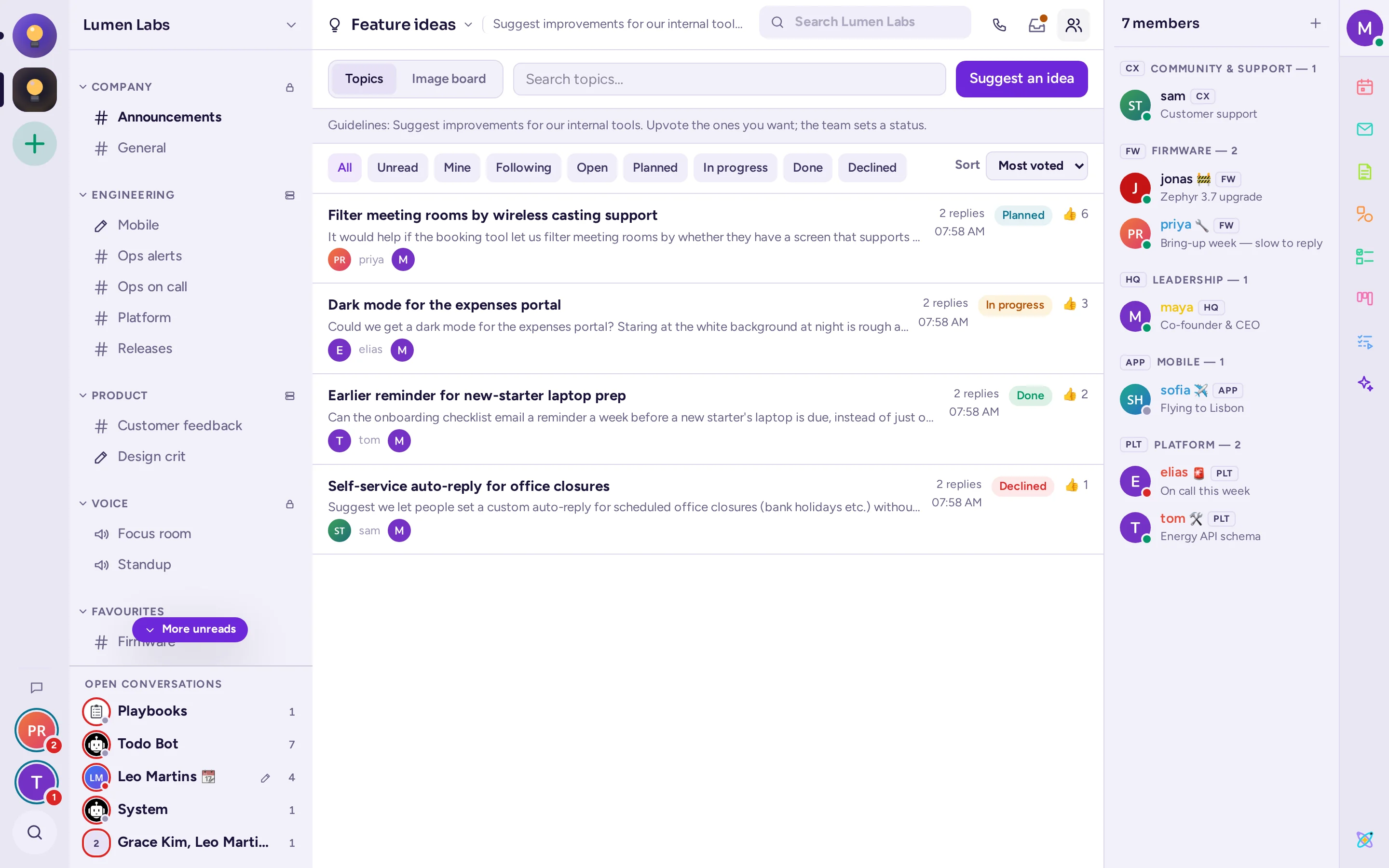
Each row shows a topic's title, the first line of its first post (with a thumbnail when it has an image), its author and up to three other people who replied, its replies and last activity, and, in a Q&A forum, whether it is answered and its 👍 votes, or in an Ideas forum, its status and votes.
- Sort by Latest activity or Newest in a Discussion or Announcements forum; Unanswered, Newest or Most voted in Q&A; Most voted, Newest or Status in Ideas.
- Filter by All, Unread, Mine or Following, and, in Q&A, Unanswered, or in Ideas, a single status.
- Search the forum's own topics with its search box.
The channel's purpose, when it has one, shows above the list as the forum's guidelines. Topics put on top of the channel (see Pin a message, or put it on top) are listed first.
Open a topic
The button above the list, New topic, Ask a question or Suggest an idea depending on the forum, opens a form: a required Title (up to 100 characters), then the ordinary message box, with formatting, attachments and emoji. You see this button only if you may open topics there (see The channel's Type tab). Click a topic to open it: its first post, then its replies, with a reply box at the bottom and an All topics link back.
Q&A and Ideas
In a Q&A forum, the question's asker or a moderator chooses Accept answer in a reply's Message actions menu (Unaccept answer takes it back); the topic then pins that reply under the question, with the other replies below it by votes. In an Ideas forum, a moderator sets a topic's status from its Message actions menu: Set status › Open, Planned, In progress, Done or Declined. Click a question's, an idea's or an answer's 👍 to vote for it; your own posts have no vote button.
The image board view
Click Image board, next to Topics at the top of the forum, to see it that way: a scrolling page of cards, each with its first image large (just its text when the first post has none), the title, the author, how long ago it started, the first lines of its first post, its reply and image counts, an Open topic button, and its three latest replies underneath. In Q&A and Ideas, each card also has the vote button. A new topic's form leads with the attachment area instead of the title field, which still comes right after.
Topics and Image board are your own choice: the channel's settings set which one you see first when you open it (see The channel's Type tab), but switching between them there is yours alone.
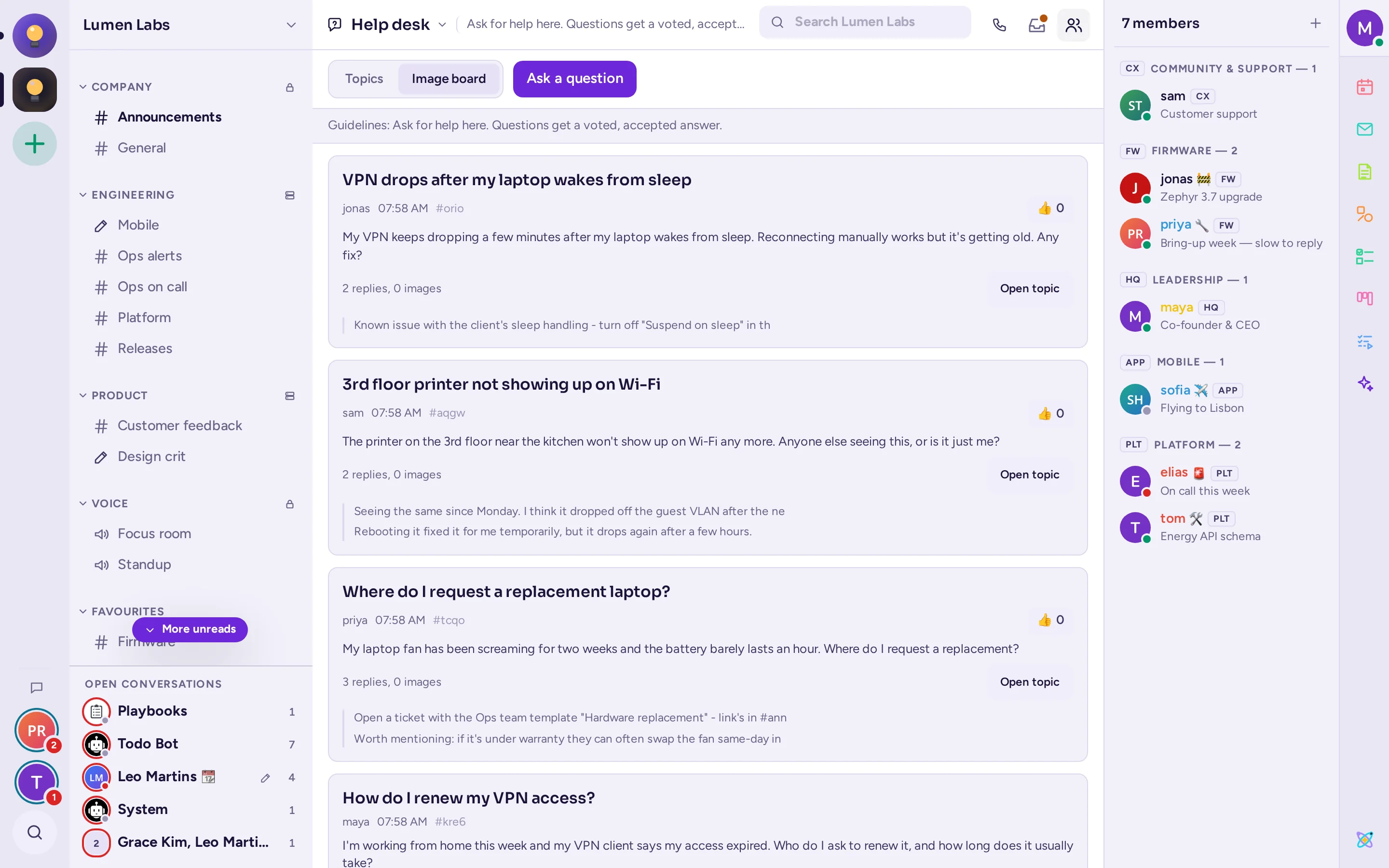
Forums don't list their topics under the channel in the sidebar, unlike the named topics of a text channel: there would be too many. A search result inside a forum shows the topic's title above it, and opens the topic instead of a permalink.
Direct and group messages
Direct messages are private conversations between you and one other person; group messages include up to ten people, you included. They belong to no community: the same conversation shows whichever community you are in.
Find your conversations
Your recent conversations are listed under Open conversations at the bottom of the sidebar: the one you are in, then the latest active ones, as many as fit. An unread conversation has a red ring around its picture and a small grey count. To see them all, click All direct messages (the chat bubble at the bottom of the community rail). The sidebar then lists every conversation, latest first, with the last message. It also has links to your Mentions, Followed threads, Saved messages, Unreads, Drafts, Scheduled messages and Notes to self. Unreads lists every unread conversation of the community — channels, direct and group messages — newest activity first; read one as you scroll past it, or mark it read from its own Mark read.
Unread conversations that don't fit in Open conversations wait as round pictures under the chat bubble, at the bottom of the community rail, with their counts. Click one to open the conversation.
Open conversations starts at 10 rows: drag its own top edge, above the list, to show more or fewer, one row at a time. Antimatter keeps the size you choose. To remove a conversation from the list, point at it and click Close, or choose Close conversation in its menu.
Start a conversation
- Click All direct messages, then type a name in Find or start a conversation and press Enter. If you already have a conversation with that person, it opens; otherwise a new one starts.
- Or click New message (the + at the top of that list), or press Ctrl+Shift+K: in the Direct Messages dialog, pick one or more people and click Go. Several people make a group message.
You can also click someone's name or picture and choose Message.
In a direct message
The header shows the other person's status, their local time, and when they were last online. Above the message box, Antimatter warns you when they have Do not disturb on, are out of office, or may be asleep.
Group message options
In a group message's menu:
- Add people… starts a new group with everyone in it and the people you add. The old group stays as it was.
- Rename group gives the group a name that only you see. Leave it empty to show the members' names again.
- Convert to private channel turns the group into a private channel of a community, when the group has grown into a project.
- Edit header, Mute conversation and Notification preferences… work as in channels.
Messages from people you don't know
Depending on your privacy settings, direct messages from people you haven't talked with yet may wait as message requests, without notifying you, or be refused outright: they then can't start one with you at all, and are told so, though you can still start one with them. See Who can message you and Message requests.