 Antimatter
Calls and voice channels
Talk with your team: call someone from a conversation, or drop into a voice channel that is always open. This page covers calls, voice channels and everything you can do during a call.
Before you start
Calls are an app that your administrator installs and turns on. Where calls are available, a phone button shows in the conversation's header. In a community set up as a workspace, channels have calls by default. In other communities, which talk in voice channels, channels have no calls unless they were turned on for a channel. Direct and group messages have calls wherever your server has them. If you see no phone button, calls are not available on your server, or not in that channel.
The first time you join a call, your browser or the desktop app asks to use your microphone. Allow it, or nobody will hear you. To choose which microphone and speakers Antimatter uses, see Choose your microphone, speakers and camera.
Start a call
In a channel or a conversation
- Open the channel, direct message or group message.
- Click Start a call (the phone at the top right of the conversation).
The call starts and you are in it. A card in the conversation tells the others that a call started, with a Join button. You stay on the conversation's messages: the call shows in the dock at the bottom of the sidebar (see The call dock).
With one person
Click someone's name or picture to open their profile card, then click Call. Antimatter opens your direct message with them and starts a call there. You can also right-click a person and choose Call.
Ringing
When you start a call in a direct or group message, the call dock says Calling… until someone joins, then Call connected. The others hear a ring if your administrator turned ringing on. A card appears in the top right corner of their screen, wherever they are in Antimatter: "is calling you", or "… is calling the group". They can click Join, Decline, or Mute the ring to stop the sound while keeping the card. If nobody joins within about 30 seconds, the call stops, and its card in the conversation says No answer, Declined or Canceled.
You are not rung while you are in another call, while your status is Do not disturb or out of office, in a conversation you muted, or by someone you ignore or block.
To choose the ring, or turn it off, go to Settings › Notifications, under Desktop and browser: turn Incoming call ring on or off, and pick a sound in Ring.
Join or leave a call
When a call is running in a channel or conversation you are not in, you can join it in several ways:
- Click Join on the call's card in the conversation.
- Click Join call in the banner under the conversation's header ("… started a call").
- Click the green Join button in the header, which shows how many people are in the call.
In the sidebar, a green phone after a channel's name, or an In call badge on a conversation, shows that a call is running there. Conversations with a call in progress move to the top of your direct messages while the call lasts.
You can be in one call at a time: joining another call leaves the one you are in.
To leave a call, click Leave the call (the red phone in the header), Disconnect in the call dock or in the call controls, or press Ctrl+Shift+L (⌘+Shift+L on a Mac).
Voice channels
A voice channel is a call room that is always open: no one has to start a call. People come and go as they like, and everyone in the community sees who is in it, listed under the channel in the sidebar. Voice channels have a speaker icon instead of a #.
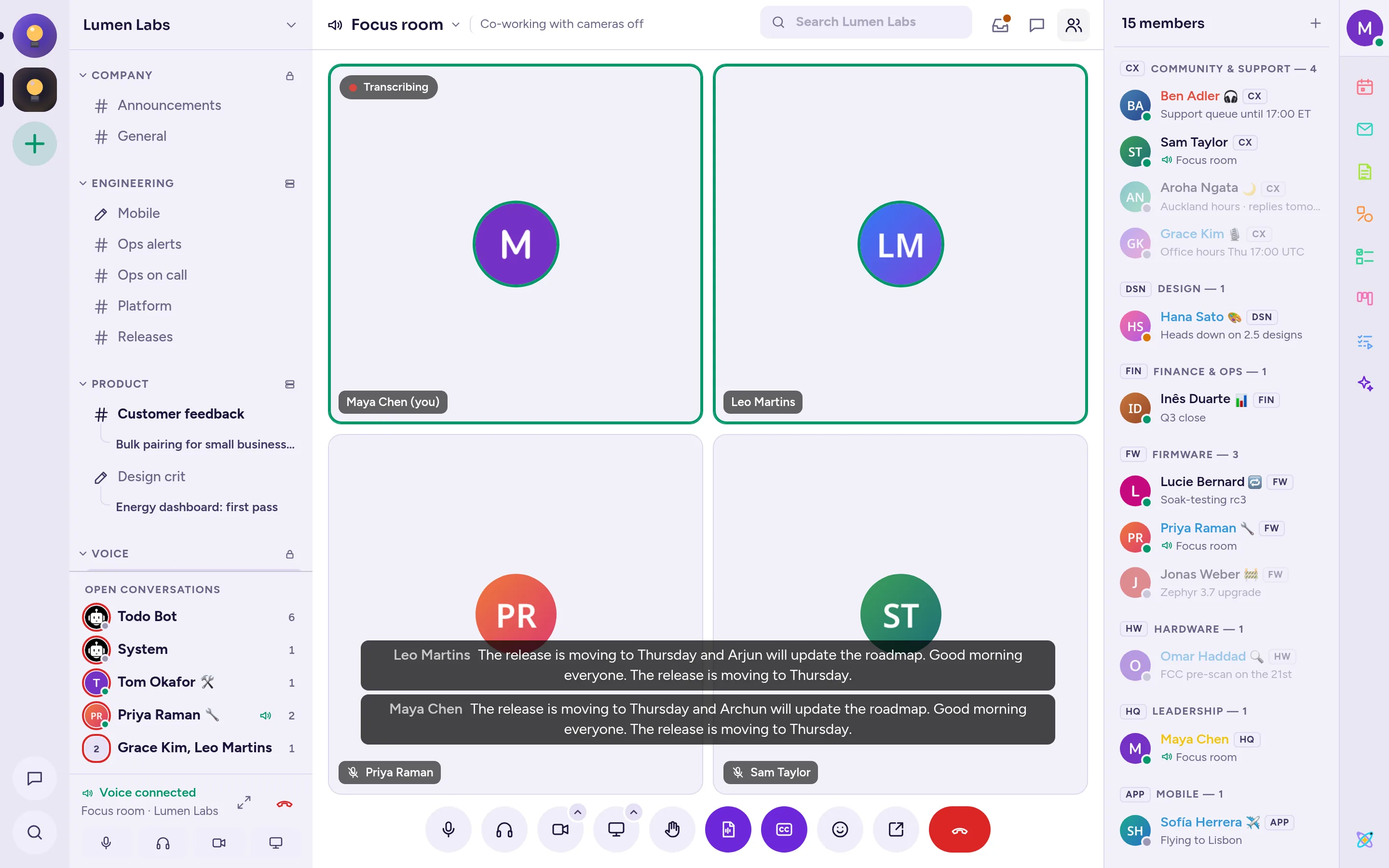
Join a voice channel
- Click the voice channel in the sidebar. You are connected at once ("Connected to …"), and you stay on the conversation you were reading.
- To see the people in the room, click the voice channel again, or click Show the voice channel in the call dock.
On some servers, clicking a voice channel opens the room without joining it: click Join voice to join. Going to another voice channel moves you there.
Its text chat
Each voice channel also has messages, for links and notes during the conversation. Click Open text chat next to the channel in the sidebar, or Text chat in its header, to open them in the panel on the right. You don't have to be in the call to read or write there.
Deafen
In a voice channel, Deafen stops all sound from the call, and mutes you too. Click it again, or unmute, to hear the others again, unless a moderator deafened you: then you hear the others again only once they undeafen you.
Stage channels
A voice channel with the Stage preset (a podium icon) has speakers and an audience. Speakers are the channel's moderators (community and channel admins, system admins, and the community's moderators with Manage messages, Remove people or Manage roles) and the people a moderator invited to speak; everyone else joins in the audience: they hear everything, but can't unmute, turn on their camera or share their screen. The room shows the speakers' tiles large and the audience as a grid of faces with their count.
In the audience, your controls are a locked microphone ("Only speakers can talk here"), Request to speak (raises your hand; click it again to cancel) and leaving. If a moderator invites you to speak, you see "A moderator invited you to speak": unmute yourself when you're ready, since nobody unmutes you for you. To stop speaking again, right-click your own tile and choose Move to audience. Being a speaker survives leaving and rejoining the stage within 10 minutes.
Create a voice channel
If you can create channels, choose Create channel in the community menu, pick the Voice channel type, give it a name, and create it. See Create a channel.
The call dock
While you are in a call or a voice channel, a dock at the bottom of the sidebar shows Voice connected or Call connected (Calling… while a call you started in a direct or group message rings), and where the call is. Click that name to go to its conversation. The dock has these buttons:
- Mute or Unmute your microphone.
- Deafen (in voice channels).
- Camera, where video is allowed.
- Share screen, or Stop sharing.
- Show the call (or Show the voice channel), which opens the call in the main area.
- Disconnect, to leave.
When someone shares their screen, a small preview appears in the dock. Click it to see the call.
Show the call
A call can show in three places:
- In the main area, in place of the messages: click Show the call in the dock. To read and write in the conversation meanwhile, click Messages beside the call in the header: the messages open in the panel on the right. Call chat, in the call controls, opens the call's thread beside it.
- In a small floating window that you can drag around: press Ctrl+Shift+P (⌘+Shift+P on a Mac). Click Back to the sidebar to close it; you stay in the call.
- In a window of its own: click Open in a new window in the call controls. If your browser blocks pop-up windows, the call opens in the floating window instead. Closing the window brings the call back into Antimatter.
Each person has a tile. Click Pin to the stage on a tile, or double-click it, to keep that person large; click Unpin to undo. On a camera or a shared screen, Picture in picture keeps it visible over your other windows, where your browser supports it, and Full screen shows a shared screen on your whole screen.
During a call
The controls under the call let you:
| Button | What it does |
|---|---|
| Mute / Unmute | Turn your microphone off or on. Shortcut: Ctrl+Shift+Space (⌘+Shift+Space on a Mac). |
| Deafen | Stop hearing the call, in voice channels. |
| Camera | Turn your camera on or off, where video is allowed. |
| Share screen / Stop sharing | Share a screen, a window or a browser tab. Shortcut: Ctrl+Shift+E. |
| Raise hand / Lower hand | Ask to speak. Shortcut: Ctrl+Shift+Y. In a stage's audience, this button reads Request to speak instead (see Stage channels). |
| React | Send a quick reaction that floats over the call for a few seconds. |
| Show live captions | Show what people say as text, while the call is transcribed. |
| Record the call / Stop recording | For the call's host, when your administrator turned recordings on: record the call (see Record a call). |
| Call chat | Open the call's thread, for calls started in a conversation. |
| Open in a new window | Move the call to a window of its own. |
| Disconnect | Leave the call. |
On a Mac, Ctrl is ⌘ in these shortcuts. You can change them in Settings › Keyboard.
Video
Cameras work wherever calls do, unless your administrator turned video off or a channel has it off. In voice channels, they work when the voice channel allows video. Elsewhere, the Camera button says "Cameras are turned off in this call". Click the small arrow on the Camera button (Camera options) to turn on Blur my background and choose its Amount: Light, Medium or Strong.
Screen sharing
- Click Share screen. To choose what and how, click its small arrow (Screen share options) first.
- In Share your screen, choose A whole screen, A window or A browser tab (some browsers only offer Choose a screen or a window…). You can also pick a Resolution, from 480p to Source, and a Frame rate of 15, 30 or 60 fps. Antimatter remembers your choice.
- Pick the screen or window in the dialog that follows.
One person can share at a time. In the desktop app, Antimatter shows its own picker, Choose what to share, with your Screens and Windows; on Windows and Linux you can tick Also share the computer's sound. On a Mac, the system asks you once to allow screen recording for the app.
Raise your hand
Click Raise hand to show that you would like to speak. A hand appears on your tile with your place in the queue, such as "Hand raised, 1st in line". Click Lower hand when you are done.
Change someone's volume
Right-click a person's tile, or their name under the voice channel in the sidebar, and move the Volume slider. Antimatter remembers it for that person, in this browser.
Push to talk
If you prefer to stay muted and talk only while you hold a key, go to Settings › Keyboard, click Change next to Push to talk in a call (hold), and press the key you want. During a call, hold that key to talk. It works while the Antimatter window is in front.
Muting and other moderator actions
The call's host (at first, the person who started it), and the channel's and community's admins, can moderate it. In voice channels, the community's moderators can too. Right-click a person to open their menu; under "In …" a moderator finds:
- Mute: mutes someone who is talking. They can unmute themselves.
- Ask to unmute: asks someone who is muted to speak. They see "… asks you to unmute", with Unmute and Not now.
- Mute for this call: keeps someone muted until you allow it, even if they leave and come back. In a voice channel, the same item is Mute in this channel: it also keeps them muted in that voice channel's later calls. Allow to unmute lifts either.
- In voice channels only, Deafen (or Undeafen once deafened): they hear nothing and can't speak in that voice channel, also if they leave and come back, until you choose Undeafen.
- In voice channels only, Move to: moves them to another voice channel of the community (one whose calls you moderate, and that they can join).
- Lower hand and Stop screen share.
- Remove from call, or Kick from voice channel: only shown for people below your own role (hosts, moderators, admins).
- Make host, for the host and system administrators: the host controls go to that person.
The menu only offers what you may do: nobody mutes, deafens, moves, kicks or removes someone at or above their own role, as for timeouts.
If a moderator muted you for the call, your microphone button reads "A moderator muted you", and you can unmute once they allow it. If a moderator deafened you, you hear nothing, and the microphone and Deafen buttons read "A moderator deafened you" until they undeafen you. If a moderator moves you, you're connected to the other voice channel at once, with a notice that they moved you.
A voice channel's moderators find who is currently muted or deafened there, by whom and since when, in the channel's settings, under Muted and deafened (replacing the Voice app's own tab): Allow to unmute and Undeafen work from there too, including for someone who is away, greyed out when given by someone above you.
Everyone also finds Profile, Message, Call, Copy username and Volume in that menu.
End a call for everyone
Leaving a call doesn't end it for the others still in it. To end it for everyone, leave it first: the call's card in the conversation then shows End call for everyone next to Join, for the person who started the call and for those who can moderate it. Confirm with End call: everyone still in the call is disconnected.
Record a call
When your administrator turned recordings on, the call's host can click Record the call in the controls. Everyone in the call then sees a Recording badge. When the host clicks Stop recording, or the call ends, the recording is posted in the call's thread. Calls in voice channels can't be recorded.
Transcription and live captions
When your administrator set up transcription, the person who started a call can click Transcribe the call in the controls. Everyone then sees a Transcribing badge: what everyone says is turned into text. When the host clicks Stop transcribing, or the call ends, the transcript is posted as a text file in the call's thread ("Here's the call transcription"), or in the channel for a voice channel.
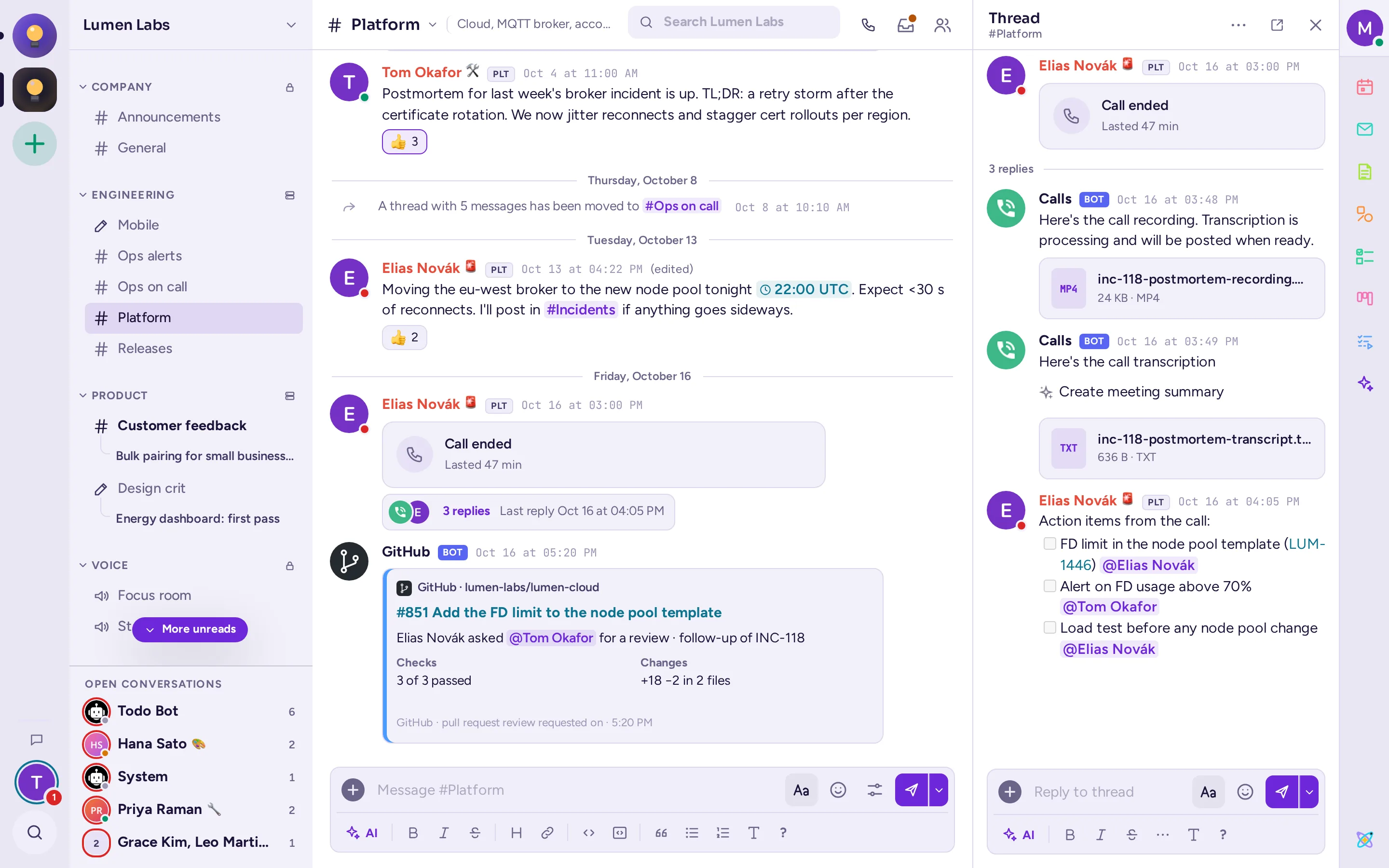
While a call is transcribed, and if your administrator turned live captions on, click Show live captions to see the last lines spoken, with the speakers' names, at the bottom of the call. Click Hide live captions to hide them. If AI agents are set up, a summary of the meeting can be written from the transcript: see Meeting summaries.
Choose your microphone, speakers and camera
- Open Settings (click your picture at the top right, then Profile & settings).
- Under Plugins, choose Calls.
- In Audio devices, click Edit and choose your Microphone input and Speaker output, then Save.
- When video is available, Video devices lets you choose the Camera input, mirror your video and set the background blur.
- Screen sharing settings sets whether the sound of what you share is included (Share sound with screen).
During a call, Camera and microphone settings… in the camera options opens the same page. If Antimatter can't use your microphone, a message tells you, for example "Allow access to your microphone to talk in the call": allow it in your browser's or system's settings.
Calls on the mobile app
The mobile app can start and join calls and voice channels, mute, deafen, raise your hand and show live captions. It doesn't have cameras, push to talk or per-person volume. See The desktop and mobile apps.