 Antimatter
Members and onboarding
How people get into your community, how to welcome them with an onboarding, how to keep details about members, and how members leave or are removed.
Invite people
Open the community menu and choose Invite people. By default every member can invite people; the item is missing for those who can't.
- Under Invite as, choose Member or Guest. This choice only appears when guests are enabled on the server.
- In To:, type the names of people who already have an account on the server, or the email addresses of people who don't.
- Under Add to channels, pick channels the invited people will join. This is optional for members, and required for guests.
- Optionally, choose Set a custom message to add a few words to the invitation email.
- Choose Invite. A summary shows who was invited and which invitations couldn't be sent.
Inviting by email needs the server to send email, and email invitations to be turned on. If the server doesn't send email, you can still add people who already have an account. Ask your system admin if email addresses are refused.
Share an invite link
In the same dialog, with Member selected, Copy invite link copies the community's invitation link. Anyone who opens it can create an account (if the server allows sign-up) and join the community. Share it in a newsletter, on a website or in a forum post.
The link stays valid until you change it. If it ends up somewhere it shouldn't, create a new one with Regenerate in Community settings › Access: the old link then stops working. A community has one such invitation link at a time.
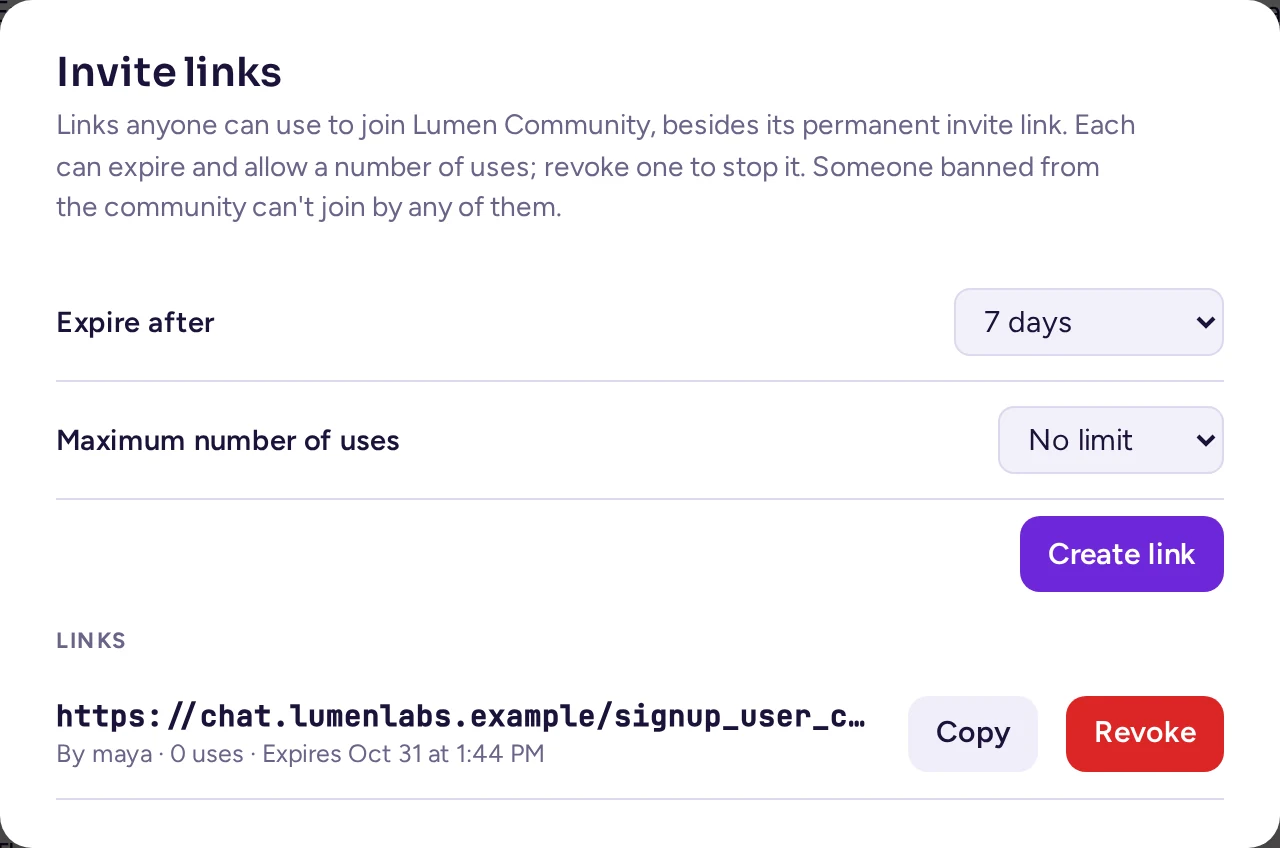
Next to Copy invite link, Invite links… opens a list of other links, for when you want one that doesn't last forever. Creating one copies it, and lets you choose how long it lasts (30 minutes to 7 days, or never) and how many times it can be used (or no limit). The list shows who made each link, how many times it was used and when it ends, with Copy and Revoke for each. Members see their own links; community admins see everyone's. A link stops working once it expires, is used up, is revoked, or its creator leaves the community or may no longer invite people.
Invite someone you already know
To bring someone from another community into yours, right-click their name and choose Invite to a community, then the community. They are added at once.
Open communities
If the community is public (see Who can join), anyone with an account on the server can find it with Join another community and join it without an invitation. On a server where anyone can sign up, that is the simplest way to run a public community. If the community allows only some email domains, people with other addresses can't join, even with the link.
Guests
Guests are people from outside, such as a client, a contractor or a partner organisation. A guest only sees the channels they were added to: they can't browse or join the community's other channels. Their name has a Guest tag, and the header of a channel with guests says so.
- Guest accounts are off by default. A system admin turns them on in System Console › Authentication › Guest Access, and can require guests to come from certain email domains or to use two-factor authentication.
- Community admins invite guests from Invite people, choosing the channels they may use. To give a guest another channel later, add them to it from the channel.
- When the system admin allows it, Allow invited guests to log in with a magic link (without password) lets guests sign in with a link sent by email.
- To make a guest a full member, or a member a guest, ask a system admin: it is done in System Console › User Management › Users, with Promote to member or Demote to guest.
Guests are never added to channels automatically, even when everyone in the community is in every channel.
Manage members
Open the community menu, choose Community settings, then the Members tab (people without the community settings see View members in the menu instead). The list shows everyone with their role, and Invite people if you may add people. If you manage the community's roles, the menu next to a person's role lets you:
- make them a community admin, with Make Team Admin, or take that back with Make Team Member;
- remove them from the community, with Remove from Team.
This list comes from the classic interface and still says "team". You can also act on someone from anywhere you see their name: right-click it, or open their profile card. See Moderation for the mod view, timeouts and removal.
Onboarding
An onboarding welcomes newcomers the first time they open your community. It shows a welcome text and a few questions. Each answer can give the newcomer roles and channels, so that people find the right places from their first minute.
Write the onboarding
- If answers should give roles, first create those roles and turn on Anyone can take it for them (see Roles anyone can take). The onboarding can only give roles that are open to all.
- Open the community menu, choose Community settings, then the Onboarding tab.
- Write a Welcome text: what the community is about and its main rules, in a few lines.
- Choose Add a question, for example "What brings you here?". Keep Several answers on if people may pick more than one answer.
- For each answer, write its text, then click the roles and the public channels it gives. Choose Add an answer for the next one.
- Choose Save.
The channels you can offer are the public channels you are a member of. To remove the onboarding, delete its questions and its welcome text, and save.
What newcomers see
If the community has rules that members must agree to (see Rules), newcomers first see a Rules of … dialog, with I agree and Not now. Until they agree, a notice, "Agree to the rules to post here", with Read and agree, takes the place of the message box in the community's channels. The mobile app shows the same dialog and notice; in the classic interface, they type /rules and /rules agree.
The first time someone opens the community, a Welcome to dialog shows your text and questions. They pick their answers and choose Done, or choose Skip. Either way they don't see it again in that community. People who joined before you wrote the onboarding see it the next time they open the community.
Members can change their open roles later from the community menu, under Your roles….
Member attributes
Member attributes are details about your members that show on their profile card in your community, such as their company, site, subcontractor or pronouns. They belong to the community: other communities on the server don't see them.
Define the attributes
Open the community menu, choose Community settings, then the Member attributes tab. Choose Add attribute. For each attribute, set:
- Name, for example "Company".
- Kind: Text, Choice, Several choices, Date, Link, Email, Phone number, Person or People. For choices, list the Choices.
- Who sets it: Each member fills it in for themselves, or only Admins do.
- Who sees it: Everyone, Admins, or Hidden. Admins and the member themselves always see it; hidden attributes are not shown on profiles.
- Show in the member list: shows the attribute under people's names in the member list, in place of their position, and lets everyone filter the list by it. One attribute can be shown this way.
Use Move up and Move down to set the order on profile cards. A community can have up to 50 attributes. Deleting an attribute also deletes everyone's values.
Fill them in
To set someone's attributes, right-click their name and choose Edit attributes…. Community admins can set every attribute of everyone; members can set their own, except those set by admins. Attributes visible to Admins only show with a lock on the profile card.
A server also has attributes of its own, the same for every community, which a system admin defines in System Console › System Attributes › Attribute Management. They show on profile cards before your community's attributes, and only system admins set them for others. Some may come from the sign-in provider, such as a company directory.
When people leave or are removed
- Members leave with Leave community in the community menu.
- People who leave or are removed lose their roles and their teams in the community. Their messages stay.
- Someone removed from the community can come back with a new invitation, or by joining again if the community is public. To keep someone out for good, a system admin must deactivate their account (see Keeping someone out).