 Antimatter
Roles and permissions
How to make community admins, create roles with their own colours and permissions, let people pick roles themselves, and group people in teams. A table at the end sums up who can do what.
The built-in roles
Every community has the same built-in roles. Their permissions come from the server's permission scheme, which only a system admin can change.
| Role | Shown as | What it can do by default |
|---|---|---|
| System admin | System Admin chip | Everything, in every community, and the System Console. |
| Community admin | Community Admin chip | The community's settings, roles, onboarding, layout, model connections and agents; moderating and removing members; deleting anyone's messages and putting messages on top; converting channels to private; archiving any channel of the community, the default channels included; webhooks and slash commands. |
| Member | no chip | Joining public channels, creating public and private channels, inviting people. In the channels they are in: posting, renaming the channel and changing its header and purpose, and managing its members. Members don't archive channels or put messages on top, except as channel admins (see below). |
| Guest | Guest chip and tag | Only the channels they were added to. |
| Channel admin | Channel Admin chip | Managing one channel, its permissions and its banner, and putting its messages on top. In a workspace community, also archiving it. Whoever creates a channel is its first admin. |
Some defaults depend on the kind of community, which community admins choose on Community settings › General (see Kind of community):
- In a Guild, the default kind, only community admins and roles with Manage channels archive channels. Members don't, not even the channels they created.
- In a Workspace, a company's or an organisation's workspace, a channel's admins archive it too: whoever created it and the people they made admins of it.
- In both kinds, only the channel's admins, the community's admins and moderators with Manage messages put messages on top or take them off.
In both kinds, members still rename the channels they are in and manage their members. If you want members to do less, ask your system admin to adjust the permissions for your community in System Console › User Management › Permissions, where a Team Override Scheme can apply to your community only.
Make someone a community admin
- Open the community menu, choose Community settings, then the Members tab.
- Find the person, open the menu next to their role, and choose Make Team Admin. (This list still says "team" for community.)
To take the role back, choose Make Team Member. Only community admins and system admins can do this: no custom role can make someone a community admin.
Custom roles
Custom roles are roles you create for your community, such as "Moderators", "Staff", "Beta testers", "Contributors". A role can give people a colour, a group of their own in the member list, and permissions. Each role can also be mentioned, which notifies everyone who has it.
Roles are managed on the Roles tab of the community settings: open the community menu, choose Community settings, then Roles. Community admins and people with the Manage roles permission see this tab; people who manage roles but not the community see only the tabs they may use. Changes on this tab are saved as you make them, with Save and Cancel in the role editor; Close closes the settings.
Create a role
- On the Roles tab, choose Create role.
- Enter a Name.
- Pick a Colour, or type a colour code.
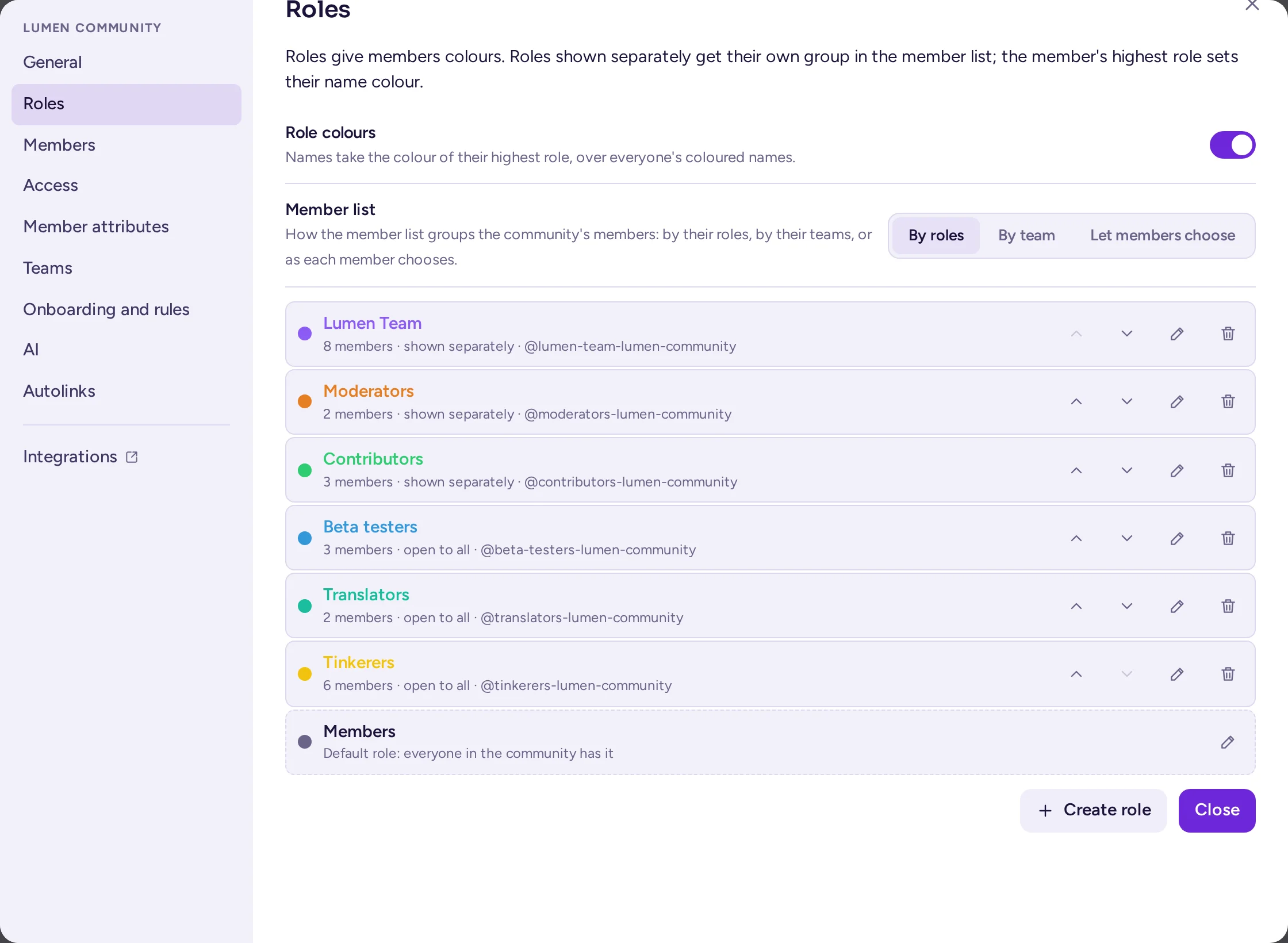
- Leave Show members separately on if the role's online members should get their own group in the member list.
- Turn on Anyone can take it if members may give themselves this role (see Roles anyone can take).
- Turn on the Permissions the role should give (see the table below).
- Under Members, add people with Add people of the community….
- Choose Create role.
In the list of roles, Move up and Move down set the order. The order matters: a person's highest role sets the colour of their name, and it decides whom they can manage (see The order of roles). Delete the role deletes it at once, without asking for confirmation.
The default role
The last row of the Roles tab is the community's default role, made the first time someone opens the tab: everyone in the community holds it, guests and bots excepted. Its permissions are what every member may do on top of the server's own defaults, and its colour is that of members with no other coloured role. You can edit it, but not move, delete, give or take it away, or open it to all; it isn't shown among anyone's roles.
The permissions a role can give
| Switch | What it allows |
|---|---|
| Administrator | Everything the community's admins can do that a role can give: the community settings, onboarding, rules, layout, member attributes and category permissions, editing any role, and all the other switches below. It also covers the banners, join requests, discoverability and auto-translation of every channel. People with it are not affected by channel permissions and can't be timed out. |
| Manage roles | Creating and editing the roles below their own, and giving them to people. Also creating and editing teams. |
| Invite people | Adding people to the community. |
| Remove people | Removing people from the community, and timing out the people whose roles are below theirs. |
| Create public channels | Creating channels anyone in the community can join. |
| Create private channels | Creating channels for the people invited. |
| Manage channels | Renaming, converting and archiving channels, managing their members, and setting their permissions. |
| Manage messages | Editing and deleting other people's messages, and putting messages on top of channels. |
| Manage integrations | Webhooks and slash commands, their own and other people's. |
| Manage model connections | Adding the community's own AI providers and their keys, and seeing what they use (see Model connections). |
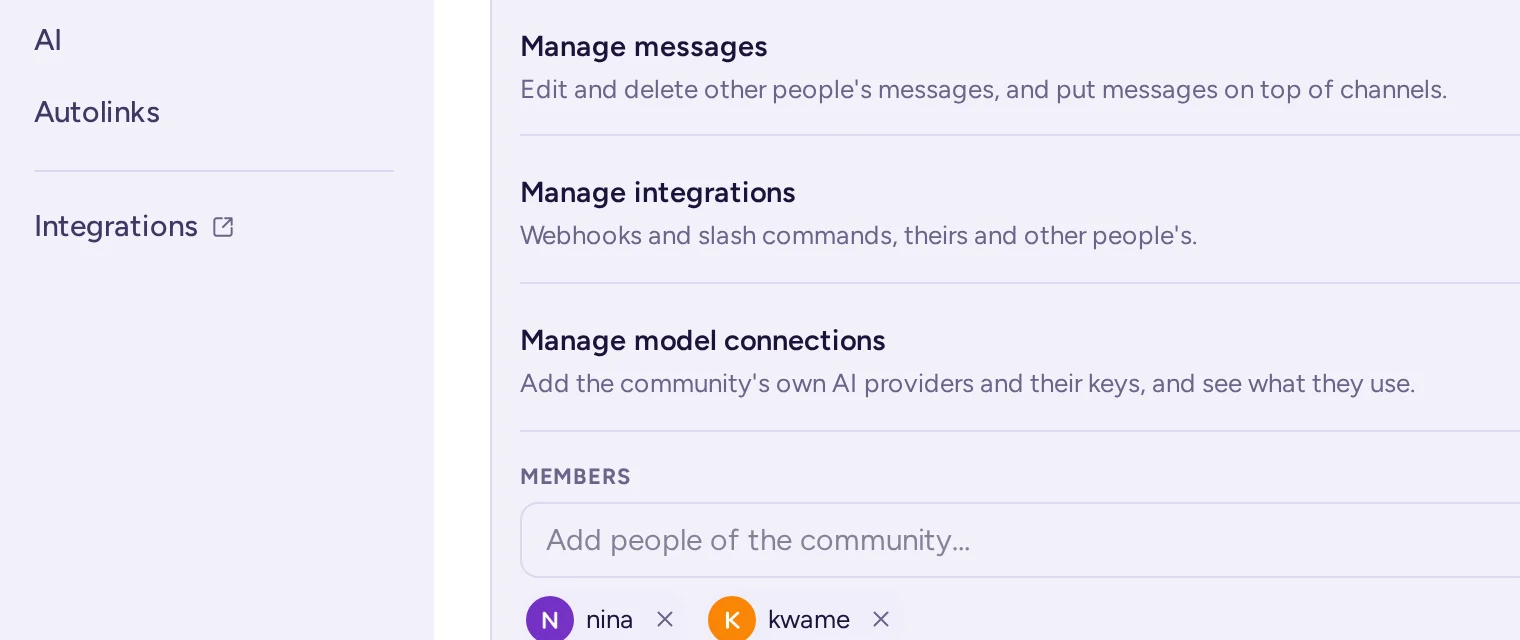
- When you turn on Administrator, the role editor shows the other switches on: the role gets everything the community's admins hold, including Manage roles, Remove people and Manage model connections. It doesn't give what only system admins can do, such as changing the permission schemes. Roles that had Administrator before the upgrade to 0.9.0 got the same permissions once.
- A role can only add permissions. Invite people and the two Create switches are already given to every member by default, so they only matter if your system admin took them away from members.
- Someone who isn't a community admin can only give a role the permissions they have themselves.
A moderators role
For a public community, a typical "Moderators" role has Manage messages, Remove people and Manage channels, and is shown separately with its own colour. The "Moderators" role that the layout presets create can edit and delete other people's messages and put messages on top, rename channels and manage their members, and remove and time out people. It doesn't archive channels: turn on Manage channels if your moderators should. Preset roles created before the upgrade to 0.9.0 lacked Remove people; the upgrade added it once to those whose permissions were never changed.
The order of roles
Roles are ranked by their place in the list, the highest first:
- People with Manage roles can only edit, move and give the roles below their own highest role, and create new roles below it.
- People with Remove people can only time out people whose highest role is below theirs.
- Roles that anyone can take don't count for the rank.
- Community admins are above every role. They can't be timed out.
Give someone a role
There are three ways:
- On the Roles tab, edit the role and add the person under Members.
- In the person's mod view, in the Roles section, use Add a role, or the × on a role to remove it (see The mod view).
- Through the onboarding, for roles anyone can take (see Onboarding).
Only members of the community can have its roles. Someone who leaves the community loses its roles, and doesn't get them back if they return.
Roles anyone can take
A role with Anyone can take it is open to all: members give it to themselves, or drop it, from the community menu under Your roles…. This item only appears when the community has such roles. Use them for interests or notification groups, for example "Announcements", "Linux users" or "Paris meetups", which people can mention.
Colours, groups and badges
On the Roles tab, community admins have these choices for the whole community:
- Role colours: names take the colour of the person's highest role. On by default.
- Member list: how the member list groups the community's members: By roles, By team, or Let members choose (the default).
In the member list, each role shown separately gets its own group of online members, the highest role first. When no role is shown separately, the list groups admins and moderators under Admin and Moderators. With Let members choose, members can switch the list between Roles and Teams; with the other two choices, the list has no switch. A system admin can turn off grouping by role on the whole server, with Group members by role in the System Console, and that setting comes first.
Teams inside a community
In Antimatter, a team is a group of people inside a community, such as a department, a project or a working group. A team has a name that can be mentioned, a short tag (up to 8 characters, for example "DET"), a lead, a description, and a team channel. Members can show the tag of one of their teams next to their name.
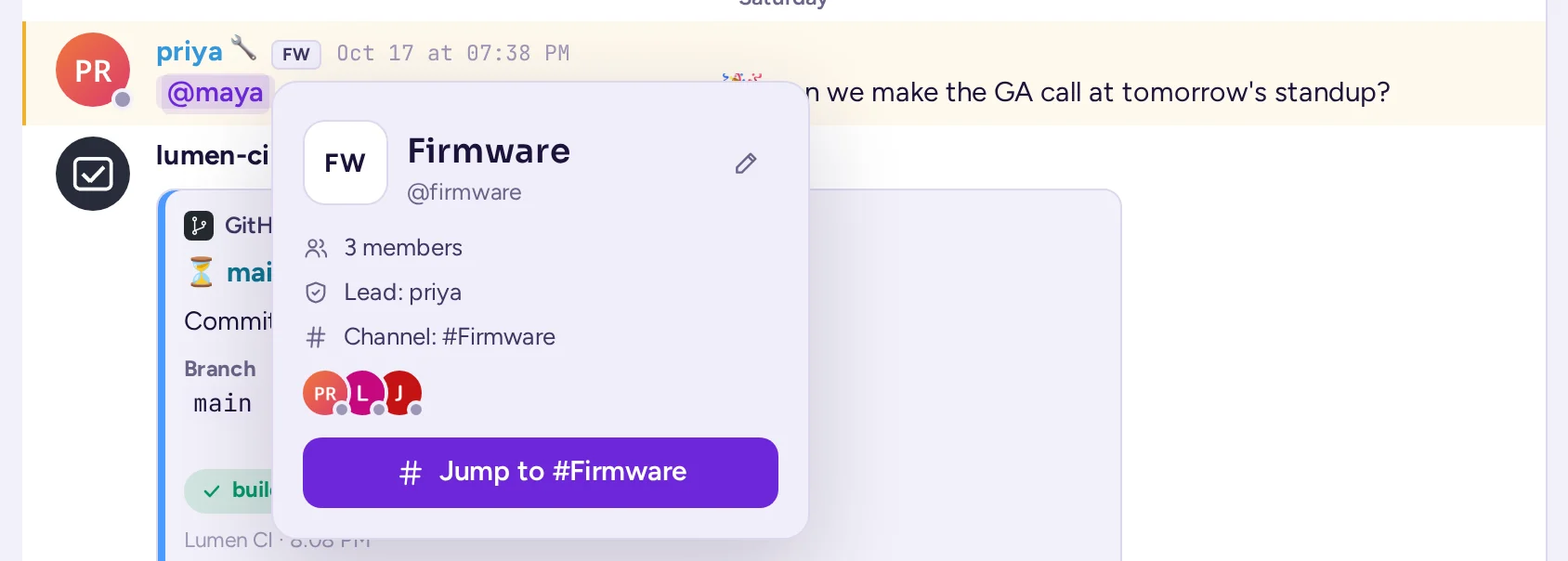
Create a team
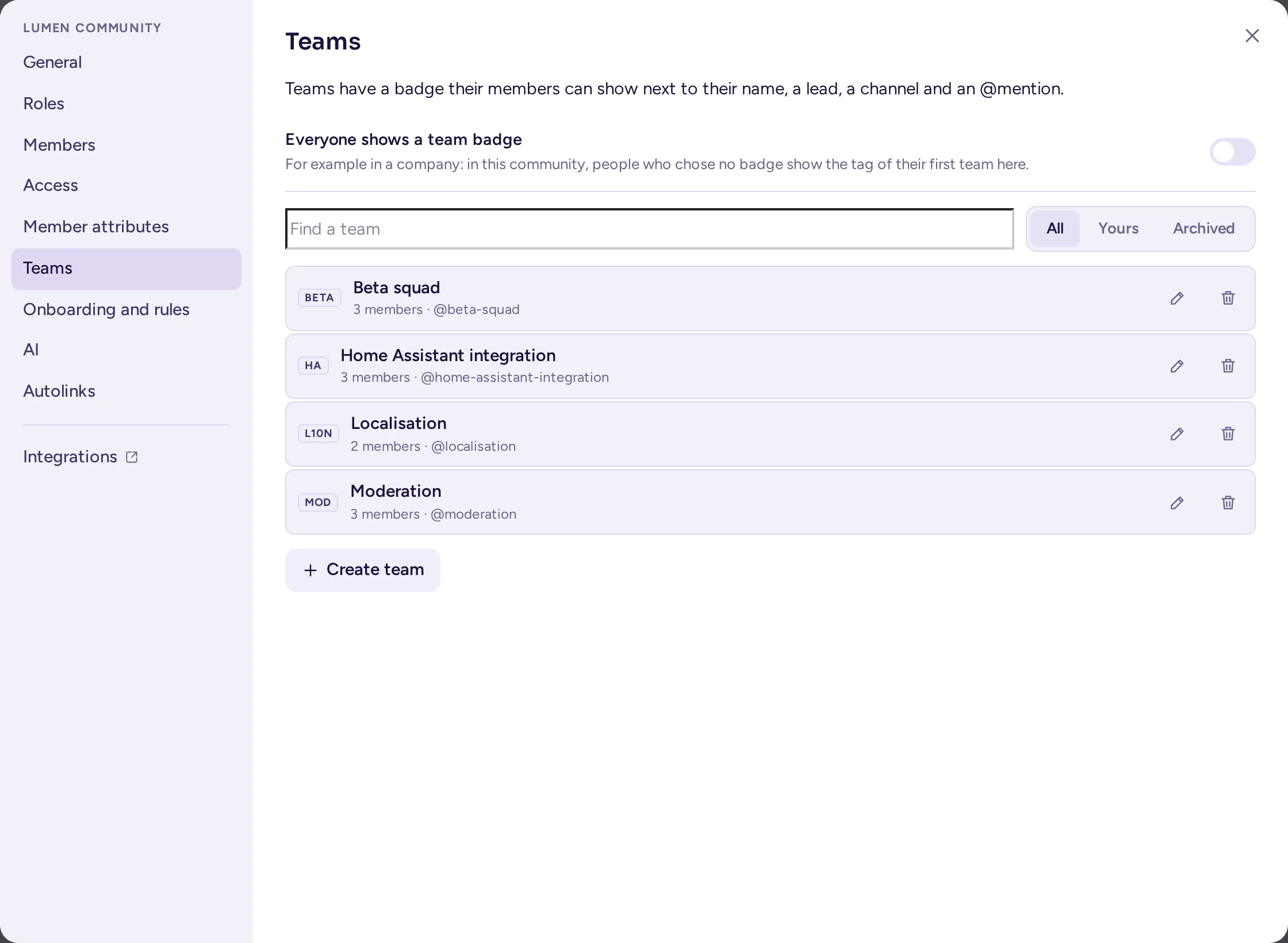
- Open the community menu, choose Community settings, then the Teams tab. It lists the community's teams, with a search box and All, Yours and Archived filters.
- Choose Create team, which opens an editor under the list: enter the team's Name and Mention, then its Tag, Lead, Channel, What the team does and its members.
- Each team's row has Edit and Archive buttons (Restore for an archived one), on the right.
Community admins and people with Manage roles create and edit teams. The lead has no extra rights: the title is informational. People without the community settings get the same list from the community menu's Teams…; a team's card still opens the same editor, in a dialog, with Edit the team.
Also on the Teams tab: Everyone shows a team badge, which shows the tag of their first team in this community to people who chose no badge of their own. Off by default; useful in a company, where the badge says which department someone works in. Each member chooses their own badge from the community menu's Your profile in <community>… (see Your profile in a community).
The member list can group people by team: choose Teams under Group members by at the top of the list, unless the community admins fixed the grouping on the Roles tab.
Permissions in one channel
Roles apply in every channel of the community. To give a role more or fewer rights in one channel or one category, use channel permissions: see Channel permissions. A private channel can also be kept for some roles only: its members then follow the roles automatically.
Who can do what
With the server's default permissions:
| Action | System admin | Community admin | Custom role | Member | Guest |
|---|---|---|---|---|---|
| Change permission schemes and the System Console | Yes | No | No | No | No |
| Make someone a community admin | Yes | Yes | No | No | No |
| Community settings, onboarding, rules, layout, member attributes | Yes | Yes | With Administrator | No | No |
| Create roles and give them | Yes | Yes | With Manage roles, below their own | No | No |
| Create teams | Yes | Yes | With Manage roles | No | No |
| Invite people | Yes | Yes | Yes | Yes | No |
| Create channels | Yes | Yes | Yes | Yes | No |
| Rename a channel and manage its members | Yes | Yes | With Manage channels, in any channel | In the channels they are in | No |
| Archive a channel | Yes | Yes, any channel | With Manage channels | In a workspace, as the channel's admin | No |
| Set a channel's permissions | Yes | Yes | With Manage channels | As channel admin | No |
| Delete other people's messages | Yes | Yes | With Manage messages | No | No |
| Edit other people's messages | Yes | No | With Manage messages | No | No |
| Put messages on top, and take them off | Yes | Yes | With Manage messages | As channel admin | No |
| Open the mod view | Yes | Yes | With Remove people, Manage roles or Manage messages | No | No |
| Time people out | Yes | Yes, except admins | With Remove people, below their rank | No | No |
| Remove people from the community | Yes | Yes | With Remove people | No | No |
| Deactivate an account on the whole server | Yes | No | No | No | No |
| Webhooks and slash commands | Yes | Yes | With Manage integrations | No | No |
| The community's model connections | Yes | Yes | With Manage model connections | No | No |
| The community's agents | Yes | Yes | With Administrator | No | No |
| Take roles anyone can take | Yes | Yes | Yes | Yes | Yes |
Your server may differ if a system admin changed the permission schemes.