 Antimatter
Apps and integrations
Which apps your members have, what you can set up for your community yourself, and what needs a system admin.
The apps your members have
Antimatter comes with a set of apps. Unless a system admin turned some of them off, every community on the server has them:
| App | What it does |
|---|---|
| Calls and Voice Channels | Calls in any channel, and voice channels: always-open calls that people hop in and out of. |
| Polls | Polls in a conversation, with live results, anonymous votes and an end time. /poll creates one. |
| Todo | Shared todo lists in every channel and conversation, as many as needed, and personal lists. |
| Notes | Documents edited together in real time, shared with a channel or kept personal. |
| Whiteboard | Drawing boards shared with a channel or kept personal. |
| GIFs and Memes | A GIF and sticker picker, and memes made from templates, in the emoji picker. |
| Calendar and Mail | Each person's own calendar and mailbox, connected to their own accounts. Calendar also shows scheduled calls (see Schedule a call) to everyone who can read their channel, in its Community calls layer and the channel header, with no account needed. |
| AI chat | A side panel to talk with the AI agents a member may use, and AI actions on messages. Agents themselves are set up by a system admin, or by you in Community settings › AI (see Agents). |
| GitHub, GitLab and Jira | Notifications and commands for these services, once connected. |
| Grafana and Alertmanager | Read-only lookups about your hosts, dashboards and alerts, for the assistant and AI agents to use; Alertmanager also posts alerts into a channel with silence buttons (see Alerts). Both need a system admin to install and set them up. |
Kanban (boards of cards in columns, in its own side panel) and Playbooks (checklists for repeatable processes, in its own side panel) aren't installed by default any more: ask your system admin for either if your server doesn't have it (see Bundled apps).
Most apps open from the app bar, the column of icons on the right edge of the window. Apps are turned on or off for the whole server, in System Console › Plugins: a community admin can't turn an app on or off for one community. Their settings are server-wide too, except where this page says otherwise. To add an app or change its settings, ask your system admin.
Inside a community, the apps follow the channels' permissions: for example, people who can only read a channel can see its todo lists and notes but not change them, and a channel's admins can delete its notes. Admins and people with Manage messages can close any poll in the channel.
A channel's todo lists belong to its members: everyone who can post in the channel adds and checks off todos, and renames or archives a list. A list is deleted by whoever created it, and a todo by whoever added it, or by the channel's admins, the community's admins and the system admins: other members can't delete them, even if they may rename the channel. In an archived or read-only channel, the lists can only be read. Guests send todos only to people they share a channel with.
Custom emoji
Custom emoji are images that people use in messages and reactions like any other emoji, by typing their name between colons, such as :party_parrot:.
- Open the emoji picker (in the message box, on a message's reactions, or for your status).
- Choose + (Add custom emoji) next to the search box. The picker shows its add view.
- Drop, paste or choose an image: PNG, GIF (animated too), JPEG or WebP, up to 512 KB and 1028 × 1028 pixels. The picker previews it at the sizes emoji are shown at.
- Give it a name: lowercase letters, numbers, and
-,+or_, up to 64 characters. The picker says at once if the name is taken or is a standard emoji. - Choose Save. The new emoji comes first in the picker, under Just added.
The Custom emoji button next to + lists the server's custom emoji, with a search box, who added each one and when, and a delete button on those you are allowed to delete. The same list is in Integrations › Custom emoji.
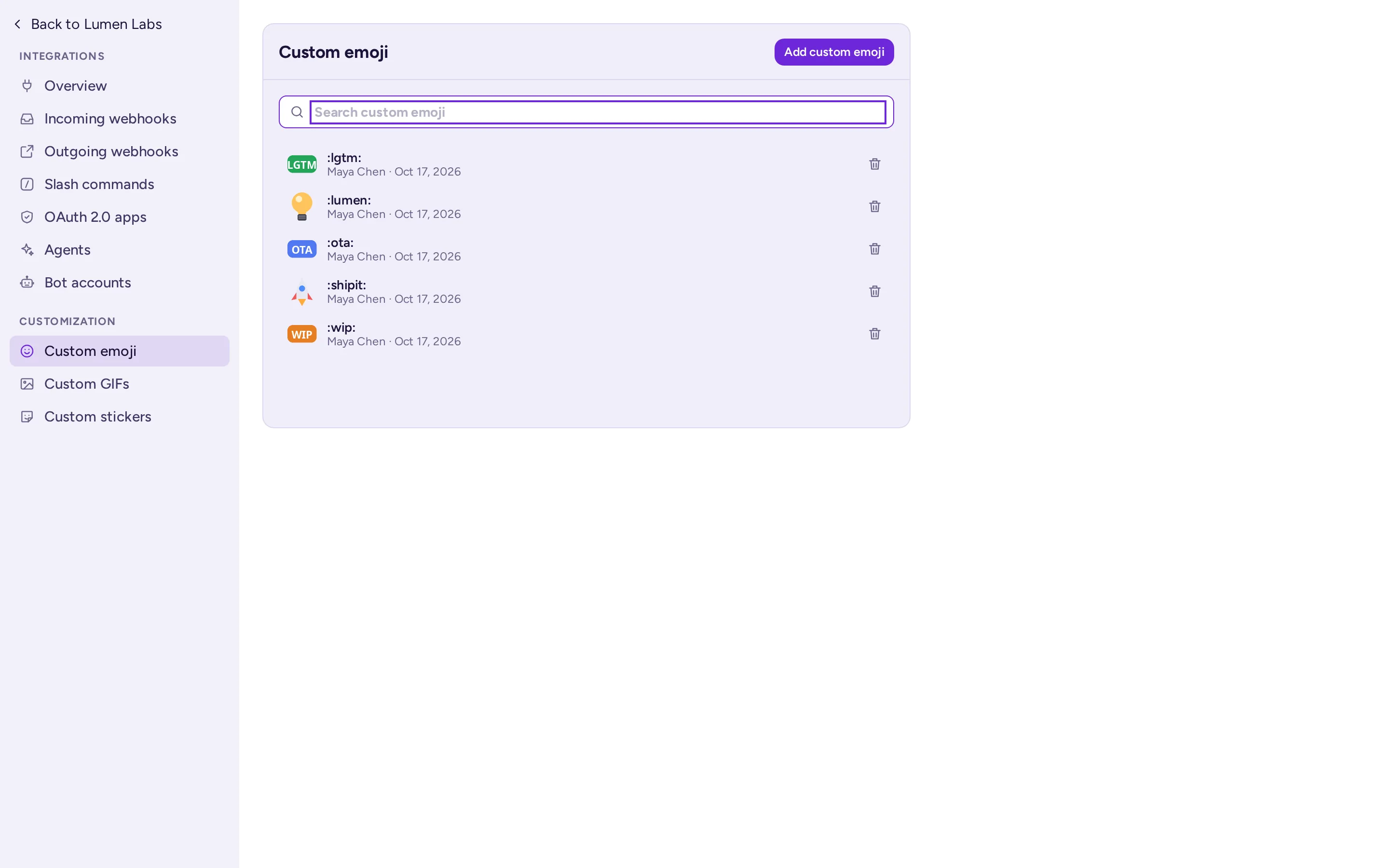
- Custom emoji belong to the whole server, not to one community: everyone on the server can use them. Choose names that won't clash with other communities' emoji.
- By default every member can add custom emoji; guests can't add or delete any. People can delete their own; only system admins can delete other people's emoji, so ask one to remove an unwanted emoji. A system admin can change this in the server's permissions, or turn custom emoji off with Enable Custom Emoji in the System Console.
GIFs, stickers and memes
The emoji picker has GIFs, Stickers and Memes tabs when these apps are enabled.
- GIFs and stickers come from a GIF service chosen by the system admin, with a content rating the system admin sets. When the system admin allows it, people can add their own GIFs and stickers. By default only system admins can; the system admin can open it to everyone except guests (Who can add GIFs and stickers). In the GIFs and Stickers tabs, + next to the search box opens the add view (Add a GIF, Add a sticker) and the manage button (Manage GIFs, Manage stickers) lists what people added, with who and when. Custom GIFs and Custom stickers in the integrations pages work too. Added GIFs and stickers are available to everyone on the server; whoever added one, and system admins, can delete it.
- Memes: anyone picks a template in the Memes tab, writes the captions and posts the meme.
/memeworks too. By default everyone except guests can add a meme template with + next to the search box of the Memes tab, and the manage button lists the custom templates with who added them and when. A system admin can limit this to system admins, or choose Nobody (custom templates off): the templates already added stay usable. Templates are shared by the whole server, and only their creators and system admins can delete them.
In a public community, consider asking your system admin to keep uploads of GIFs and meme templates for admins only.
Whiteboard libraries
Community admins can add shape libraries for everyone in the community: in a whiteboard, open the board's menu or the library panel and choose Manage libraries. A library is an .excalidrawlib file of up to 5 MB.
Webhooks, slash commands and bots
Integrations connect your community to other tools: a monitoring system that posts alerts, a form that posts its answers, a command that looks something up. To set them up, open the community menu, choose Community settings, and click Integrations at the end of its tabs. You see the kinds of integration you are allowed to manage:
| Integration | What it does | Who can create it, by default |
|---|---|---|
| Incoming webhooks | Another service posts messages into a channel by calling a secret URL. | Community admins |
| Outgoing webhooks | Messages with a trigger word in a channel are sent to another service, which can reply. Or a message action: people send one message to the service from the message menu. | Community admins |
| Slash commands | A command such as /weather calls another service, which answers in the channel. | Community admins |
| Bot accounts | Accounts for programs, which post with their own name and a Bot tag. | System admins |
| OAuth 2.0 apps | Apps that sign people in with their Antimatter account. | System admins |
Message actions
An outgoing webhook whose Trigger When is From the message menu doesn't fire on posted messages. It becomes an action in the menu of messages, under More actions, in an Integrations group: picking it sends that one message to the service, which can answer in the channel or to the person alone. Give it a title (the action's name in the menu) and, if you like, an Icon: an image URL or an uploaded image, shown in grey. Bind it to one public channel, or leave the channel empty to offer it in every public channel of the community. Archiving a channel deletes the webhooks bound to it, so an archived channel keeps only the community-wide actions. Guests only see the actions bound to a channel they are in.
A custom role with Manage integrations lets other people manage webhooks and slash commands too (see Roles and permissions). Webhooks and slash commands belong to the community they were created in.
A system admin must have turned on each kind of integration in System Console › Integrations › Integration Management. Incoming and outgoing webhooks and slash commands are on by default; creating bot accounts is off. Treat a webhook's URL and a command's token as passwords: anyone who has them can post in your community.
To build an integration, a bot or an app, see Building on Antimatter.
Autolinks
Autolinks turn text such as issue numbers into links in every message of your community, with no app to install. Community admins set them up in Community settings › Autolinks; see Autolinks.
Playbooks
A playbook is a checklist for a process that you repeat: handling an incident, onboarding a new colleague, preparing a release. Each time the process starts, you run the playbook: Antimatter creates or uses a channel for the run, where the checklist, its owner and its status updates live.
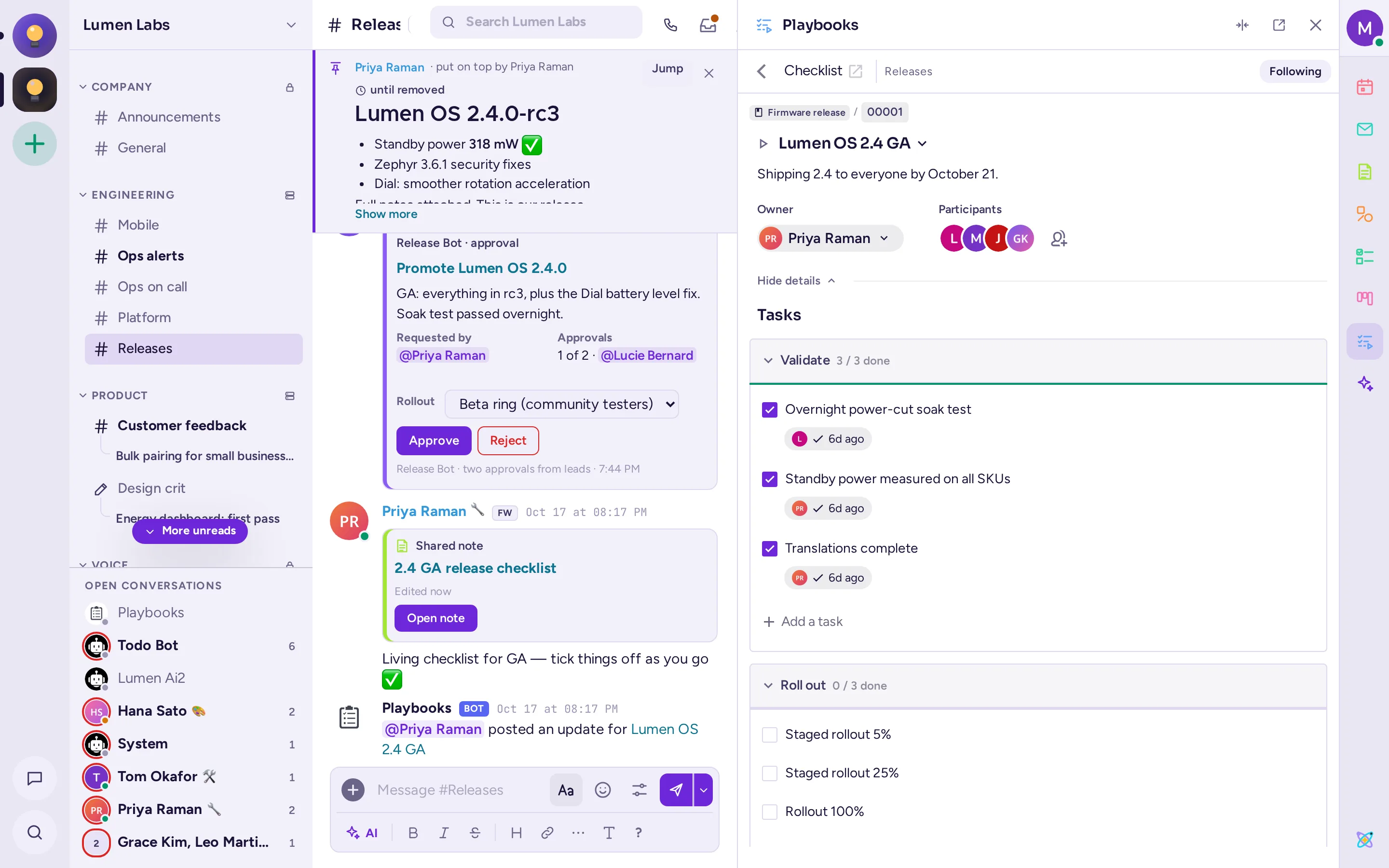
Open Playbooks from the app bar: its side panel shows the channel's runs and checklists. The button at the top of the panel (Browse runs, playbooks and tasks) opens the browse view, with All runs, All playbooks and Your tasks, where you create a playbook (Create playbook) or import one. The playbook editor widens the panel while it is open. A channel's Channel automation… entry, in its menu, sets a welcome message, a category for newcomers and playbook suggestions on keywords.
Playbooks belong to a community. By default anyone who can create channels can create playbooks, so in practice every member can. A playbook can be public to the community or kept for its members.
Some good playbooks for a community: welcoming a new moderator, handling a report, preparing an event. For an organisation: incident response, the arrival and departure of an employee.