 Antimatter
Community settings
The settings that belong to a community: its name and icon, who can join it, its kind, how channel membership works, where newcomers land, the links it makes automatically, its own AI providers and agents, and its layout.
Open the community settings
Open the community menu: click the community's name at the top of the channel list, or right-click its icon in the community rail. Then choose Community settings. Community admins, people with a role that has Administrator, and system admins see this item, and so does anyone who manages part of the community: its roles, its model connections, its membership rules or its integrations. Each sees only the tabs they may use.
The settings dialog has these tabs:
| Tab | What it holds |
|---|---|
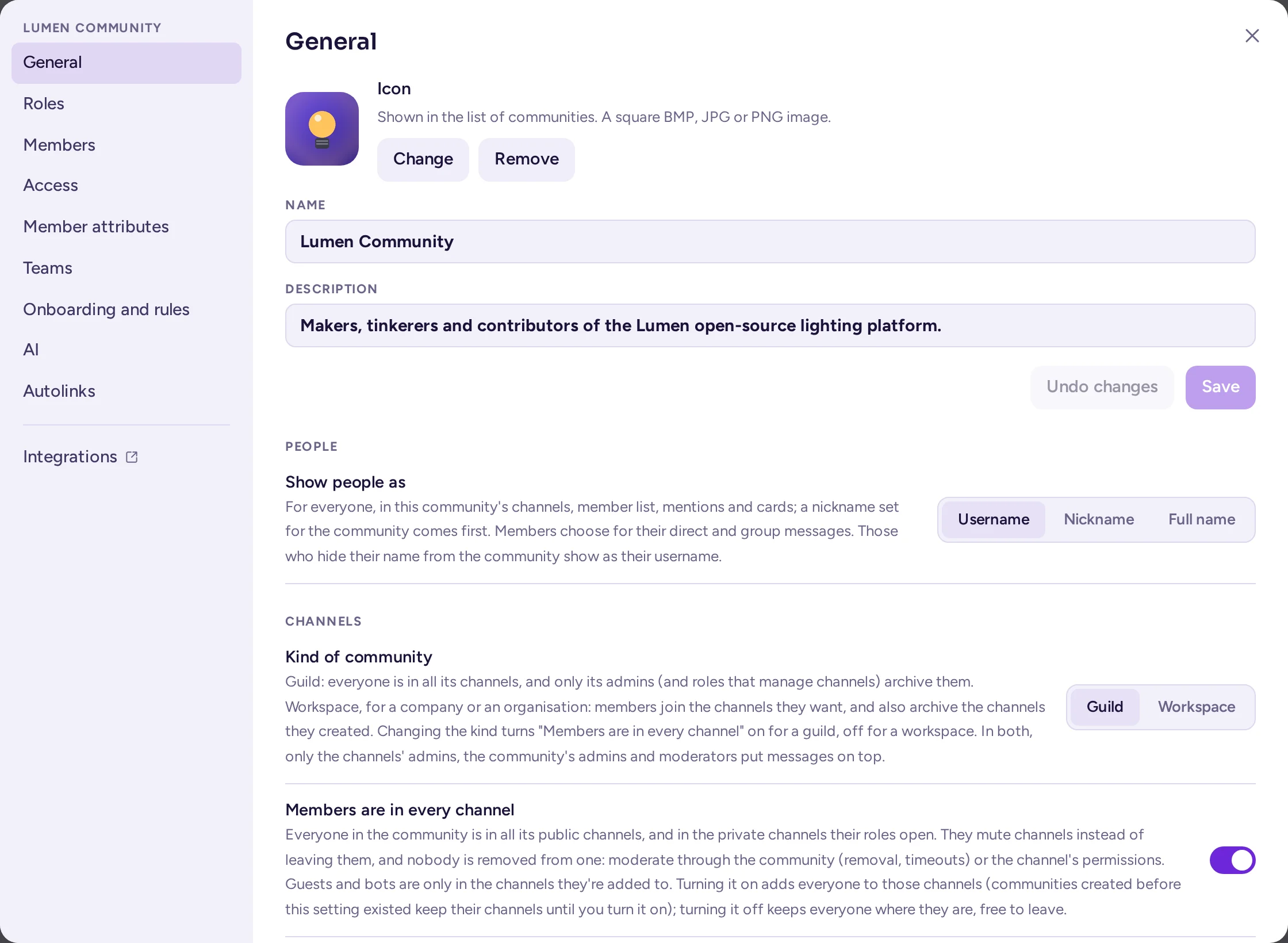
| General | Name, description and icon; then Channels (the kind of community, everyone in every channel, the default channel, join and leave messages), People (see below) and Community layout (presets and templates, see below). |
| Roles | The community's roles, role colours and how the member list groups people (see Roles and permissions). |
| Members | The community's members and their roles, and Invite people (see Manage members). |
| Access | Public or private, allowed email domains, the invitation code. |
| Member attributes | Details shown on members' profile cards (see Member attributes). |
| Team Membership and Channel Membership | Membership rules based on people's attributes. These tabs only appear when a system admin has turned on attribute-based access control. |
| Teams | The community's teams, Create team, and Everyone shows a team badge (see Teams inside a community). |
| Onboarding and rules | Onboarding, the welcome text and questions for newcomers (see Onboarding), and Rules, which members agree to before they post (see below); each has its own Save. |
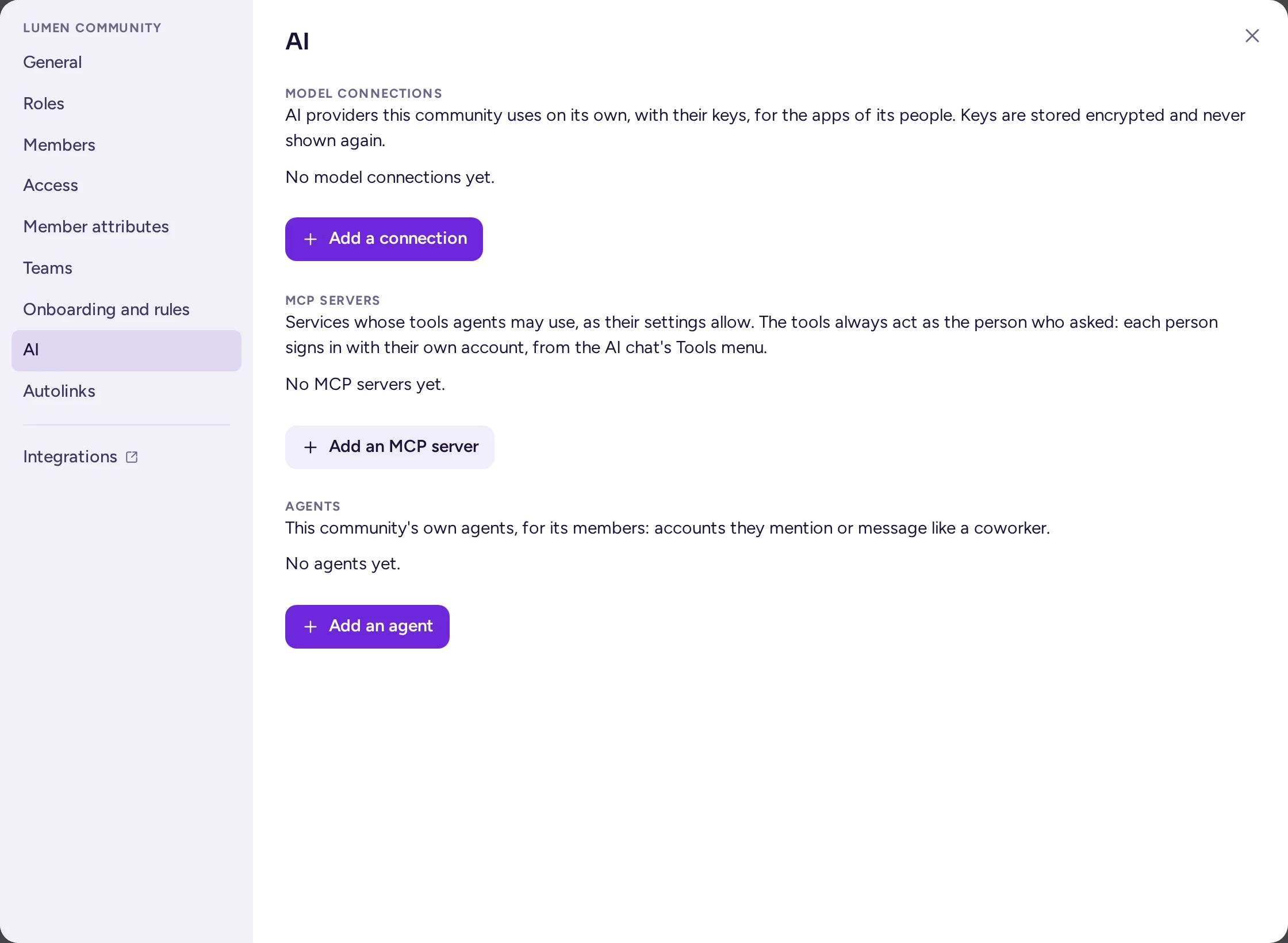
| AI | The community's own model connections, then its own agents (see below and below). |
| Autolinks | Text patterns that become links in messages. |
After the tabs, Integrations leaves the settings for the community's integrations pages: webhooks, slash commands, bot accounts, OAuth apps and agents, for those who may manage them (see Webhooks, slash commands and bots).
On the General tab, the name and description save with that section's own Save and Undo changes buttons, and the icon as soon as you pick it. The Onboarding and rules tab's two sections each have their own Save. On Roles, Member attributes and Community layout, changes are saved as you make them, with Save and Cancel in their editors, and Close closes the dialog. If a tab has unsaved changes, Antimatter warns you before you switch tabs or close the dialog.
Name, description and icon
On the General tab:
- Team Name is the name shown in the community rail and at the top of the channel list. It can have 2 to 64 characters.
- Description helps people pick the right community when they browse the ones they can join. It can have up to 50 characters.
- Team Icon is the picture in the community rail: a BMP, JPG or PNG file. Without one, the rail shows the community's initials. Remove image removes it at once.
The community's address (the part of the URL after the server's name) is chosen when the community is created and can't be changed afterwards.
Who can join
On the Access tab:
- Discoverability: a Public Team appears in the list of communities that anyone with an account on the server can browse and join. A Private Team can only be joined with an invitation. Switching from public to private creates a new invitation link and stops the old one from working.
- Allow only people with a specific email domain to join this community: when this is checked, only people whose email address ends with one of the domains you list can join, for example
example.org. Separate several domains with spaces or commas. This suits a company workspace; leave it off for a public community. - Invite Code: the code in the community's invitation link. Regenerate creates a new link and makes the previous one stop working. Do this if an invitation link was shared where it shouldn't have been. It doesn't touch the other invite links members made (see Share an invite link); revoke those one by one in Invite people › Invite links….
If the community's members come from linked groups (a directory such as LDAP, set up by a system admin), the Access tab says so, and these choices are replaced by the group sync.
Joining also depends on how the server is set up: whether people can create an account at all, and from which email domains. These are server settings; ask your system admin (see What to ask your system admin).
Kind of community
On the General tab, under Channels, Kind of community tells Antimatter how your community is run. It is saved as soon as you change it, and also turns Members are in every channel on (a guild) or off (a workspace); you can still change that switch on its own afterwards.
| Kind | For | What changes |
|---|---|---|
| Guild | A public or hobby community. | Only the community's admins, and roles with Manage channels, archive channels. Calls are off by default in its channels: voice channels are there for talking. |
| Workspace | A company's or an organisation's workspace. | A channel's admins (whoever created it, and the people they made admins) archive it too. Calls in its channels follow the server's Calls default, which is on unless your system admin changed it. |
In both kinds, only a channel's admins, the community's admins and moderators with Manage messages put messages on top. A channel that has its own Calls setting keeps it, and direct and group messages aren't affected by the kind.
New communities are of the kind the system admin chose for the server (Kind of new communities, which is Guild unless changed). Applying a layout preset also sets the kind: Hybrid and Community make a guild, Workspace a workspace (see Community layout). A template carries the kind of the community it was exported from. The server stores and reads a community's kind under its older names, community and workplace; this changes nothing for you.
Everyone in every channel
On the General tab, under Channels, Members are in every channel decides how channel membership works in your community.
- On: every member is in every public channel, and in the private channels that their roles open. Nobody joins or leaves channels: people mute the channels they don't want to follow. The channel menu shows Mute channel where Leave channel used to be, and moderators can't remove anyone from a single channel. To keep someone out, remove them from the community, time them out, or change the channel's permissions. Channels show no join and leave messages, and have no per-channel join/leave setting.
- Off: people join the channels they want, can leave them, and channel admins can add and remove members.
Guests and bots are never added automatically: they are only in the channels they are added to. Private channels that are not opened by a role (invite-only channels) are not affected either.
The switch is saved as soon as you change it. Turning it on adds everyone to the channels they may see; on a large community this takes a little while. Turning it off keeps everyone where they are, and they are free to leave.
Guilds have this switched on by default, unless the system admin changed that default (New guilds put everyone in every channel in the System Console); workspaces never do. Communities created before this setting existed have it off until you turn it on.
The default channel
The default channel is where newcomers land. Everyone is in it and can't leave it. When a community is created, its default channel is General (its address is general).
Older communities had Town Square. The upgrade to Antimatter 0.9.0 renamed it General, with the address general, unless the community already had a channel with that address; a name you had given it yourself is kept. Old links to town-square still lead to the community's default channel.
To choose another one, use Default channel on the General tab, or open a public channel's menu and choose Make it the default channel. The default channel must be a public channel that isn't archived. Everyone is added to the new default channel.
General, Welcome (Off-Topic in older communities) and the default channel can be archived, but only by community admins. If the default channel is archived, the community has no default channel any more: the setting shows An archived channel, and people land in the first channel they are in until you choose another one. When General is gone, the list offers None: the first channel each person is in.
Join and leave messages
On the General tab, under Channels, Join and leave messages chooses the channel that tells who joins and leaves the community: everyone is in it. New communities get Welcome for this; older ones keep whichever channel they used before (their default channel, often Off-Topic), unchanged; or choose Off for none. A new community also gets two default channels: General, where people land, and Welcome, for these messages; Off-Topic is no longer created for new communities. Nothing is migrated for existing communities: they keep their channels, kind and messages as they are.
People: Show people as
On the General tab, under People, Show people as chooses Username, Nickname or Full name for everyone in this community's channels, member list, mentions and cards. Until you choose, the server's own default applies. In nickname mode, a nickname someone set for this community (see Reset nickname and Reset picture) comes first; otherwise their nickname from My account is used. This is separate from each person's own Show people as in their settings, which only applies to their direct and group messages.
Rules
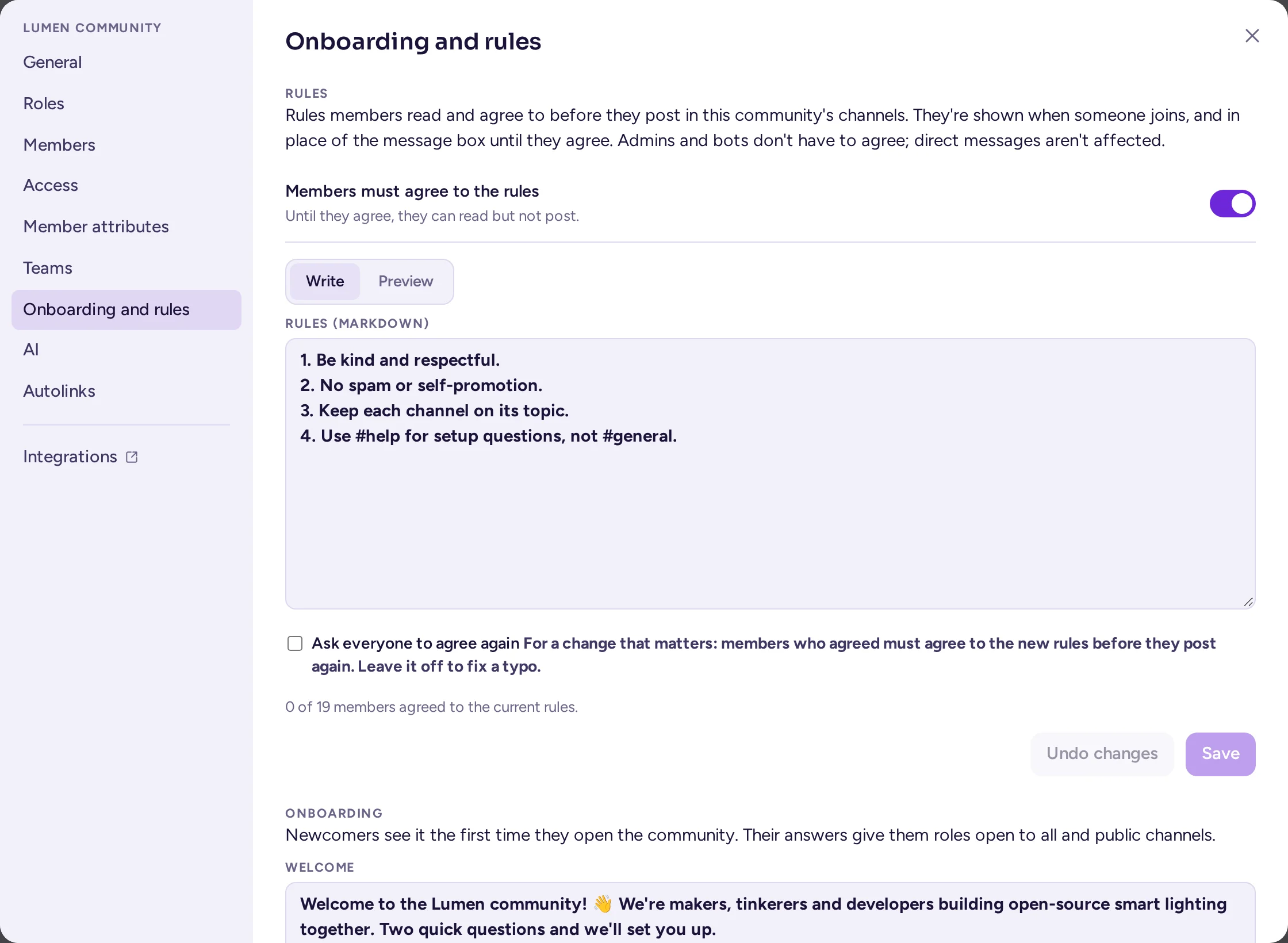
A community can ask its members to read and agree to its rules before they post in its channels. Until they agree, they can read everything, but not post, reply or send files there; they can still react, and direct and group messages aren't affected. The community's admins (and roles with Administrator), system admins and bots don't have to agree. The server enforces this, in every app.
- Open the Onboarding and rules tab of the community settings, under Rules.
- Write the rules under Write, in Markdown (up to 16,000 characters), and check them under Preview.
- Turn on Members must agree to the rules.
- Click Save.
The tab says how many of the community's members agreed to the current rules. When you change them later, turn on Ask everyone to agree again for a change that matters: everyone must agree to the new version before they post again. Leave it off to fix a typo: those who agreed stay agreed. Turning the switch off lets everyone post again. What members see is described in What newcomers see.
Autolinks
Autolinks turn text in messages into links as they are posted. A typical use is issue keys: LUM-12 becomes a link to that issue in your tracker. They apply to the messages posted in your community, in every app, notification and search, because the server rewrites the message before saving it. Code, links and images are left alone.
On the Autolinks tab:
- Choose Add an autolink. Start from a ready-made pattern (issue keys, pull requests, merge requests, CVE identifiers) or from Blank.
- Give it a name, for example "Jira issues".
- In Pattern, write a regular expression, for example
(PROJ-\d+). - In Becomes, write what the match turns into.
$0is the whole text that matched, and$1,$2and so on are the pattern's groups. For example:[$1](https://issues.example.com/browse/$1). - Choose where it applies: All channels, or only some channels.
- Optionally, check Whole words only, and Bots' messages too if messages posted by bots should be linked as well.
- Type an example in Try a message to see the result, then choose Save.
Each autolink has an On box to pause it without deleting it. Link edited messages too applies the autolinks to messages when they are edited; otherwise only new messages are linked. A community can have up to 100 autolinks.
Model connections
A model connection is an AI provider, such as an OpenAI-compatible service or Anthropic, with its address and key. A system admin sets up the server-wide connections. A community can also have its own, which the apps of its people can use in the community's channels. Antimatter's built-in AI features (rewriting, recaps, auto-translation, text to speech) use the server-wide connections the system admin picked, not the community's.
Community admins and roles with Manage model connections manage them on the AI tab, under Model connections. Choose Add a connection, then fill in:
- Name, and the Provider: OpenAI-compatible (most providers and gateways) or Anthropic. Presets fill in the usual values.
- Base URL and API key. The key is stored encrypted and never shown again, only its last four characters. Extra headers are for gateways that need them.
- Models: the model used for each capability when an app doesn't name one. Load models lists those the endpoint offers.
- Limits: requests per minute and tokens per month, for the connection and per person. Empty or 0 means no limit.
- Who may use it: Everyone in the community, or only the teams, roles and admins you choose. Guests may use it only with Guests too on, which is off by default.
Test connection checks it before or after you save. Each connection shows this month's usage, and Usage gives the details. Deleting a connection forgets its key, and what used it stops using AI. The AI tab also lists the community's own MCP servers, under the model connections, for its own agents' tools.
Agents
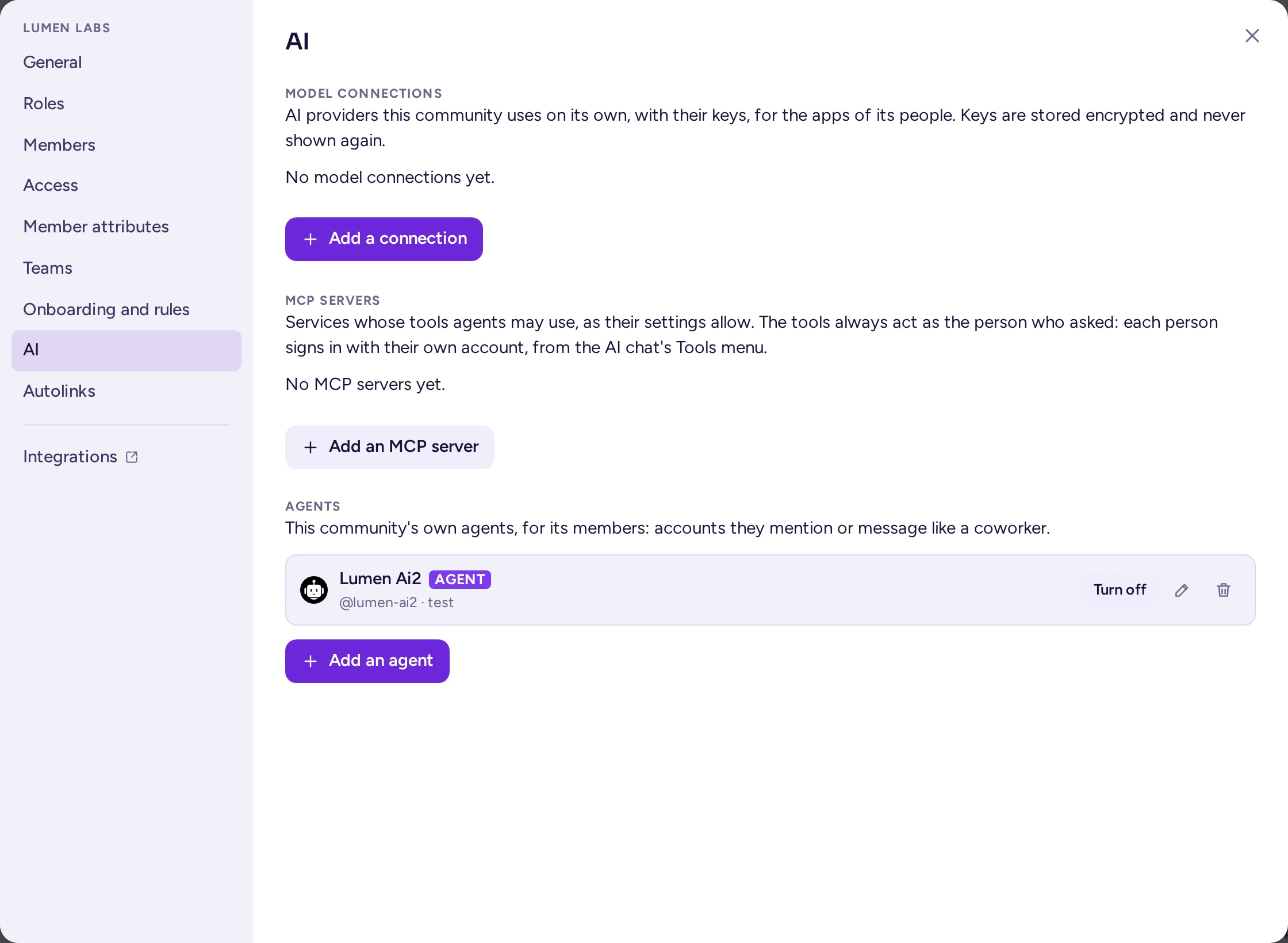
An agent is an AI assistant with an account of its own, shown with an AGENT tag: your members mention it or message it like a colleague, and it answers. A system admin can set up agents for the whole server; your community can also have its own, for its members. On the AI tab, under Agents, which community admins see:
- Choose Add an agent.
- Choose the Kind: Built-in (Antimatter answers for it, with a model connection) or External agent (a program elsewhere answers for it, with the agent's token: a system admin gives it one).
- Give it a Display name, a Username (how people mention it) and optionally a Description.
- For a built-in agent, pick its Model connection: one of the community's own, or a server-wide one a system admin shared with the community. Leave Model empty for the connection's chat model, and write its Instructions: who the agent is and how it works. People who talk to it don't see them.
- Under Who may talk to it, keep Everyone in the community, or choose roles and channels. Guests may talk to it only with Guests too on.
- Choose Add agent. The agent joins the community.
A built-in agent answers as the person who asks, with their rights: it only reads what they may read, and its use counts against their limits on the connection. The agent form's Tools switch lets it use Antimatter's own tools, each running app's, and the community's own MCP servers or a server-wide one shared with the community (see Tools). From the list, you can edit an agent, turn it off (nobody can talk to it until you turn it on again) or delete it; its messages stay. How members use agents is explained in AI agents.
Community layout, presets and templates
A layout is a community's structure: its categories for everyone and the channels in them, its channels, its roles and their permissions, its onboarding, and its kind. Open the Community layout section of the General tab.
Three presets are offered:
| Preset | What it sets up |
|---|---|
| Hybrid (recommended) | A locked "Information" category with General, an open "Community" category with Off-Topic, where members file their own channels, and a "Moderators" role. The kind is set to Guild. |
| Community | Categories that only admins arrange ("Information" with General, and "Channels" with Off-Topic), and a "Moderators" role. The kind is set to Guild. |
| Workspace | Everyone arranges their own categories, and archives the channels they created. It removes the categories for everyone; roles stay. The kind is set to Workspace, which also turns Members are in every channel off. |
The "Moderators" role of the presets can edit and delete other people's messages and put messages on top, rename channels and manage their members, and remove and time out people. It doesn't archive channels (see A moderators role).
The first time a community admin opens a new community that has no categories for everyone and no roles, Antimatter offers the presets once, under Set up followed by the community's name. Choose Not now to skip.
Copy a layout to another community
- In the community you want to copy, open the Community layout section of the General tab and choose Export as a template. Your browser downloads a JSON file.
- In the other community, open the same section, choose Apply a template… and pick the file.
Applying a preset or a template adds the channels and roles that are missing, updates the roles that have the same name, files the channels into the categories, replaces the onboarding, and sets the kind of community. It removes nothing except the categories for everyone that the template doesn't include. The export only includes the channels you are a member of, and no messages. Templates exported before the upgrade to 0.9.0 that name Town Square put General in its place.
A template carries each channel's preset (see The Type tab), for example a Q&A forum. Applying one in a server that doesn't know a preset makes a plain Chat channel instead.
Settings that are not the community's
- Direct messages and profile details: each member chooses their own defaults in Settings › Privacy & safety, and can make a different choice for this community from the community menu's Privacy settings, which decides whether their direct messages arrive normally, wait as requests or are refused, and which of their profile details this community's people see. Community admins can't set it for them, but still see the community's own attributes (see Ignoring and blocking).
- Custom emoji, the apps, the member limit and the kind of new communities are set for the whole server by a system admin. A system admin can also turn off grouping members by role on the whole server, which wins over your community's Member list choice.
Leaving and deleting a community
Anyone can leave a community with Leave community at the bottom of the community menu. Community admins can't archive or delete a community from Antimatter's interface: a system admin does it in System Console › User Management › Teams, by opening the community and choosing Archive Team.