 Antimatter
AI
Antimatter's AI features use models you choose: a cloud provider, or a server on your own network. Nothing is sent anywhere until you configure a model. This page covers model connections, each feature, the data it sends and how to turn it off.
The AI features
| Feature | Configured in | Kind of model | On by default |
|---|---|---|---|
| Rewrite in the composer: improve, shorten, fix or translate a message before sending it | AI › Built-in features, with a model connection | A chat model (LLM) | no |
| Recaps: summaries of the channels people choose | AI › Built-in features, with a model connection | A chat model (LLM) | no |
| Automatic translation of channels | Site Configuration › Localization | A model connection, LibreTranslate or an OpenAI-compatible API | no |
| Read aloud | Integrations › Text to speech, optionally with a model connection | Text-to-speech, OpenAI-compatible | no |
| AI agents: assistants people mention or message, and ask for summaries of threads, channels and calls | AI › Connections and agents, or a community's AI tab, with a model connection | A chat model (LLM) | no: there is no agent until you add one |
| The assistant: a personal panel that follows the conversation someone has it open on and shows cards without being asked | Integrations › Integration Management, with a model connection for its model engine | None (rules engine) or a decisions model | no |
| Call transcripts and live captions | The Calls app | Speech-to-text, OpenAI-compatible | no |
"OpenAI-compatible" means a server that offers the same HTTP API as OpenAI. Most model servers you can run yourself do (for example Ollama, vLLM, llama.cpp's server, or Whisper and text-to-speech servers), as do many cloud providers and gateways such as LiteLLM or OpenRouter. No licence is needed for any of these features.
The built-in features (rewrite, recaps, translation and read aloud) and the agents need no app: they use the model connections you add in the System Console.
Model connections
A model connection is an AI provider Antimatter may call: its address, its key and its models. You add it once, then pick it for each feature that should use it. There are two kinds:
- Server-wide connections, managed by system administrators in System Console › AI › Connections and agents. Only they can serve the built-in features. Apps can use them too, for the people allowed to.
- Community connections, which a community's admins add for their own community in the community's settings (see below). Apps use them for the community's people. They never serve the built-in features.
The AI section of the System Console shows to the people who may manage the server-wide connections: system administrators, by default. Its Connections and agents page (the same address as before, admin_console/ai/model_connections) lists the server-wide connections and those of every community, then the server-wide agents (see AI agents).
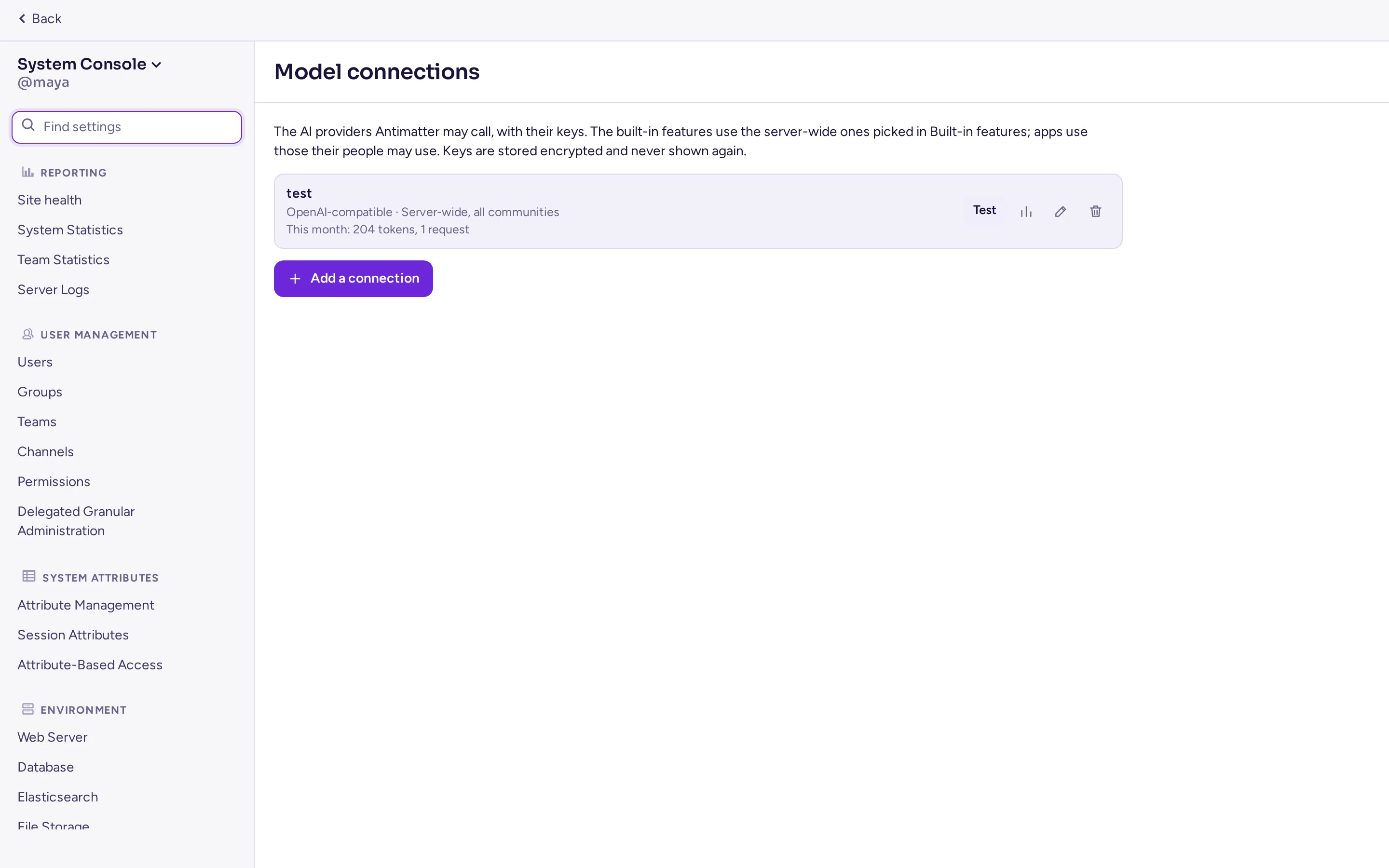
Add a connection
In System Console › AI › Connections and agents, under Model connections, click Add a connection, then fill in the form:
| Field | What to put |
|---|---|
| Presets | Fills in the provider and the address of a well-known service: OpenAI, Mistral, Gemini, OpenRouter, or Ollama and LiteLLM on the server itself. Optional. |
| Name | The name admins see when they pick it, for example "Company OpenAI". |
| Provider | OpenAI-compatible (most providers, gateways and model servers you run yourself) or Anthropic. Cloud services with their own sign-in, such as AWS Bedrock, Google Vertex AI or Azure with Entra ID, go through their OpenAI-compatible endpoint or a gateway such as LiteLLM. |
| Base URL | The API's address, up to and including /v1, for example http://ollama:11434/v1. Left empty, it is the provider's own (https://api.openai.com/v1 or https://api.anthropic.com/v1). |
| API key | The provider's key. Leave it empty if the endpoint needs none. It is stored encrypted and never shown again: the form only shows its last four characters, and offers to keep, replace or remove it. |
| Extra headers | Headers to send with every request, for a gateway that needs them. Their values are stored encrypted like the key, and never shown again: to change them, type them all again. |
| Models | The model used for each capability when a feature or an app doesn't name one: Chat, Embeddings, Transcription and Decisions. Load models lists the models the endpoint offers. Leave a capability empty if the endpoint doesn't offer it. Anthropic connections only chat. |
| Decisions API | How the decisions model is called: OpenAI decisions or SystemOne. Only matters for apps that ask for decisions. |
| Limits | See Limits and budgets. |
| Communities | Server-wide connections only. All communities: usable in every community, and in direct and group messages. Otherwise, only in the communities you choose. |
| Who may use it | Everyone where it is usable, or only the teams (groups of people inside a community) and the roles you choose (System admins, Community admins). Guests too lets guests use it; without it, guests can't, even with Everyone. |
Test connection checks the address and the key: the server asks the endpoint for its models, or sends a one-token chat. A changed address is tested with the saved key only after you save, or if you type the key again. Click Add connection to save.
The server makes the requests itself, so it must reach the API: a model server in the same compose project, on your network, or on the Internet. Outgoing requests honour the HTTP_PROXY and HTTPS_PROXY variables.
Deleting a connection forgets its key. The features that used it stop using AI until you pick another connection.
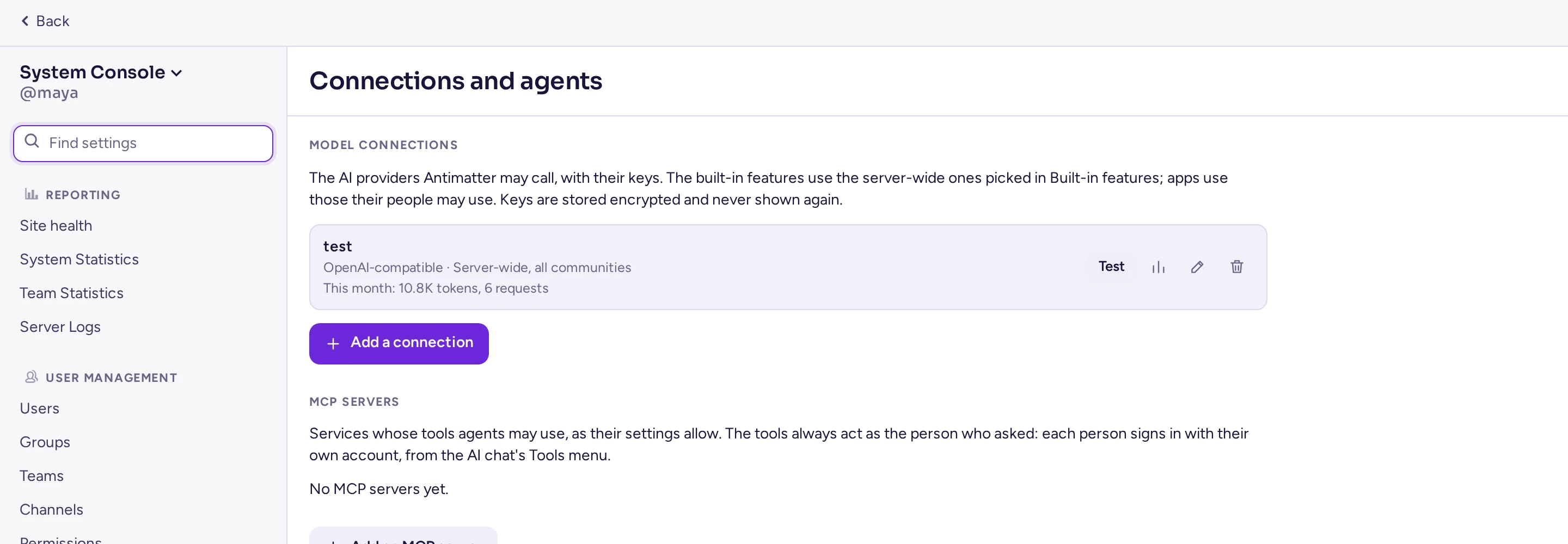
Limits and budgets
Each connection has four limits. Empty or 0 means no limit.
- Requests per minute and Per person, requests per minute. They are counted by each server separately: a cluster of three servers lets through up to three times the rate.
- Tokens per month and Per person, tokens per month: token budgets, per calendar month (UTC), counted in the database for the whole cluster. Several requests running at the same moment can go slightly past a budget.
The per-person limits also apply to the rewrite and to recaps: they count against the person who rewrites, or who owns the recap.
Usage
The list shows each connection's use this month. Usage opens the details: tokens in and out, requests, the monthly budget, use by day (UTC) and by use (Rewrite, Recaps, Auto-translation, Text to speech, People, through apps, or an app).
Every call that a person or an app makes through a connection also writes an audit record: who, the connection, the use, the model, the token counts and whether it worked, never what was said. The built-in features are only counted in the usage: translation alone makes one call per message and language.
Community connections
Community admins add their community's own connections in the community's settings, in the AI tab, under Model connections. The form is the same, without Communities: a community's connection works only in its own channels, for its own members, and its audience can only name its own teams. Roles with the Manage model connections permission can manage them too. By default, community admins have it.
A community's connection can't reach private or loopback addresses (an Ollama server on your network, for example), unless System Console › Environment › Developer › Allow untrusted internal connections to (ServiceSettings.AllowedUntrustedInternalConnections) lists them. Server-wide connections can.
See Community settings for the community admins' side.
MCP servers
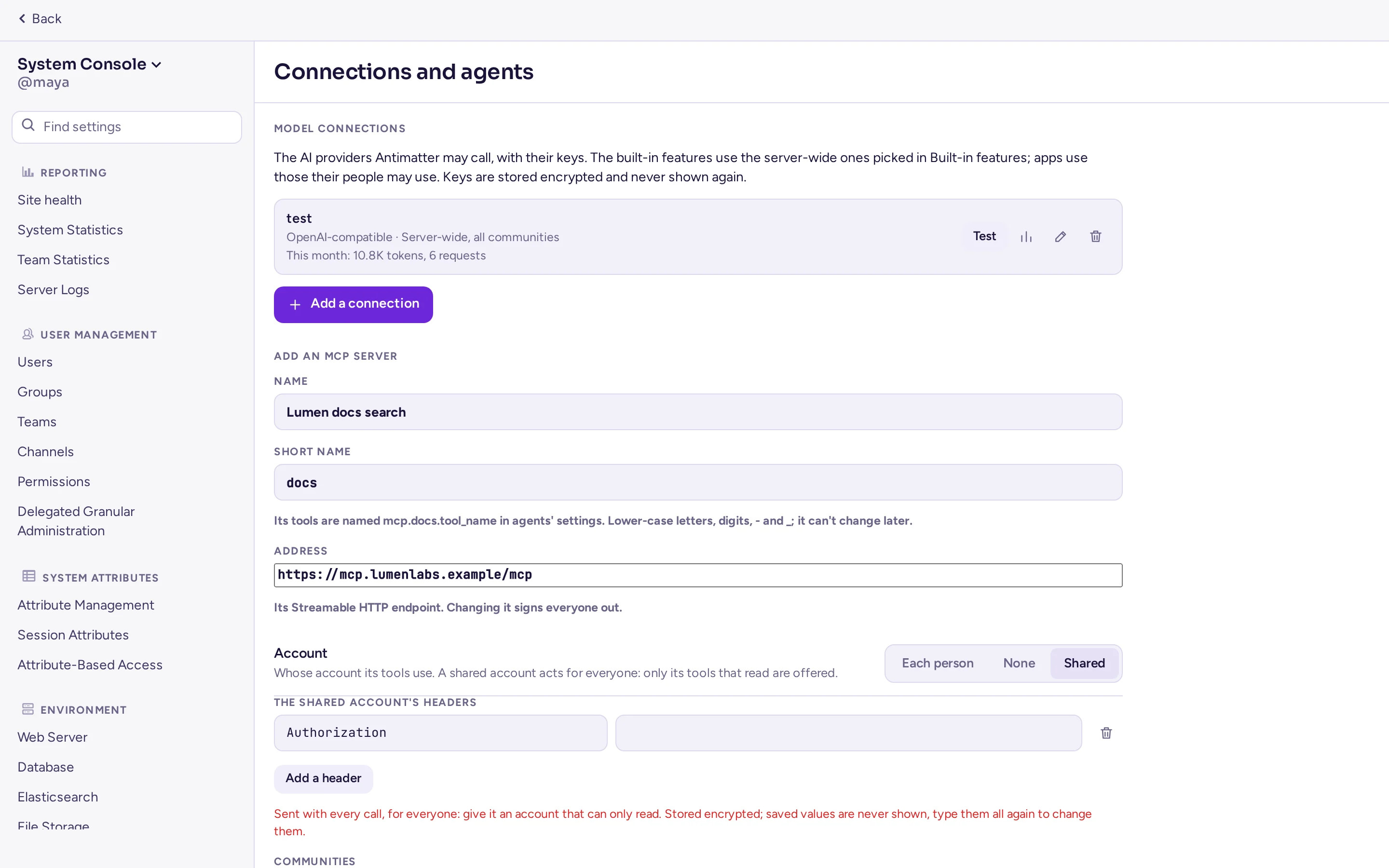
An MCP server is a service that offers tools over the Model Context Protocol, which agents can use. MCP servers are listed under the model connections, in System Console › AI › Connections and agents (server-wide) or a community's AI tab (its own), managed by the same permissions as model connections. Add one with its:
| Field | What to put |
|---|---|
| Name, and a Short name | The short name (a slug) never changes once set: it names the server's tools, mcp.<short name>.<tool>. |
| Address | The server's Streamable HTTP endpoint. |
| Account | Each person signs in (OAuth: an optional client ID, since Antimatter can register itself; a write-only client secret; scopes; the callback is /api/v4/ai/mcp/oauth/callback, which needs the site URL set), None, or A shared account (headers, write-only): only that server's tools that read are offered through a shared account. |
| Sharing | Server-wide servers only: which communities may use it. A community's own MCP servers are for that community's agents only. |
A community's MCP server can't reach internal addresses unless Allow untrusted internal connections to allows them, as for community model connections; a server-wide server's own declared address is always reachable. MCP requests never follow a redirect. Changing a server's address or account kind signs everyone out of it; deleting one forgets everyone's sign-in.
The encryption key
The keys and extra headers of model connections are encrypted in the database (AES-256-GCM) with one encryption key. A database backup alone doesn't reveal them. The server finds the key in this order:
- The
AM_AI_ENCRYPTION_KEYvariable: 32 random bytes, in base64. Make one withopenssl rand -base64 32. - Otherwise, the file
ai-encryption.keyat the root of the server's data directory (FileSettings.Directory,./data/by default). The server creates it, readable by itself only, the first time a connection needs it. Apps, exports and file archives can't read it.
When to set the variable:
- With the site's compose file.
compose.yamlpassesAM_AI_ENCRYPTION_KEYfrom.env, and keeps the key file in thedatavolume when the variable is empty. Setting the variable is better: the backup of.envthen holds the key, apart from the database. Add it to.envand rundocker compose up -d:
If the server has already created its key file, put the key it holds inecho "AM_AI_ENCRYPTION_KEY=$(openssl rand -base64 32)" >> .env.envinstead, so that the saved keys stay readable:docker compose exec antimatter cat /antimatter/data/ai-encryption.keyprints it. - A cluster whose files are in S3. Its servers share no directory, so the server doesn't create the file: set the same variable on every server. Until it is set, connections can't save keys.
- With the release archive or the packages, the file is in
data/(/var/lib/antimatter/datafor the packages). You can keep it there, or set the variable in your environment file.
To change the key, set the new one in AM_AI_ENCRYPTION_KEY and the old one in AM_AI_ENCRYPTION_PREVIOUS_KEYS (several keys separated by commas): the keys saved with the old one can still be read. A connection's key is encrypted with the new key when you type it again. Keep the old key in the list until every connection's key has been typed again.
The built-in features
In System Console › AI › Built-in features, pick for each feature a server-wide connection and its model, or Off. A feature without a connection uses no AI. Load models lists all the models of the connection; by default each feature uses the connection's chat model.
| Feature | Setting | What else it needs |
|---|---|---|
| Rewrite in the composer: the AI menu of the message box (improve, shorten, fix, translate) | AISettings.Rewrite | Nothing: the menu shows once a connection is picked. |
| Recaps: summaries of the channels people choose, on demand or on a schedule | AISettings.Recaps | Enable AI Recaps in System Console › Site Configuration › Recaps (on by default), which also sets how many recaps people may make. |
| Auto-translation | AISettings.AutoTranslation | The translation provider Model connection (recommended), in Automatic translation. |
| Text to speech | AISettings.TextToSpeech | Read messages aloud on, in Text-to-speech. The connection's /audio/speech endpoint replaces the address and key set there. |
Each setting has a ConnectionId and a Model key, for example AISettings.Rewrite.ConnectionId (AM_AISETTINGS_REWRITE_CONNECTIONID). An empty Model uses the connection's default model.
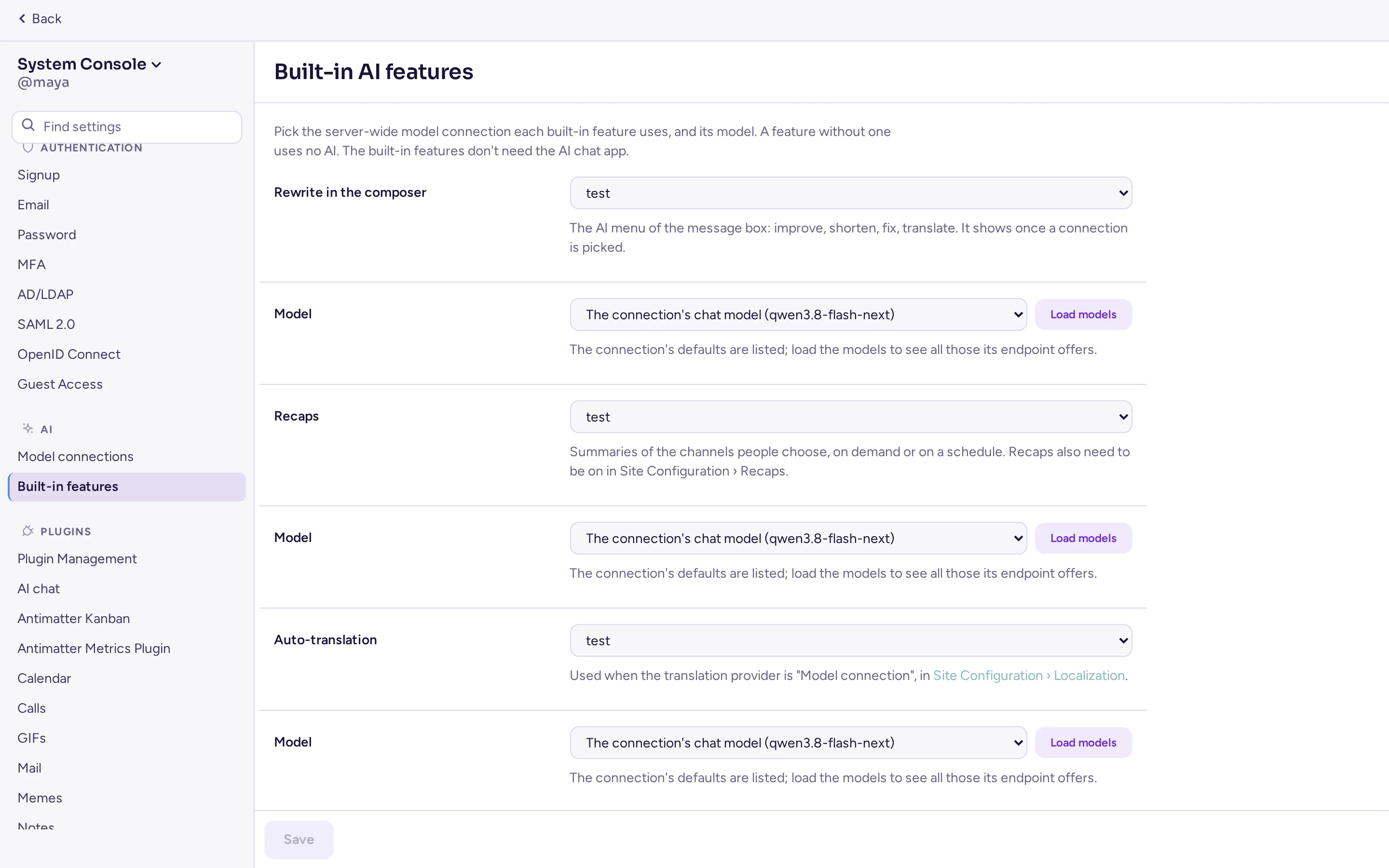
The built-in features use the connection's limits, but not its audience: everyone who can use the feature can use its connection. A connection that needs attention, or that was deleted, makes the feature fail until you pick another one: the page says so.
AI agents
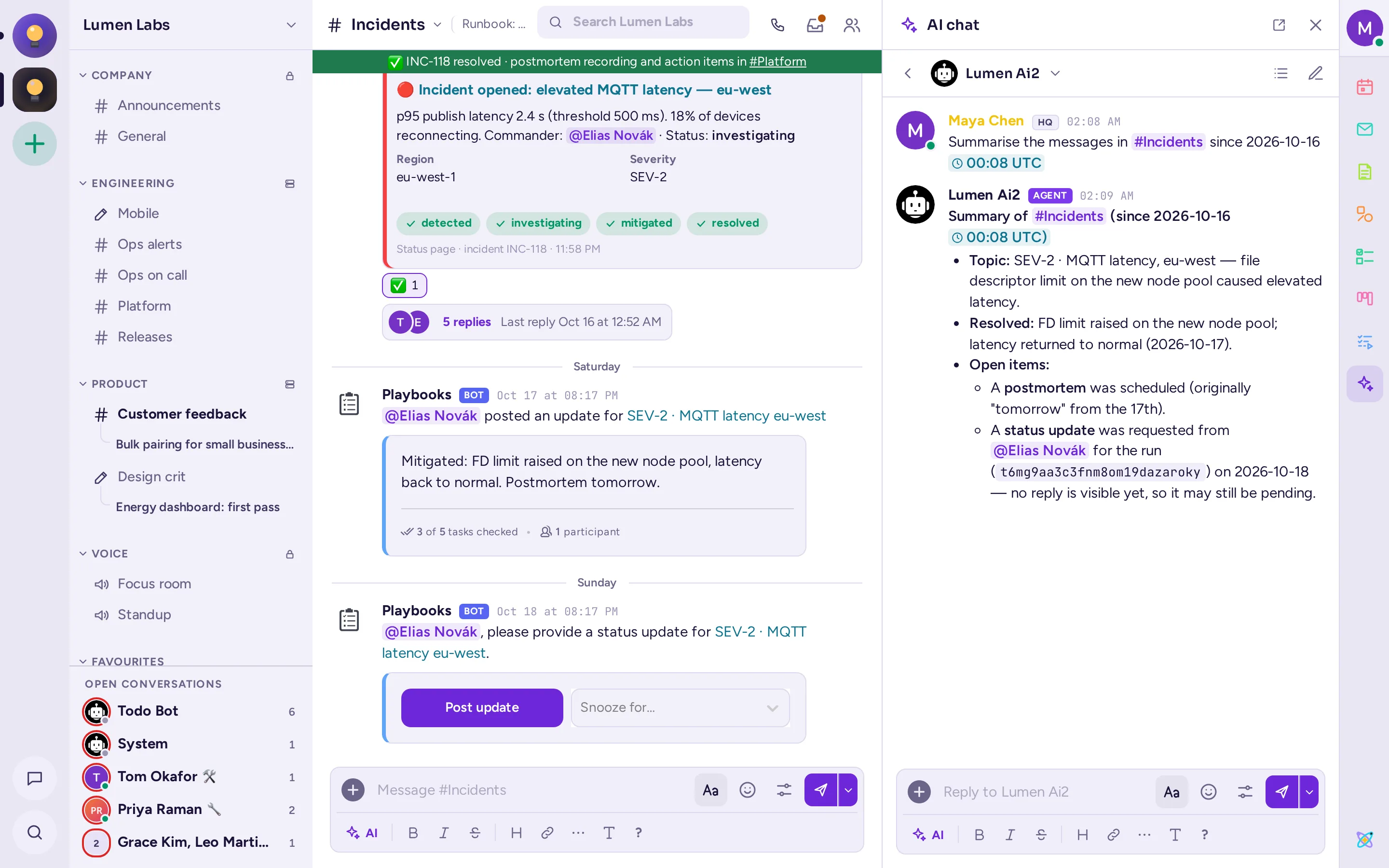
An agent is an account people mention or message like a colleague, shown with an AGENT tag. Agents are part of the server. There are two kinds:
- Built-in: Antimatter answers for the agent when someone mentions it, messages it or replies in its threads, with a model connection and the agent's instructions. It answers as the person asking, with their rights: their access to the connection, and their limits and budget.
- External agent: a program elsewhere (a coding agent on a project, for instance) signs in with the agent's token and answers like a person would. Antimatter doesn't answer for it. See Agents in the developers' guide.
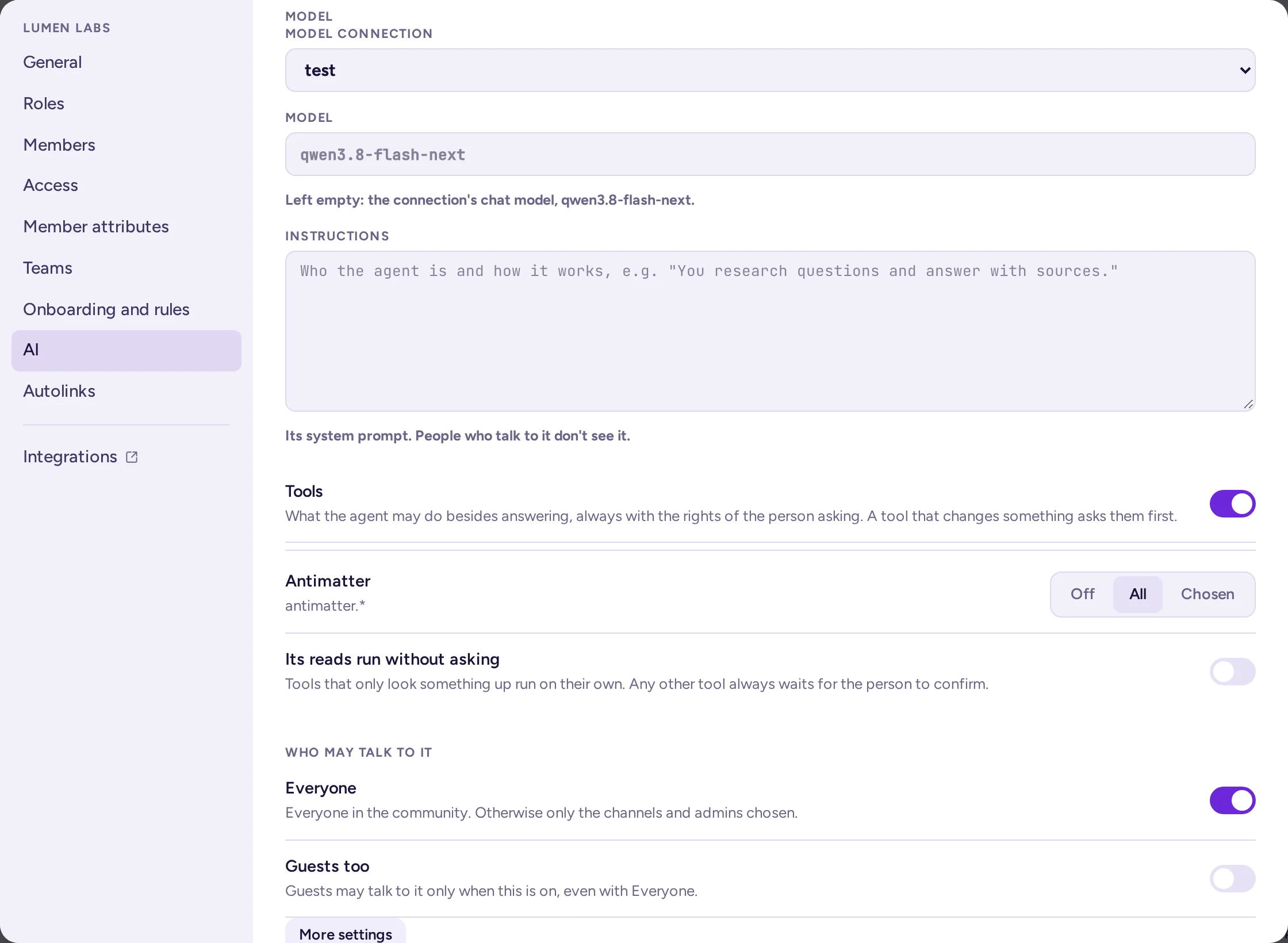
System administrators manage the server-wide agents in System Console › AI › Connections and agents, below the model connections. A community's admins manage their community's own agents in the AI tab of its settings, below its model connections (see Community settings). Nobody else can create agents.
Add an agent
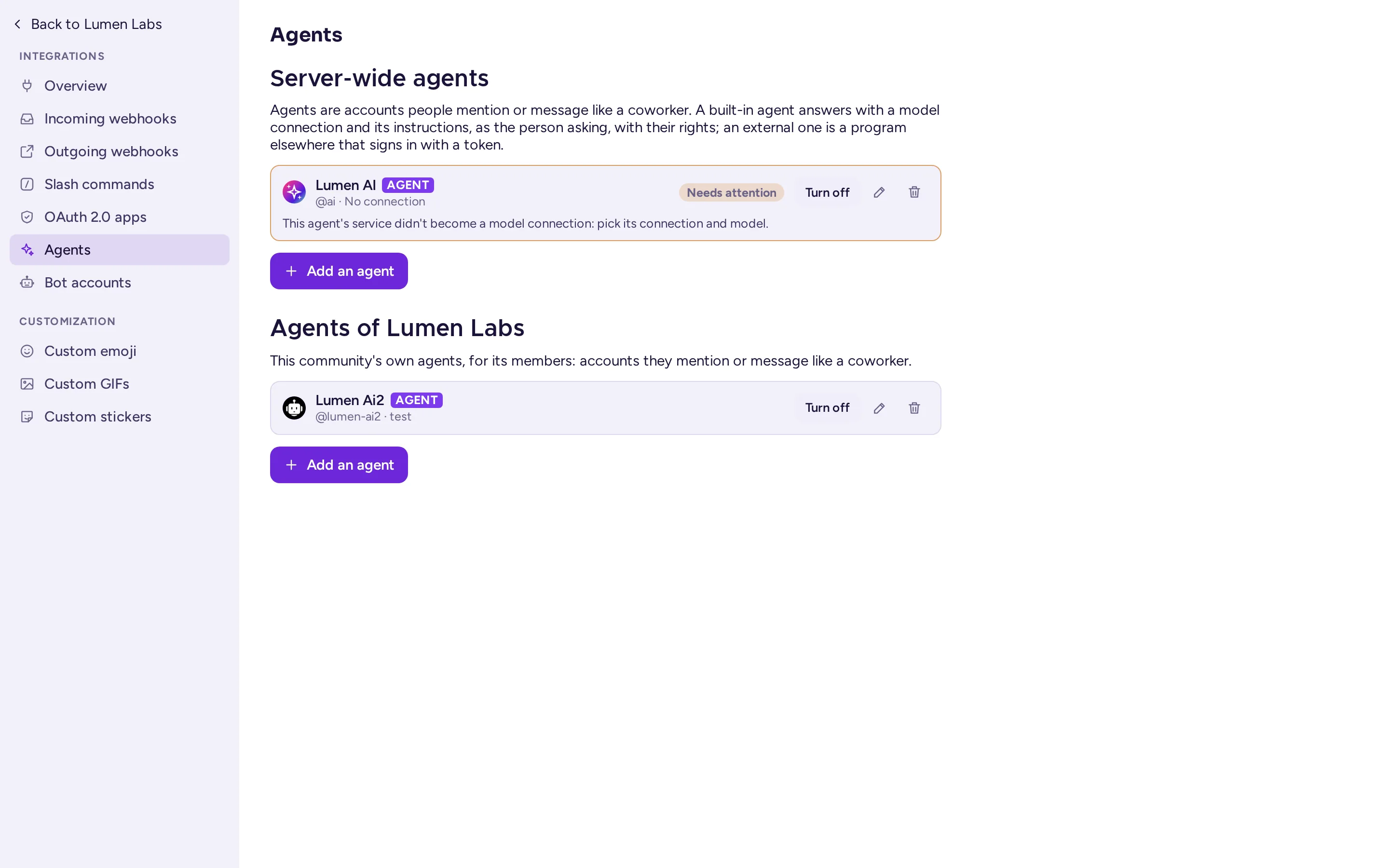
In System Console › AI › Connections and agents (or a community's AI tab), click Add an agent, then fill in the form:
| Field | What to put |
|---|---|
| Kind | Built-in or External agent. |
| Display name, Username, Description | How the agent shows. The username is how people mention it: 3 to 22 lower-case letters, digits, dots, dashes or underscores, starting with a letter. The description shows on its profile. |
| Model connection and Model | Built-in agents only. A server-wide agent uses a server-wide connection; a community's agent uses its community's own connections, or a server-wide one shared with the community. Leave Model empty to use the connection's chat model. |
| Instructions | Built-in agents only. The agent's system prompt (up to 32,000 characters): who it is and how it works. People who talk to it don't see it. |
| Who may talk to it | Everyone (on the server, or in the community for a community's agent), or only the roles (System admins, Community admins), communities and channels you choose. Guests too lets guests talk to it; without it, they can't, even with Everyone. |
| More settings | Built-in agents only. Reasoning (Off, Minimal, Low, Medium or High), for models that can think before they answer: slower, often better. Tool turns: how many times in a row it may use tools before it answers, up to 250 (30 when empty). |
Click Add agent. A community's agent joins its community. Each agent in the list shows its connection and model (or "External"), whether it is off, and what needs your attention. From the list you can edit an agent (its picture too), turn it off or on (nobody can talk to an agent that is off), or delete it: its account is deactivated and its settings forgotten, but its messages stay.
Tools
The agent form's Tools switch turns tools on for the agent, then offers, for each source (Antimatter's own tools, each running app's, and each MCP server available in the agent's scope): Off, All or Chosen, and Its reads run without asking. Tools always act as the person who asked, with their own rights, never as the agent.
- A read the agent's policy allows to run on its own runs at once. Every other call (any write, and a read not set to run on its own) waits for the person: it is shown on the agent's reply with Confirm and Decline, the exact arguments, and a day to answer; only that person can answer, and the agent, the tool, and the person's access are checked again when they confirm. A declined call doesn't run, and the agent says nothing more about it.
- An MCP tool counts as a read only when its server marks it so; everything else is a write. A shared account (see MCP servers) only offers that server's tools that read.
- A person's own tool choices, in their AI chat settings, are one preference for every agent: they can only narrow what the agent's policy allows, never widen it.
- Antimatter's own tools, for now: search messages, read a thread, read a channel, look someone up, and post a message, which always needs confirming.
- Every tool call is written to the audit log: who, the tool, the agent, where, how it was decided and the outcome, and the size and a hash of the arguments, never their content.
Where agents answer
- A built-in agent answers a message that mentions it (up to three agents per message), a message in a direct message with it, and a reply in a thread it started or was asked in that mentions nobody else. It answers in the message's thread.
- Someone who may not talk to it gets a notice only they see: "@agent isn't available to you here."
- Agents don't answer bots, apps, webhooks or each other.
- Each answer is given once, by one server of a cluster.
The AI chat app
The AI chat app (id mattermost-ai, on by default) is the side panel where people talk to the agents they may use: it lists their conversations with agents and offers summaries of the channel being read. It also adds the AI actions of the message menu (Summarise thread, Find action items, Find open questions), the Ask AI menu of the new-messages line and the calls' Create meeting summary, which ask the person's agent through the server and are answered in their direct message with it. When it has no agent to offer, its panel sends admins to System Console › AI › Connections and agents, or a community admin to their community's AI tab.
The app still has its own settings, now in System Console › AI › AI chat app (the Plugins page for it is gone; the old address redirects), with its own AI Services, for the features that are still its own: React for me, AI search, custom prompts, the automatic replies of the channels set for them, and the automatic summaries of call transcripts. Its Embedding search (experimental, off) powers AI search: it needs PostgreSQL with the pgvector extension and an embedding model, and it sends every message to the embedding model, private channels and direct messages included. Under Debug, Trace Output (off, server logs or an OpenTelemetry endpoint) and Enable Token Usage Logging (written to logs/agents/token_usage.log) help find problems.
The assistant
The assistant is a personal panel, beside the conversation someone has it open on, that quietly follows along and shows cards without being asked: insights (something read-only it found) and actions (something that would change something, offered to one person at a time and never run on its own). It needs the panel app (com.antimatterchat.assistant) installed; this section covers the server's own side of it, which works whatever installs the panel. Off by default (AssistantSettings.Enable, AM_ASSISTANTSETTINGS_ENABLE).
Two engines decide what shows, chosen with Engine:
- Rules (the default): a dictionary of hosts, services, dashboards, repositories, tickets, people and dates, built from
SeedEntitiesand the read-only tools' own listings (DictionarySources, the Grafana app's by default), plus intent patterns such as "cpu on X", "is X down", "errors on X", "status of PR 12" or "deploy X" (Patterns). All three are editable as JSON; left empty, the built-in patterns and dictionary sources apply. - Model: a connection's decisions model, never its chat model (
ConnectionId,Model), with a Threshold it must clear and hourly budgets per person and per channel.
AllowedTools limits which tools the assistant may use, named as agents' policies name them (*, <namespace>.*, or a full name); each person's own tool choices and sign-ins still narrow it further. A tool that only reads runs on its own, as the person viewing, with their own rights and sign-ins. A tool that changes something is only proposed: offered to one person at a time (the message's author first, then whoever spoke next in the conversation, then whoever opened the panel first), moving on to the next after Offer timeout if nobody answers. In this release, Run only claims the offer and closes it for everyone; the tool itself doesn't run until a later version. Cards never notify anyone and are never posted anywhere unless the person themself posts one.
There is no System Console page for these settings yet: set them with environment variables, amctl config set or amctl config patch (see Configuration), or directly in config.json.
| Setting | Key and variable | Default |
|---|---|---|
| The server-wide switch | AssistantSettings.Enable, AM_ASSISTANTSETTINGS_ENABLE | off |
Engine: rules or model | AssistantSettings.Engine, AM_ASSISTANTSETTINGS_ENGINE | rules |
| Communities' admins may change it for their community (see Community settings) | AssistantSettings.AllowCommunityOverride, AM_ASSISTANTSETTINGS_ALLOWCOMMUNITYOVERRIDE | off |
The model engine's decision model: a connection's decisions model (Model empty) or the model named | AssistantSettings.ConnectionId, AssistantSettings.Model; AM_ASSISTANTSETTINGS_CONNECTIONID, AM_ASSISTANTSETTINGS_MODEL | none |
| The probability (%) the model engine needs to make a card, of the card, the tool and each argument | AssistantSettings.ThresholdPercent, AM_ASSISTANTSETTINGS_THRESHOLDPERCENT | 70 |
| The model engine's hourly budgets: decisions per person, and per channel | AssistantSettings.DecisionsPerUserHour, AssistantSettings.DecisionsPerChannelHour; AM_ASSISTANTSETTINGS_DECISIONSPERUSERHOUR, AM_ASSISTANTSETTINGS_DECISIONSPERCHANNELHOUR | 30, 60 |
| Cards per person per hour, both engines | AssistantSettings.CardsPerUserHour, AM_ASSISTANTSETTINGS_CARDSPERUSERHOUR | 20 |
| How long a channel stays quiet before its new messages become a window for the engines to read | AssistantSettings.DebounceSeconds, AM_ASSISTANTSETTINGS_DEBOUNCESECONDS | 4 |
| How long an action is offered to one person before it moves to the next | AssistantSettings.OfferTimeoutSeconds, AM_ASSISTANTSETTINGS_OFFERTIMEOUTSECONDS | 120 |
| The tools the assistant may use, as agents' policies name them | AssistantSettings.AllowedTools, AM_ASSISTANTSETTINGS_ALLOWEDTOOLS | * |
| The rules engine's intent patterns, as JSON; empty keeps the built-in ones | AssistantSettings.Patterns, AM_ASSISTANTSETTINGS_PATTERNS | built in |
| Entities to seed the dictionary with, as JSON | AssistantSettings.SeedEntities, AM_ASSISTANTSETTINGS_SEEDENTITIES | none |
| Read-only tool listings that fill the dictionary, as JSON; empty keeps the built-in ones (the Grafana app's) | AssistantSettings.DictionarySources, AM_ASSISTANTSETTINGS_DICTIONARYSOURCES | the Grafana app's |
The apps (by ID) whose own posts can trigger cards like a person's message (see Trusted apps below); at most 50, [] for none | AssistantSettings.TriggeringApps, AM_ASSISTANTSETTINGS_TRIGGERINGAPPS | com.antimatterchat.alertmanager |
| The most windows apps' posts may start in a channel per hour (0: none) | AssistantSettings.AppWindowsPerChannelHour, AM_ASSISTANTSETTINGS_APPWINDOWSPERCHANNELHOUR | 30 |
A pattern's match expressions are regular expressions over the message, with its recognised entities as slots ({host}, {host|service}); named groups ((?P<metric>cpu|memory)) become words a pattern's arguments can use as {$metric}. The built-in entity types are host, service, dashboard and repo (all four from the dictionary), person (@mentions), ticket (ABC-123), number (#12, 12) and date (today, weekdays, 2026-10-24).
Trusted apps
A trusted app's new post can start the assistant like a person's message: an alert the Alertmanager app posts, for example, can turn into a card for whoever is watching the channel. For a post to count, it must come through the apps' own API, as a bot the app owns, while the app runs, and without an incoming webhook's overrides (override_username, override_icon_url, override_icon_emoji, webhook_display_name); a person's own message posted with one of these, or through from_plugin, is never taken as an app's for this. Its insights are each viewer's own, read as them; an action it triggers has no author of its own, so it's offered to whoever spoke after it in the window, then whoever opened the assistant first. TriggeringApps lists which apps count (the Alertmanager app by default); AppWindowsPerChannelHour caps how many such posts start a window in one channel each hour — past it, people's own messages still count, only the apps' posts are left out of that window.
Speech-to-text: call transcripts and captions
Calls can be transcribed, with live captions, by a speech-to-text server that offers an OpenAI-compatible /v1/audio/transcriptions endpoint. The setup is in Calls and voice. With Summarize transcriptions on, the AI chat app's default agent also posts a summary of each transcript. People can also ask their own agent for one with Create meeting summary.
Text-to-speech: read aloud
With text-to-speech on, every message's menu has Read aloud: the server sends the message's text to a text-to-speech API and plays the audio. Settings, in System Console › Integrations › Text to speech:
| Setting | Key and variable | What to put |
|---|---|---|
| Read messages aloud | TextToSpeechSettings.Enable, AM_TEXTTOSPEECHSETTINGS_ENABLE | true (off by default) |
| API base URL | TextToSpeechSettings.URL, AM_TEXTTOSPEECHSETTINGS_URL | The base URL up to and including /v1, for example http://tts.internal:8000/v1. The server calls its /audio/speech endpoint. |
| Model | TextToSpeechSettings.Model, AM_TEXTTOSPEECHSETTINGS_MODEL | The model as the API names it, for example tts-1. Required. |
| Voice | TextToSpeechSettings.Voice, AM_TEXTTOSPEECHSETTINGS_VOICE | One of the model's voices, or empty for its default. |
| API key | TextToSpeechSettings.APIKey, AM_TEXTTOSPEECHSETTINGS_APIKEY | Sent as a bearer token. Empty if the API needs none. |
To use a model connection instead of the address and key above, pick it for Text to speech in AI › Built-in features. The page then says that messages are read aloud with that connection: API base URL and API key aren't used, Voice still is, and so is Model when the connection names no model. Read messages aloud must still be on.
Before sending, the server removes code blocks, links, emoji codes and formatting, and keeps at most 4000 characters. It asks for MP3 audio and keeps the last 64 results in memory, so a message read twice is only sent once.
Automatic translation
Automatic translation shows the messages of a channel in each reader's own language. Configure it in System Console › Site Configuration › Localization, under Auto-translation:
| Setting | Key | Default |
|---|---|---|
| Enable | AutoTranslationSettings.Enable | off |
| Translation provider | AutoTranslationSettings.Provider | connection (shown as "Model connection (recommended)", the one picked when none is set), libretranslate, openai ("OpenAI-compatible API, set up here") or agents ("AI chat app's service (older)") |
| Languages allowed | AutoTranslationSettings.TargetLanguages | en: the languages messages can be translated into |
| Translation timeout (ms) | AutoTranslationSettings.TimeoutMs | 5000 |
| Restrict auto-translation on direct messages and group messages | AutoTranslationSettings.RestrictDMAndGM | off |
Each provider has its own fields:
- Model connection: a server-wide connection and its model, the same setting as Auto-translation in AI › Built-in features (
AISettings.AutoTranslation). A dedicated translation model is fast and accurate; a general LLM works too. - LibreTranslate: LibreTranslate API Endpoint and LibreTranslate API Key (
AutoTranslationSettings.LibreTranslate.URL,.APIKey). A LibreTranslate server can run on your own network. - OpenAI-compatible API: API base URL (up to and including
/v1; the server uses its chat completions endpoint), Model and API key (AutoTranslationSettings.OpenAI.URL,.Model,.APIKey). A small translation model run locally works well. - AI chat app's service (older): the provider of servers set up before 0.9.0, which used a service of the Agents app. It no longer needs the app: it translates with the connection picked for auto-translation in AI › Built-in features, or else with the connection copied from the app's service at the upgrade. Switch to Model connection moves the setting to the recommended provider.
Once it is on, channel admins turn translation on for a channel in its settings (Auto-translation), and each member can opt out from the channel menu (Translate messages). In direct and group messages any member can turn it on; with the restriction on, translation isn't available there. Translated messages show "Translated from …" with a link to the original.
Code, links, mentions and emoji are replaced by placeholders before the text is sent, and put back afterwards.
What data goes where
| Feature | What is sent | To |
|---|---|---|
| Rewrite | The message being written, and the instruction chosen | The connection picked for it |
| Recaps | The messages of the channels in the recap, and the person's instructions | The connection picked for it |
| Apps using model connections | What each app sends, for the person using it | The connections that person may use |
| Agents | The agent's instructions; the thread up to the question (its latest 50 messages at most) and up to three messages it links to that the asker may read; the asker's name and username, where they asked and the date; for a summary, the thread, the channel's messages (at most 200) or the call's transcript | The agent's model connection |
| Agent tools | A tool call's arguments, with the asker's own sign-in to that MCP server (sealed, never shown to anyone, not in support packets) | Antimatter's own tools, the app that registered the tool, or the MCP server, with the asker's rights; the audit log keeps who, the tool, the agent, where, how it was decided and the outcome, and the arguments' size and a hash, never their content |
| The assistant, rules engine | Nothing leaves the server: the dictionary and patterns are matched locally | Nowhere |
| The assistant, model engine | The window of recent messages (usernames and text) of a channel, for the people viewing it who may read it | The connection's decisions model |
| The assistant's cards | A tool's result, run as the person viewing with their own rights; kept per person for a week in the server's database, readable by that person only, and forgotten when they turn the assistant off in that channel | The server's database; the tool that ran, with the asker's rights |
| The AI chat app's own features | What each feature reads, such as the message for React for me; with embedding search, every message (except bots' and system messages) | The app's AI services, and its embedding API |
| Call transcription | The voice of everyone who speaks while it is on | The speech-to-text API |
| Read aloud | The text of the message being read | The text-to-speech API, or the connection picked for it |
| Translation | The text of the messages in translated channels | The model connection, LibreTranslate or the OpenAI-compatible API |
To keep all of it on your network, point every feature at servers you run yourself. With a cloud provider, check its data retention terms, and tell your users which features send their messages out.
Turning AI off
There is no single switch: each feature has its own.
- Rewrite and recaps: set them to Off in System Console › AI › Built-in features. People keep reading the recaps they already have.
- Model connections: delete a connection to stop every use of it. Without any connection, neither the built-in features nor the apps can use AI through the server.
- Agents: turn off or delete each agent in System Console › AI › Connections and agents and in the communities' AI tabs. Disabling the AI chat app only removes its side panel and its own features (including call summaries): people can still mention or message the agents.
- The assistant:
AssistantSettings.Enableoff (AM_ASSISTANTSETTINGS_ENABLE=false, the default) turns it off everywhere, whatever a community chose. Disabling the panel app only removes its side panel; the server-wide switch is the one that matters. - Transcription and captions:
AM_CALLS_ENABLE_TRANSCRIPTIONS=falseandAM_CALLS_ENABLE_LIVE_CAPTIONS=false(the defaults). - Read aloud: Read messages aloud off (
AM_TEXTTOSPEECHSETTINGS_ENABLE=false, the default), whether or not it uses a connection. - Translation: auto-translation off (
AM_AUTOTRANSLATIONSETTINGS_ENABLE=false, the default).
Disabling the AI chat app doesn't turn off the other features: they use model connections or their own APIs.