 Antimatter
Calls and voice
Calls and voice channels send audio, video and screen sharing straight to the server on their own port. This page covers the network side, the settings to check after installing, and transcription with a speech-to-text model you run yourself.
How calls work
Calls are provided by the Calls app (id com.mattermost.calls), which is installed and enabled by default. Voice channels (the Voice Channels app, antimatter-next image) are permanent call rooms built on Calls: they need Calls to be enabled and use the same settings, ports and servers.
The Calls app runs a media server inside Antimatter. The web app, the desktop app and the mobile apps connect to it with WebRTC:
- the signalling goes through the normal web connection (your HTTPS proxy);
- the media (audio, video, screen sharing) does not: it goes straight to the server on the calls port, 8443 UDP and TCP by default.
The settings are in System Console › Plugins › Calls. Each of them can also be set with an AM_CALLS_ environment variable on the antimatter service, which then wins over the System Console and locks the setting there. The legacy MM_CALLS_ names also work.
Check these after installing
- Open the calls port. Allow 8443/udp and 8443/tcp in the firewall of the server and of your cloud provider.
- Check test mode. Test mode (
DefaultEnabled) is off by default, so everyone can start calls. Turn it On in System Console › Plugins › Calls to let only system administrators start calls in channels while you check that calls work, then turn it off again. The variable isAM_CALLS_DEFAULT_ENABLED:truemeans test mode is off. A server moved from Mattermost keeps the choice saved in its configuration. - Decide on video. Enable video (
EnableVideo,AM_CALLS_ENABLE_VIDEO) is on by default: people can turn on their camera wherever calls are enabled, in direct and group messages and in channels. In voice channels, the Voice Channels app's Allow video in voice channels decides. Turn it off and nobody can turn on a camera, not even in voice channels. - Behind NAT, set the public address (next section).
Where calls are on
Every community has a kind, Workspace or Guild (see Guild or workspace). A channel whose admins haven't turned calls on or off follows its community's kind:
- in a workspace, channels follow the server's default: calls are on for everyone while test mode is off;
- in a guild, calls are off in channels: people talk in voice channels instead. Channel and community admins can still turn calls on in a channel.
A channel's own setting always wins. Direct and group messages don't belong to a community: calls there are on for everyone while test mode is off. A change of a community's kind applies to calls within 30 seconds.
Ports, NAT and STUN
| Setting | Variable | Default |
|---|---|---|
| RTC Server Port (UDP) | AM_CALLS_UDP_SERVER_PORT | 8443 |
| RTC Server Port (TCP) | AM_CALLS_TCP_SERVER_PORT | 8443 |
| RTC Server Address (UDP), (TCP) | AM_CALLS_UDP_SERVER_ADDRESS, AM_CALLS_TCP_SERVER_ADDRESS | empty: all addresses |
| ICE Host Override | AM_CALLS_ICE_HOST_OVERRIDE | empty: found through STUN |
| ICE Host Port Override | AM_CALLS_ICE_HOST_PORT_OVERRIDE | empty: the server port |
| ICE Servers Configurations | AM_CALLS_ICE_SERVERS_CONFIGS | [{"urls":["stun:stun.cloudflare.com:3478"]}] |
| (Experimental) Enable IPv6 support | (System Console) | off |
Ports must be between 80 and 49151. With the site's compose file, change CALLS_PORT in .env: it sets both variables and publishes the port, the same number on the host and in the container. Clients first try UDP and fall back to TCP on the same port.
Which address clients send media to
The server tells each client the address to send media to (its "host candidate"). By default it finds its public address by asking a STUN server, a public service that replies with the address and port a request came from. The default is Cloudflare's public STUN server, stun:stun.cloudflare.com:3478. The server isn't the only one to use it: every client that joins a call also asks it for its own public address. The STUN server sees only IP addresses and ports, never call audio, video or messages.
A server that still has Mattermost's STUN server (stun.global.calls.mattermost.com) saved in ICE Servers Configurations, for example after moving from Mattermost, uses Cloudflare's instead. The saved setting isn't changed.
Set the address yourself when:
- the server is behind NAT, or has several public addresses: set ICE Host Override to the public IP address (or a hostname that resolves to it);
- the NAT maps a different public port to 8443: also set ICE Host Port Override to that public port;
- the server has no Internet access, or you don't want the server and the clients to contact an outside STUN server: set ICE Host Override, and empty the STUN list with
AM_CALLS_ICE_SERVERS_CONFIGS=[]. With ICE Host Override set, the server no longer asks a STUN server for its address; the empty list stops the clients from asking one.
services:
  antimatter:
    environment:
      AM_CALLS_ICE_HOST_OVERRIDE: 203.0.113.10
      AM_CALLS_ICE_SERVERS_CONFIGS: "[]"
To keep STUN without a third party, run your own STUN server (a TURN server such as coturn also answers STUN requests) and list it in ICE Servers Configurations instead, as in the TURN example below.
On a local network only, use the server's LAN address. Restart the server after changing ports, addresses or ICE settings, or disable and enable the Calls app: the media server is set up when the app starts.
TURN, for strict firewalls
Some networks block both UDP and outgoing connections to unusual TCP ports. People on them need a TURN server, which relays the media over a port they can reach (often 443). Antimatter doesn't include one; run a TURN server such as coturn and add it to ICE Servers Configurations, a JSON list:
[
  {"urls": ["stun:turn.example.com:3478"]},
  {"urls": ["turn:turn.example.com:3478?transport=udp", "turns:turn.example.com:443?transport=tcp"]}
]- With a shared secret (coturn's
use-auth-secret), put the same secret in TURN Static Auth Secret (AM_CALLS_TURN_STATIC_AUTH_SECRET): the server gives each client short-lived credentials, valid for TURN Credentials Expiration (minutes) (240 by default). - With fixed credentials, add
"username"and"credential"to the TURN entry instead. - Server Side TURN (off by default) also uses the TURN servers for connections the server starts.
Other call settings
| Setting | Variable | Default | What it does |
|---|---|---|---|
| Max call participants | AM_CALLS_MAX_CALL_PARTICIPANTS | 0 (no limit) | Largest number of people in one call. |
| Allow screen sharing | (System Console) | on | Lets participants share their screen. |
| Enable call ringing | AM_CALLS_ENABLE_RINGING | on | Rings the other people of a direct or group message when a call starts there. |
| Enable simulcast for screen sharing (Experimental) | (System Console) | off | Sends screen shares in several qualities. |
| Enable AV1 codec for screen sharing (Experimental) | (System Console) | off | Ignored while simulcast is on. |
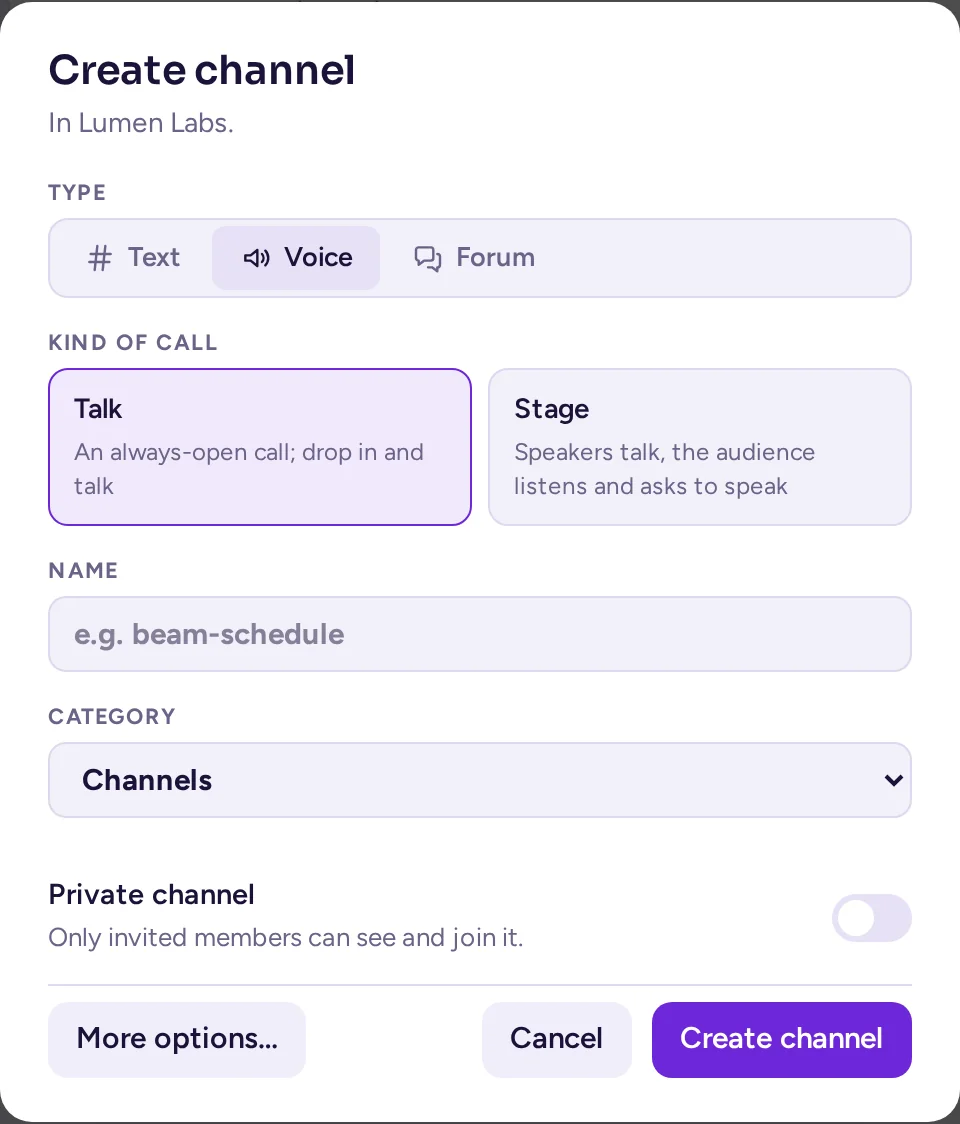
The Voice Channels app has two settings, in System Console › Plugins › Voice Channels: Join when opening a voice channel (on by default) and Allow video in voice channels (on by default, but see video above). Voice is a channel type, picked when the channel is created (see Create a channel); there's no later "turn into a voice channel" step. These two settings still apply to every voice channel. Creating one needs the Voice Channels app active; without it, Voice is greyed out in the create-channel dialog.
AM_CALLS_DISABLE=true. Voice channels then stop working too.Larger servers: an external rtcd
By default one Antimatter server carries all the call media. For many simultaneous calls, or to keep the media off the chat server, the Calls app can hand the media to rtcd, a separate media server (Mattermost's open-source rtcd, version 0.17 or newer). Set RTCD service URL (AM_CALLS_RTCD_SERVICE_URL), for example https://rtcd.example.com: all calls then go through it, and clients send their media to rtcd's own port instead of Antimatter's. Credentials can be given with AM_CALLS_RTCD_CLIENT_ID and AM_CALLS_RTCD_AUTH_KEY; without them, the app registers itself with rtcd. No licence is needed. The Calls app shows administrators a warning recommending rtcd when a server often has more than 50 people in calls at once.
Transcription and live captions
Antimatter can transcribe calls with a speech-to-text model you run yourself, and show live captions while people speak. Antimatter uses any server that offers an OpenAI-compatible /v1/audio/transcriptions endpoint, such as a Whisper server on your network. No extra service from Antimatter is needed.
How it works
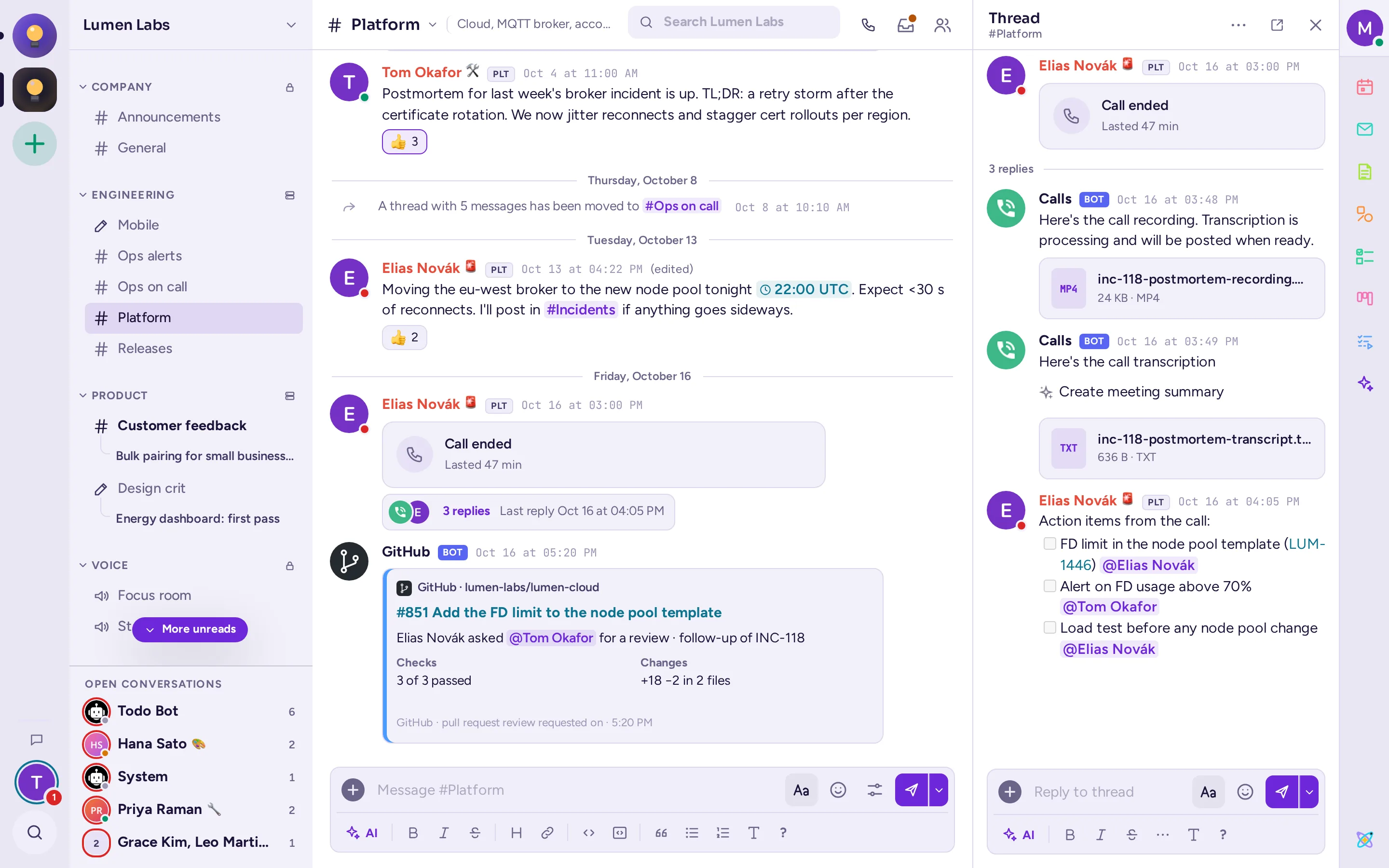
- The host of a call starts transcription with Transcribe the call in the call controls. A Transcribing badge tells everyone.
- Each participant's app listens to its own microphone, cuts the speech into short pieces (up to 12 seconds, never while muted) and sends them to Antimatter, which forwards them to your speech-to-text server.
- With live captions on, each piece's text is shown to the participants as a caption right away.
- When transcription stops or the call ends, the Calls bot posts the transcript as a text file and a WebVTT subtitle file, in the call's thread (in voice channels, in the channel).
- With Summarize transcriptions on, the AI chat app's default agent also posts a summary in the thread (see AI).
Set it up
Set these on the antimatter service:
services:
  antimatter:
    environment:
      AM_CALLS_ENABLE_TRANSCRIPTIONS: "true"
      AM_CALLS_TRANSCRIBE_API: openai
      AM_CALLS_TRANSCRIBE_API_OPEN_AIURL: http://stt.internal:8000/v1
      AM_CALLS_TRANSCRIBE_API_OPEN_AI_MODEL: whisper-1
      AM_CALLS_TRANSCRIBE_API_OPEN_AI_KEY: ""
      AM_CALLS_ENABLE_LIVE_CAPTIONS: "true"
AM_CALLS_LIVE_CAPTIONS_LANGUAGE: en| Setting | Variable | What to put |
|---|---|---|
| Enable call transcriptions (Beta) | AM_CALLS_ENABLE_TRANSCRIPTIONS | true |
| Call transcriber API | AM_CALLS_TRANSCRIBE_API | openai (shown as "OpenAI-compatible API (no job service)") |
| Speech-to-text API URL | AM_CALLS_TRANSCRIBE_API_OPEN_AIURL | The API's base URL, up to and including /v1. |
| Speech-to-text model | AM_CALLS_TRANSCRIBE_API_OPEN_AI_MODEL | The model name as the API knows it, for example whisper-1. Required. |
| Speech-to-text API key | AM_CALLS_TRANSCRIBE_API_OPEN_AI_KEY | Sent as a bearer token. Leave it empty if the API needs none. |
| Enable live captions (Beta) | AM_CALLS_ENABLE_LIVE_CAPTIONS | true for captions during the call. |
| Live captions language | AM_CALLS_LIVE_CAPTIONS_LANGUAGE | The spoken language, as a two-letter code (en by default). It is sent to the speech-to-text API for transcripts too, so set it even without captions. |
| Summarize transcriptions | AM_CALLS_SUMMARIZE_TRANSCRIPTIONS | true for an AI summary after the call. |
openai transcriber: starting a recording would then try to start the job-service transcriber and fail.The audio of everyone who speaks while transcription is on goes to the speech-to-text server you configured, and the transcript is posted where everyone in the channel can read it. Tell your users, and keep that server on your own network if calls are confidential.
Recordings
Recording calls (and transcribing with the built-in whisper.cpp or Azure transcribers) runs in separate containers started by a job service, Mattermost's open-source calls-offloader, which you deploy yourself next to Antimatter. The settings are Enable call recordings (AM_CALLS_ENABLE_RECORDINGS, off by default), Job service URL (AM_CALLS_JOB_SERVICE_URL), Maximum call recording duration (60 minutes by default, 15 to 180) and Call recording quality (low, medium or high; medium by default). No licence is needed. Once recordings are on, the host of a call starts and stops a recording with Record the call in the call controls; everyone in the call sees that it is recorded, and the recording is posted in the call's thread when it stops. Calls in voice channels have no thread, so they can't be recorded. For transcripts and captions alone, the speech-to-text setup above is simpler: it needs no job service.