 Antimatter
Configuration
Where Antimatter keeps its settings, the three ways to change them (System Console, environment variables, amctl), and where the logs go.
Where the settings live
Every server setting has a name made of a section and a key, such as ServiceSettings.SiteURL or EmailSettings.SMTPServer. Together they form one configuration, stored in one of two places:
- In the database. The site's compose file sets
AM_CONFIGto the PostgreSQL connection URL, so the configuration is a row in the database and the container keeps nothing on disk. Several servers sharing one database also share their configuration. - In a file. Without
AM_CONFIG, the server readsconfig/config.jsonnext to itsbin/directory (/antimatter/config/config.jsonin the Docker image). The release archive and the production compose files of antimatter-docker work this way, and so do the .deb and .rpm packages, whose file is/etc/antimatter/config/config.json. Keep this file readable by the server's user only: it holds passwords and keys.
AM_CONFIG (or the --config flag of the antimatter command) accepts either a file path or a postgres:// URL. Settings you leave out take their default value.
To move an existing configuration from a file to the database, run this on the server, then start the server with AM_CONFIG set to the same URL:
amctl --local config migrate /opt/antimatter/config/config.json \
    "postgres://antimatter:PASSWORD@localhost:5432/antimatter?sslmode=disable&connect_timeout=10"
Environment variables
Any setting can also be given as an environment variable. Variables win over the stored configuration, which makes them a good fit for what belongs to the deployment: the database, the site URL, the file storage, the ports.
Naming rule
Write AM_, then the section, then the key, in capital letters and separated by underscores. The words inside a section or key name are not separated:
| Setting | Variable |
|---|---|
ServiceSettings.SiteURL | AM_SERVICESETTINGS_SITEURL |
SqlSettings.DataSource | AM_SQLSETTINGS_DATASOURCE |
EmailSettings.SMTPServer | AM_EMAILSETTINGS_SMTPSERVER |
PrivacySettings.EnableUserBlocking | AM_PRIVACYSETTINGS_ENABLEUSERBLOCKING |
- True and false settings take
trueorfalse; numbers are plain numbers. - List settings take their values separated by spaces, for example
AM_SERVICESETTINGS_TRUSTEDPROXYIPHEADER="X-Forwarded-For X-Real-IP". - Settings that are objects take JSON. The only such variable for apps is
AM_PLUGINSETTINGS_PLUGINS, and it replaces the settings of every app at once: set app settings in the System Console or withamctlinstead (see below). - Older Mattermost setups use the
MM_prefix, for exampleMM_SQLSETTINGS_DATASOURCE. It still works as a legacy alias. When both are set, theAM_variable wins.
A setting given by a variable is locked in the System Console, with the note "This setting has been set through an environment variable. It cannot be changed through the System Console." It is not written to the stored configuration: remove the variable and the stored value applies again.
With Docker Compose
Add variables under environment: of the antimatter service, or in a compose.override.yaml next to compose.yaml (Compose reads it automatically, and it survives updates of the downloaded file):
services:
  antimatter:
    environment:
      AM_EMAILSETTINGS_SMTPSERVER: smtp.example.com
      AM_EMAILSETTINGS_SMTPPORT: "587"
      AM_LOGSETTINGS_CONSOLELEVEL: INFO
Apply changes with docker compose up -d, which recreates the container.
Variables read by the apps
A few variables are not settings and have no System Console field: AM_CONFIG (where the configuration is), and AM_AI_ENCRYPTION_KEY and AM_AI_ENCRYPTION_PREVIOUS_KEYS, the key that encrypts the API keys of model connections (see AI).
A few apps read their own variables, set on the antimatter service: the Calls app reads AM_CALLS_* (see Calls and voice), and the GIFs app reads AM_GIFS_SERVICE_URL, AM_GIFS_API_KEY and AM_GIFS_UPLOAD_KEY (see Bundled apps).
The System Console
The System Console is the administration area of the web app, for system administrators. To open it, click your picture at the top of the app rail and choose System Console, or go to https://chat.example.com/admin_console. Its sidebar has a Find settings box that searches every page.
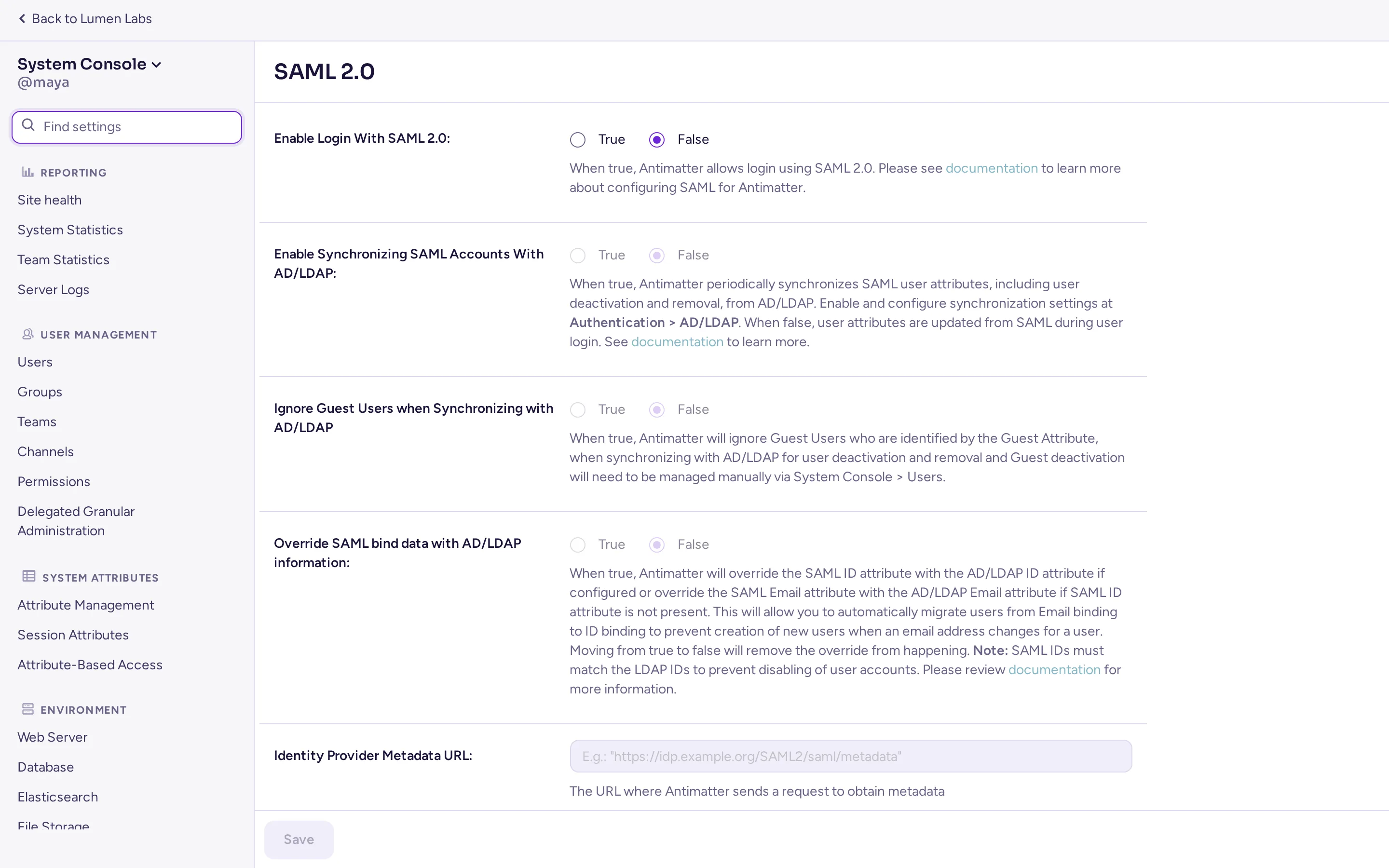
Its sections are:
- Reporting: statistics and the server logs.
- User Management: users, groups, communities (listed as Teams), channels, permissions and delegated administration.
- System Attributes: custom profile attributes and attribute-based access.
- Environment: web server, database, file storage, image proxy, SMTP, push notifications, rate limiting, logging, session lengths, performance monitoring.
- Site Configuration: branding, users and teams, notifications, posts, file sharing and the other server-wide behaviours.
- Authentication: sign-up, email and password sign-in, MFA, AD/LDAP, SAML 2.0, OAuth 2.0, OpenID Connect and guest access.
- AI: model connections and the built-in AI features (rewrite, recaps, auto-translation, text to speech). See AI.
- Plugins: app management and each installed app's settings.
- Integrations: webhooks, slash commands, bot accounts, GIFs, text to speech, CORS.
- Compliance: data retention, compliance export and monitoring, audit logging, custom terms of service.
- Experimental: features that may change.
In this guide, a setting is written as its path in the System Console, then its label, then its configuration key, for example System Console › Site Configuration › Users and Teams › Enable ignoring, blocking and message requests (PrivacySettings.EnableUserBlocking).
Most changes apply as soon as you click Save. A few (the listen address, some database and cache settings) need a restart, and the page says so.
Guild or workspace
Every community has a kind, which sets some of its defaults:
- Guild, for a public or hobby community: calls are off in its channels (people talk in voice channels), and only its admins, and the roles that manage channels, archive channels.
- Workspace, for a company or an organisation: calls are on in its channels, and the admins of a channel (whoever created it, and those they made admins) archive it too.
System Console › Site Configuration › Users and Teams › Kind of new communities (TeamSettings.DefaultCommunityKind, AM_TEAMSETTINGS_DEFAULTCOMMUNITYKIND) is the kind of the communities created from then on: Guild (the default) or Workspace; the setting still stores and reads the older values community and workplace. A layout preset chosen when creating a community sets its own kind. Each community's admins can change its kind later, in Community settings › General. New guilds put everyone in every channel (TeamSettings.AllChannelsMembershipForNewTeams) is the default for new guilds only: workspaces never start this way (see Everyone in every channel).
Burn-on-read messages
People can send messages that are deleted a while after each reader opens them (see Burn-on-read messages). The settings are in System Console › Site Configuration › Posts, under Burn-on-Read Messages:
| Setting | Key and variable | Default |
|---|---|---|
| Enable Burn-on-Read Messages | ServiceSettings.EnableBurnOnRead, AM_SERVICESETTINGS_ENABLEBURNONREAD | on |
| Burn-on-Read Duration: how long a message lasts once opened, when its sender chose no duration | ServiceSettings.BurnOnReadDurationSeconds, AM_SERVICESETTINGS_BURNONREADDURATIONSECONDS | 600 (10 minutes) |
| Longest duration senders can choose: from 1 hour to 7 days; a longer choice is shortened to it | ServiceSettings.BurnOnReadMaximumDurationSeconds, AM_SERVICESETTINGS_BURNONREADMAXIMUMDURATIONSECONDS | 86400 (1 day) |
| Maximum time to live for burn-on-read messages: a message is deleted this long after it was sent, even if not everyone read it | ServiceSettings.BurnOnReadMaximumTimeToLiveSeconds, AM_SERVICESETTINGS_BURNONREADMAXIMUMTIMETOLIVESECONDS | 604800 (7 days) |
The longest duration is checked again when a message is read, so lowering it also shortens the messages already sent.
The amctl command-line tool
amctl manages a server from the command line: users, communities, channels, apps, configuration, jobs and more. It talks to the server in one of two ways.
Local mode, on the server
Local mode lets amctl talk to the server through a Unix socket, without signing in. It is on in the Docker image and with the .deb and .rpm packages. On a server installed from an archive, turn it on with ServiceSettings.EnableLocalMode (AM_SERVICESETTINGS_ENABLELOCALMODE=true). The socket is /var/tmp/antimatter_local.socket by default (ServiceSettings.LocalModeSocketLocation).
# with Docker Compose
docker compose exec antimatter amctl --local system status
# with a release archive
sudo -u antimatter /opt/antimatter/bin/amctl --local system status
# with the .deb or .rpm package
sudo -u antimatter amctl --local system statusdocker compose exec on the host, has full system administrator rights.Remote, with an account
From any machine, sign in with a system administrator account (or a personal access token), then run commands against that server:
amctl auth login https://chat.example.com --name prod --username admin
amctl system status
Configuration commands
| Command | What it does |
|---|---|
amctl config get ServiceSettings.SiteURL | Prints one setting. |
amctl config set TeamSettings.EnableOpenServer false | Changes one setting. List settings take one value or several. |
amctl config patch settings.json | Merges a JSON file of settings into the configuration. |
amctl config show | Prints the whole configuration as JSON. |
amctl config edit | Opens the configuration in your editor ($EDITOR). |
amctl config reset | Resets settings to their defaults. |
amctl config reload | Reloads the configuration from where it is stored, after a change made outside the server. |
App settings live under PluginSettings.Plugins.<app id>, with keys in lower case. For example, to set the GIFs app's service URL and key from the Docker host:
docker compose exec -T antimatter amctl --local config patch /dev/stdin <<'EOF'
{"PluginSettings": {"Plugins": {"com.antimatterchat.gifs": {
  "serviceurl": "http://gifs:8080/v2",
  "apikey": "the GIFS_API_KEY of your .env"
}}}}
EOF
Other useful commands: amctl user create, amctl user deactivate, amctl team create, amctl plugin list, amctl plugin enable, amctl system supportpacket and amctl logs. Run amctl help <command> for each one's options.
Logs
The server writes its log to two places, each with its own level (DEBUG, INFO, WARN or ERROR), set in System Console › Environment › Logging:
| Destination | Settings | Defaults |
|---|---|---|
| The console (standard output) | Output logs to console (LogSettings.EnableConsole), Console Log Level (LogSettings.ConsoleLevel), Output console logs as JSON (LogSettings.ConsoleJson) | on, DEBUG, JSON |
A file, antimatter.log | Output logs to file (LogSettings.EnableFile), File Log Level (LogSettings.FileLevel), File Log Directory (LogSettings.FileLocation) | on, INFO, the logs/ directory next to bin/ |
Log files are rotated at 100 MB and the old ones compressed.
The site's compose file turns file logging off (AM_LOGSETTINGS_ENABLEFILE=false), so the logs are only in the container's output:
docker compose logs -f antimatter
docker compose logs --since 1h antimatter | grep -i error
The console level defaults to DEBUG, which is verbose. On a busy server, set AM_LOGSETTINGS_CONSOLELEVEL=INFO. The config.json of the release archive and of the packages already sets it to INFO. With a release archive under systemd, the console output goes to the journal (journalctl -u antimatter) and the file to /opt/antimatter/logs/antimatter.log. The packages turn file logging off, so their logs are only in the journal.
Log and audit files must stay inside the logging root: AM_LOG_PATH (the older MM_LOG_PATH still works) if it's set, otherwise the logs folder. This is enforced by default: a File Log Directory, advanced logging target, or audit log path outside the root stops the server at startup, and is refused when you save the configuration. Turn enforcement off with AM_FEATUREFLAGS_ENFORCELOGPATHROOT=false. With AM_LOG_PATH set and File Log Directory left blank, logs go to AM_LOG_PATH.
When file logging is on, system administrators can also read the log in System Console › Reporting › Server Logs: colour-coded level badges, quick filters by level, a live tail, and time-range presets from 5 minutes to 24 hours, or with amctl logs.